
How to Submit and Manage Vendor Quotations
Updated 10/12/20262 min read
After an RFQ is assigned to a vendor, the vendor can review the requirement and submit a quotation. Where necessary, an administrator can enter or update the quotation on the vendor’s behalf, such as when responding to an emailed offer or supporting a one-time vendor.
Vendor submission steps
1. Sign in to the Vendor Portal and open the assigned RFQ.
2. Review the requested material/service, quantity and any RFQ instructions.
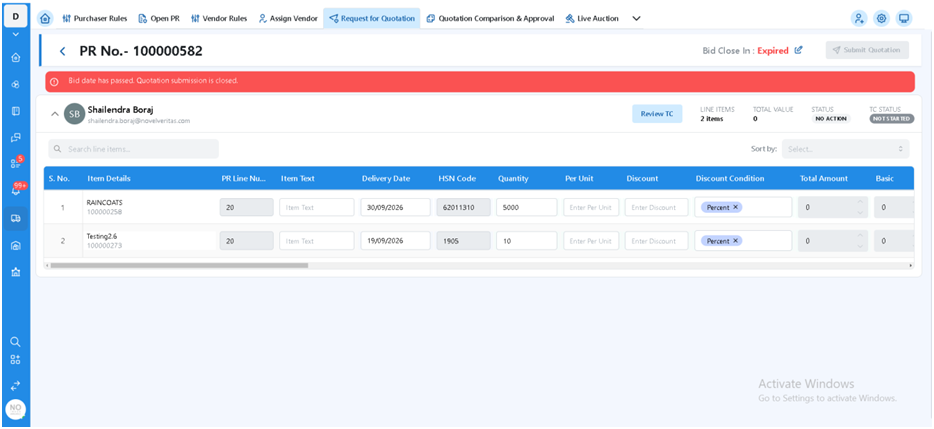
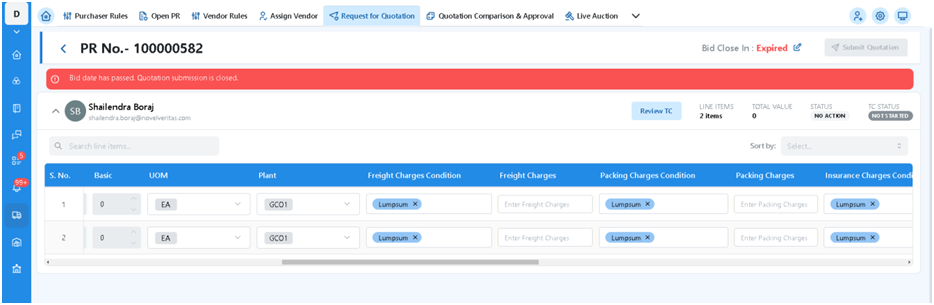
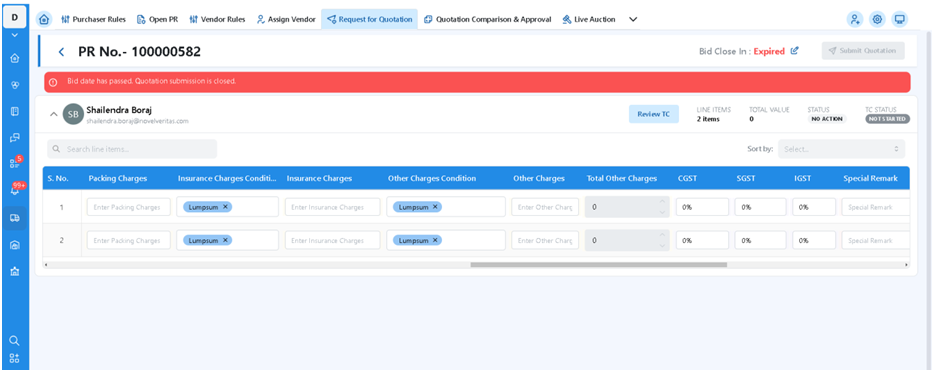
3. Enter the unit price, delivery date, quotation validity, payment terms and Incoterms as required by the portal form.
4. Review the entered values for accuracy.
5. Submit the quotation. It is saved against the RFQ for comparison.
Administrator entry steps
6. Open the relevant RFQ using the authorized Admin role.
7. Enter the quotation details from the vendor’s offer, or update the quotation where permitted.
8. Save the quotation against the RFQ.
9. Ensure the audit trail identifies who entered or updated the quotation.
10. Do not edit a quotation after comparison has started unless it is formally reopened with a reason, as specified in the source process.
Quotation fields
|
Field |
What to enter / verify |
|
Unit price |
Vendor’s quoted price per unit |
|
Delivery date |
Vendor’s committed delivery date |
|
Validity |
Period during which the quotation remains valid |
|
Payment terms |
Agreed payment terms |
|
Incoterms |
Applicable delivery / trade terms, where required |
Notifications and controls
The source says that after a vendor is assigned to an RFQ, the system sends a notification through the configured channel, such as email and/or a Vendor Portal notification. The vendor can then log in, open the assigned RFQ, review the requirement and submit a quotation. Confirm the actual notification configuration before publishing.
· Restrict quotation entry and editing to authorized users.
· Keep an audit trail for administrator-entered or updated quotations.
· Lock quotation edits after comparison begins, unless the quotation is reopened with a documented reason.
· ME47 is cited in the source as a SAP quotation maintenance reference; validate the transaction’s applicability in the target system.
FAQs
Q. Who can submit a quotation?
A. The vendor can submit through the Vendor Portal, or an authorized Admin can enter it on the vendor’s behalf.
Q. Which fields are listed in the source process?
A. Unit price, delivery date, validity, payment terms and Incoterms.
Q. How does a vendor know an RFQ is assigned?
A. The source describes a notification through the configured email and/or Vendor Portal channel.
Q. Can an Admin edit a quotation after comparison starts?
A. The source says the Admin should not edit it after comparison starts unless it is reopened with a reason.
Q. Which SAP transaction is referenced for quotation maintenance?
A. ME47 is mentioned in the source; confirm its applicability in the target SAP release and process.
Related content
Is this article helpful?
Help us improve our articles.