
How to Compare Quotations, Approve Vendors and Create Purchase Orders
Updated 10/12/20263 min read
Once vendors submit quotations, the purchaser compares the offers, selects the proposed vendor for each line item, enters the proposed quantity and commercial details, and submits the award for approval. The Create PO option becomes available after the required workflow approvals are complete.
Step 1: Compare quotations
1. Open Quotation Comparison & Approval in the portal.
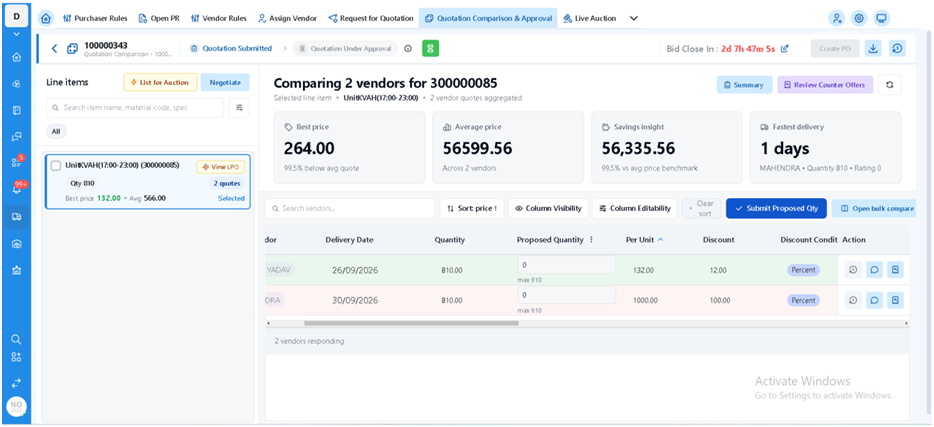
2. Select the required PR line item and choose View Vendor Comparison.
3. Review the quotations received from the assigned vendors.
4. Compare the available parameters, which may include delivery date, per-unit amount/price, discount and total amount.
5. Select the quotation/vendor proposed for award based on the requirement and configured decision criteria.
Step 2: Enter proposed quantity and commercial details
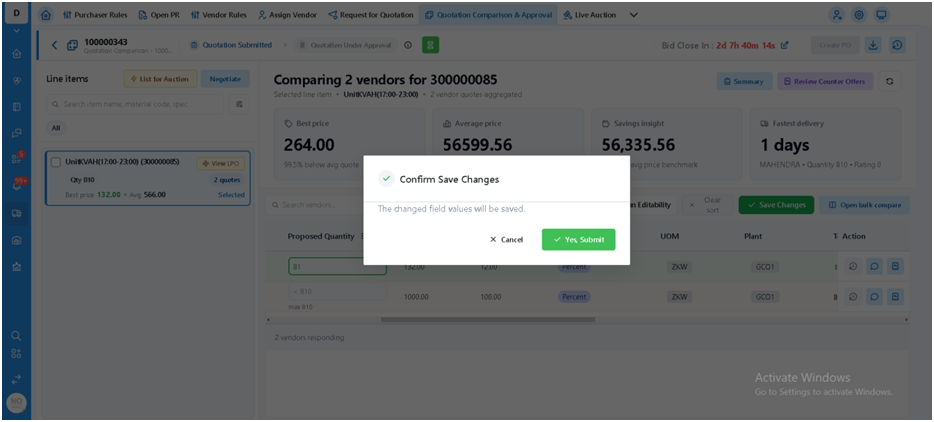
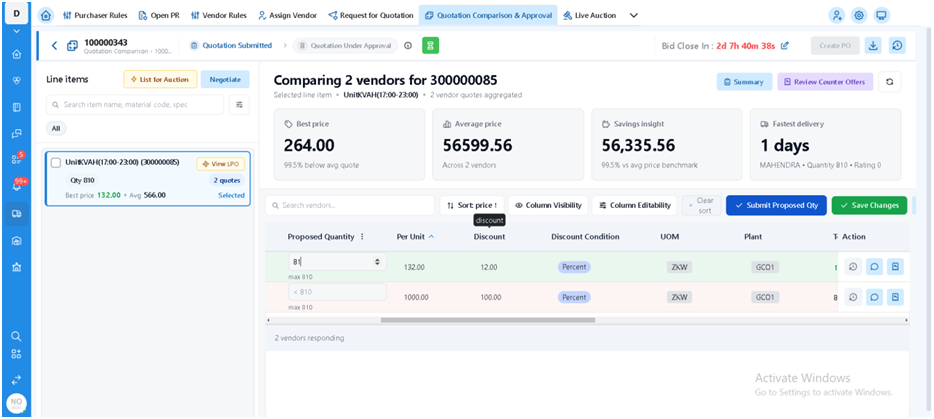
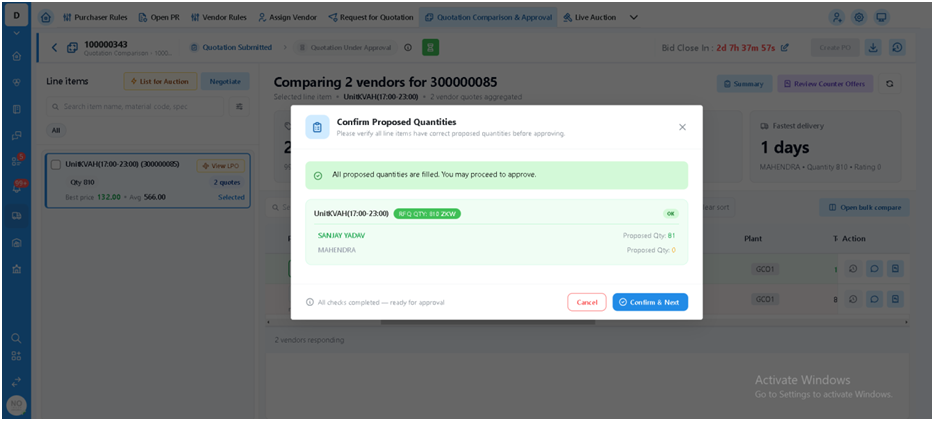
6. Enter the proposed quantity for the selected vendor and line item.
7. Maintain the applicable tax code.
8. Select the agreed payment terms.
9. Enter item text for specifications, delivery instructions, commercial conditions or other relevant remarks.
10. Submit the proposed quantity details or save changes.
Step 3: Submit quotation for approval
11. Move to Quotation Under Approval and select Confirm & Next.
12. Select the PO Type. The source states that it must match the originating PR Type.
13. Complete the required quotation approval form fields.
14. Attach supporting quotations, approvals or other required documents.
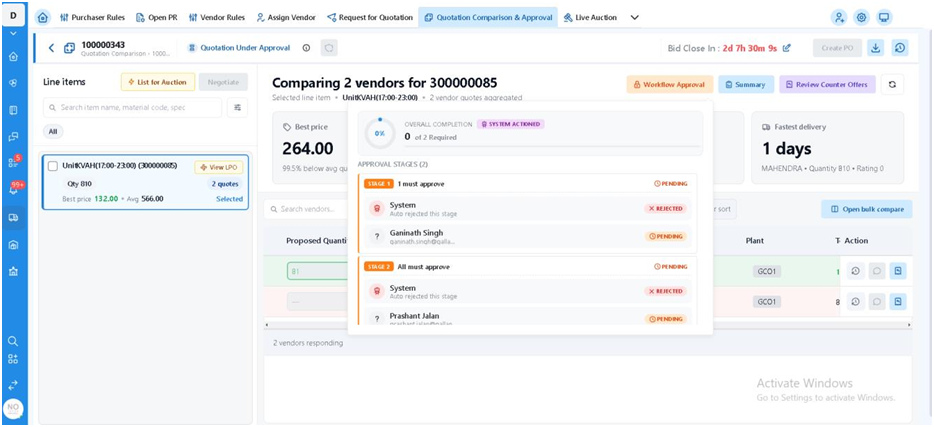
15. Click Submit to trigger the configured workflow approval.
Quotation approval form fields
|
Field |
Purpose / instruction from source |
|
PO Type* |
Select the PO type; it must correspond to the PR type. |
|
Quotation Approval Condition |
Select or maintain the applicable approval condition, if required. |
|
Description |
Describe the quotation / PO approval. |
|
Comment |
Add approval remarks or comments. |
|
PO Header Text |
Enter information or instructions that apply to the overall PO. |
|
Documents |
Attach supporting quotations, approvals or other required files. |
|
BG Applicable |
Specify whether a Bank Guarantee is applicable. |
|
Auction Status |
Review the applicable auction status, such as Live, where relevant. |
|
PR Line |
Select or search for the PR line item linked to the quotation. |
Step 4: Complete workflow and create the PO
16. The approver reviews the submitted quotation/PO request and approves or rejects it.
17. If rejected, the source says the item returns to the purchaser with comments for follow-up.
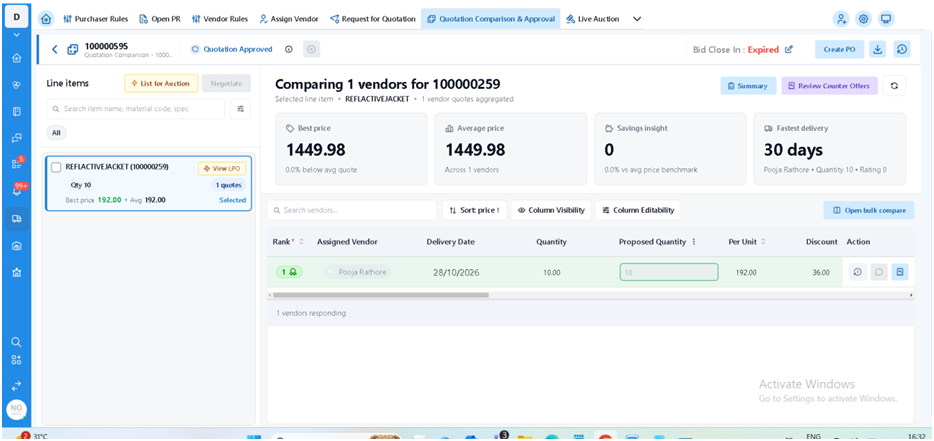
18. After all required workflow approval levels are completed, confirm that Create PO is active.
19. Select Create PO to generate the Purchase Order. The source references ME21N for PO creation in SAP.
20. Record the generated PO number and continue with the downstream procurement process, which is outside the scope of this article.
SAP transaction references
|
Transaction |
Use stated in the source |
|
ME49 |
Quotation price comparison reference |
|
ME21N |
Create a Purchase Order |
|
ME47 |
Quotation maintenance reference mentioned earlier in the process |
Important controls
· Review commercial values and the proposed quantity before submission.
· Confirm the selected PO Type matches the originating PR Type as required by the documented process.
· Ensure supporting documents and approval comments are attached where required.
· Do not assume a rejected item is approved; review the rejection comments and follow the configured rework process.
· Goods receipt, invoice verification and payment are outside the scope of this process document.
FAQs
Q. What parameters can be used to compare quotations?
A. The source lists delivery date, per-unit amount/price, discount and total amount, where applicable.
Q. Which details are entered before approval?
A. Proposed quantity, tax code, payment terms and item text; the approval form also includes PO and approval details.
Q. Must the PO type match the PR type?
A. Yes. The source explicitly states that the PO Type must match the PR Type; validate the rule in the configured system.
Q. What happens when the quotation is rejected?
A. The source says the item returns to the purchaser with comments.
Q. When can the PO be created?
A. After the quotation passes all required workflow approval levels and the Create PO option becomes active.
Related content
Is this article helpful?
Help us improve our articles.