
Set Up Leave Policies
Updated 8/14/20263 min read
Go to Leave Management > Leave Policy, select a Leave Type, set the Total Quota and Max Carry Forward, choose whether the policy is Yearly or Monthly, and click Submit.
A leave type defines the category — "Privilege Leave," "Sick Leave," and so on. A leave policy defines the numbers behind it: how many days employees get, how many unused days roll over into the next cycle, and how often the quota resets. This separation is deliberate and genuinely useful, because it means you can create multiple policies for the same underlying leave type. A common pattern, for example, is offering a more generous Privilege Leave policy for senior roles or longer-tenured employees, while junior or newer employees get a standard policy — both draw from the same "Privilege Leave" leave type, but with different quota numbers behind them.
The Max Carry Forward field deserves particular attention, since it's the setting most companies get wrong on the first pass. It's easy to assume carry forward should simply equal the total quota, but most companies actually want to cap how many unused days roll over, both to encourage employees to actually take their leave and to avoid unbounded liability building up on the books. Take a moment to think through your actual company policy before filling this in, rather than defaulting to whatever number feels obvious.
Step-by-step:
- From Leave Management, click Leave Policy.
- Click Add New Leave Policy.
- From the Leave Type dropdown, select the leave category this policy applies to—for example, "Privilege Leave" or "Half Day."
- Enter the Total Quota — the number of days employees under this policy are entitled to across the policy period.
- Enter the Max Carry Forward value — the maximum number of unused days that roll over into the next cycle. For example, a quota of 20 with a max carry forward of 15 means an employee who uses only 3 days can carry 15 into next year, capped even though they technically had 17 unused.
- Under Policy Applied Type, choose Yearly or Monthly depending on how often this quota should reset.
- If you selected Monthly, enter the Monthly Leave Allowed value — the number of days allowed per calendar month rather than per year.
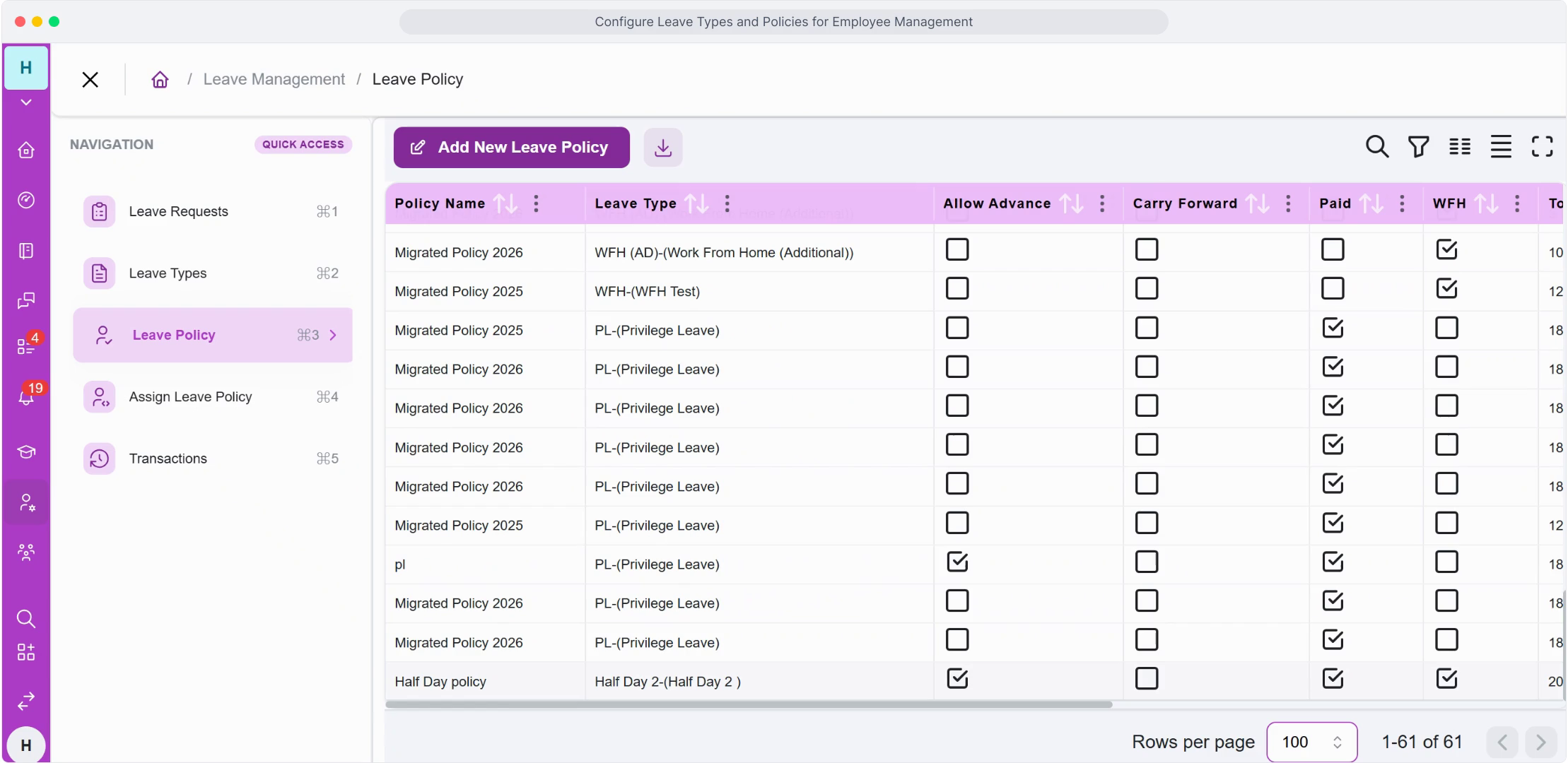
- Click Submit to save the policy. It will now be listed in your Leave Policy table alongside its quota, carry-forward, paid status, and WFH status, all visible in one row for quick review.
FAQ
Can two employees on the same leave type have different quotas?
Yes—create two separate policies against the same leave type (for example, "Standard PL Policy" and "Senior PL Policy") and assign each employee to the policy that fits them, covered in the next article.
What happens to days beyond the max carry forward limit?
Any unused days above the carry-forward cap simply don't roll over into the next cycle—they're effectively forfeited at the end of the policy period, following exactly whatever number you configured.
Can a policy reset every month instead of every year?
Yes—set Policy Applied Type to Monthly and define the Monthly Leave Allowed value. This is especially useful for leave types like work-from-home, which are typically capped per month rather than accumulated across a full year.
Should I create a new policy every year, or does the same policy roll over automatically?
A single policy configuration continues to apply until you change it—you don't need to re-create the same policy annually unless your quota numbers themselves are changing.
Related content
Is this article helpful?
Help us improve our articles.