
Configure Holiday Calendars
Updated 8/14/20262 min read
Go to Holiday Management, click Add New Holiday, enter a date and description, mark it as Ordinary or Not Ordinary, then add it to a named calendar (for example, "Calendar Year-2026") so it applies automatically to the right employees.
Public holidays affect attendance, payroll, and leave balances all at the same time—a day marked as a holiday shouldn't be counted as an absence, shouldn't draw from an employee's leave quota, and shouldn't need to be manually excluded from every report you run that month. Hoicko HRMS treats holidays as their own configurable calendar object rather than a hardcoded, region-specific list baked into the software, which means you control exactly which holidays apply, for which year, and—if needed—for which specific office or region.
Grouping holidays into a named calendar (rather than adding them one at a time with no structure) is what makes this scale across years and locations. A company operating across multiple regions might maintain separate calendars per office, each reflecting the correct local public holidays, and assign the right calendar to the right shift or location during shift setup.
Step-by-step:
- From the HRMS dashboard, click Holiday Management.
- Click Add New Holiday (or Create Holiday).
- Enter the holiday name—for example, "New Year's Day" or "Republic Day."
- Set the date for that specific holiday.
- Add a short description explaining the holiday and useful context for employees browsing the calendar.
- Choose the Holiday Type—ordinary or not ordinary—depending on how your company treats that particular day for pay and attendance purposes.
- To group holidays into a named calendar, enter a Description for the calendar itself (for example "New Calendar Year-2026"), then use the Holidays dropdown to select which individual holidays belong to it — you can add several at once, such as New Year's Day, Republic Day, and Raksha Bandhan, building out a full year's calendar in one sitting.
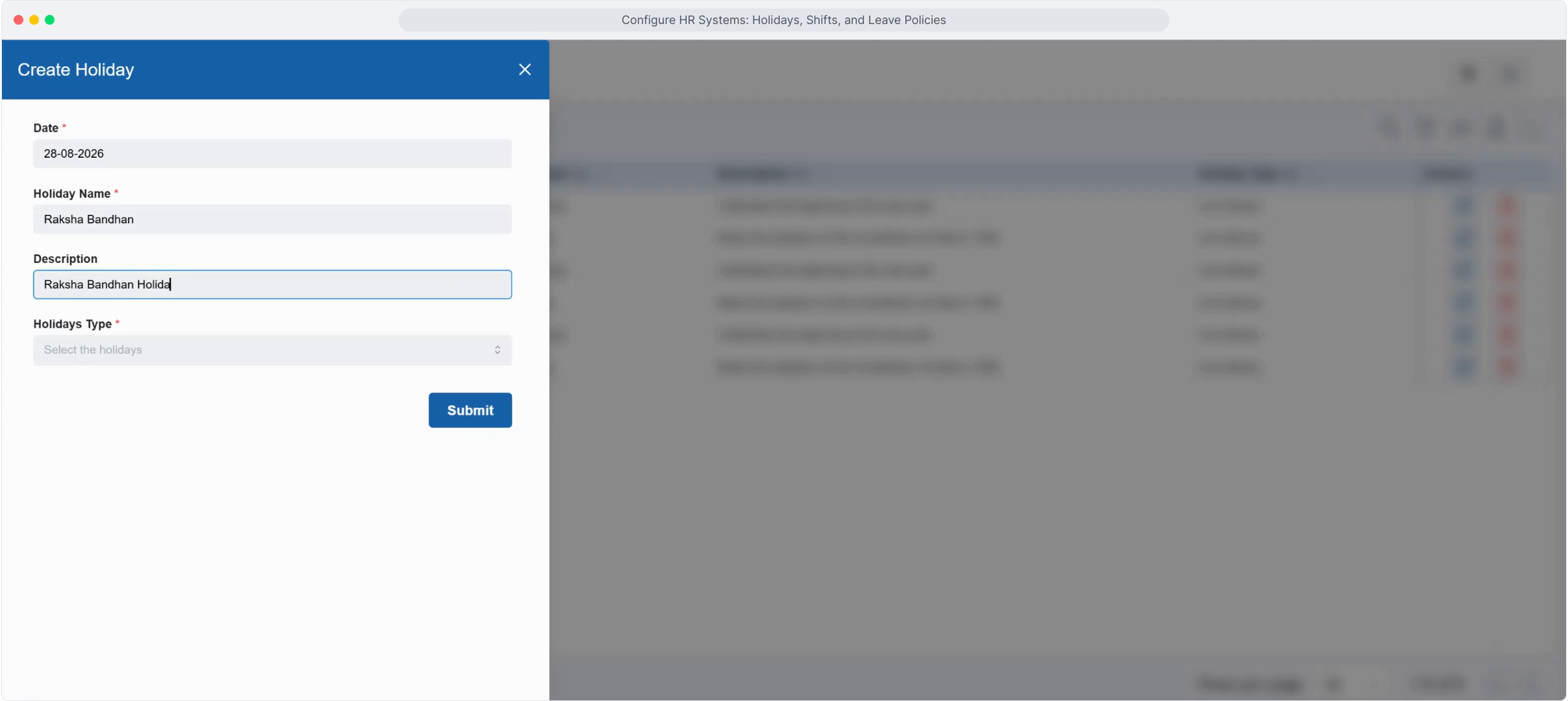
- Click Submit to save the calendar.
FAQ
Can I have different holiday calendars for different offices or regions?
Yes—create multiple named calendars (for example, one per office location) and apply the relevant one when configuring each shift, so employees at different sites correctly see their own region's holidays rather than a one-size-fits-all list.
Do holidays automatically exclude that day from attendance tracking?
Yes—once a date is added to an active holiday calendar and that calendar is applied to an employee's shift, it's excluded from absence tracking and doesn't count against leave quotas for anyone on that calendar.
Can I add recurring holidays for future years in advance?
Yes — holidays can be pre-loaded for upcoming years (for example, adding 2027 and 2028 dates ahead of time) so your calendar doesn't need annual re-entry every January, and shift schedules already pointed at "Year-2027" will pick up the holidays as soon as they're added.
What's the difference between "ordinary" and "not ordinary" holidays?
This distinction typically reflects how the day should be treated for pay or compliance purposes in your region—check with your HR or payroll policy for how your company classifies each holiday before assigning the type.
Related content
Is this article helpful?
Help us improve our articles.