
How Approval Workflows Work in Hoicko
Updated 9/1/20263 min read
Some tickets need more than a status change to close — they need someone with formal authority to explicitly sign off. This might be a completed development ready for closure, an SLA extension, or any change with meaningful business impact. For these cases, Hoicko uses a dedicated Approval Workflow system, layered on top of but distinct from the basic ticket Status field.
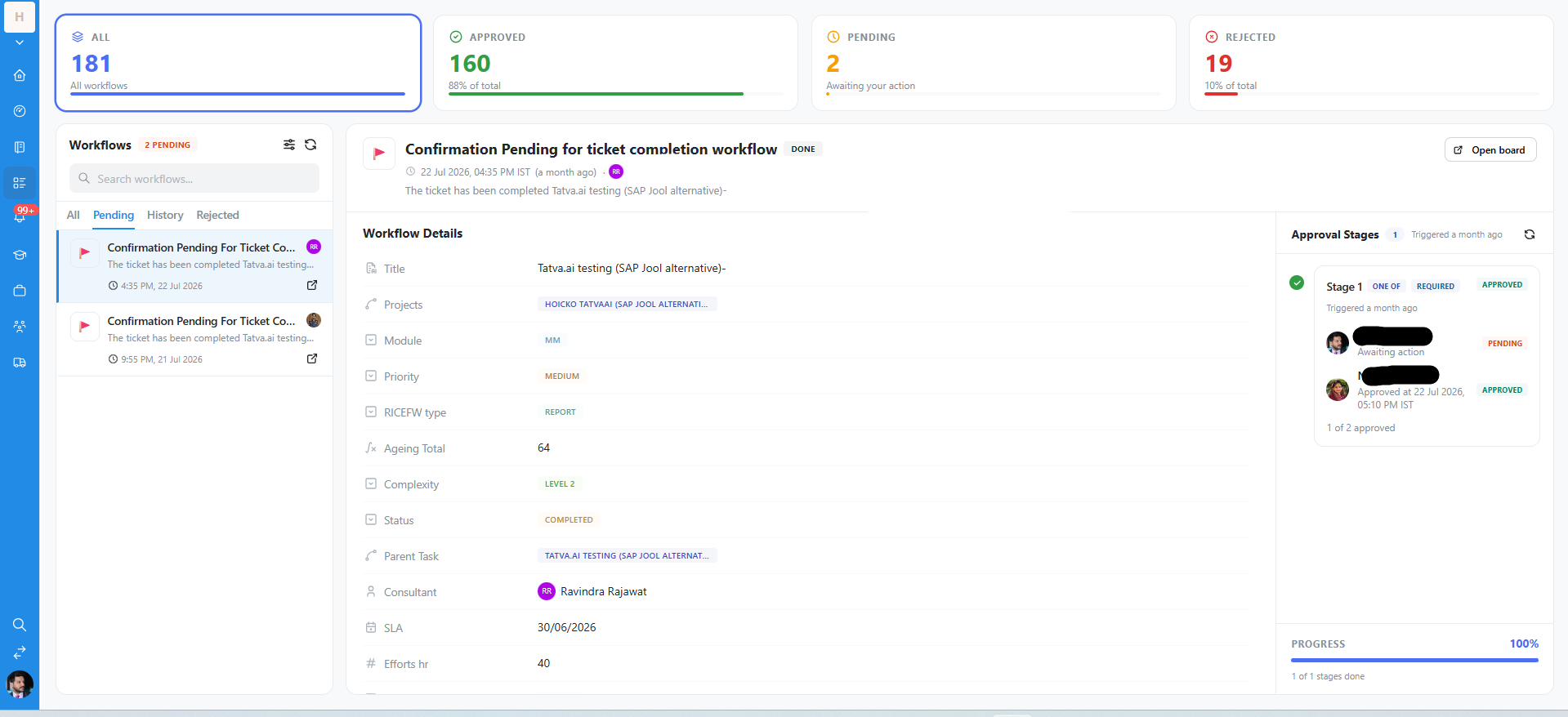
The four top-level counters
At the top of the Workflows screen, four cards give an instant, at-a-glance health check of the entire approval pipeline:
- ALL — the total number of workflows ever raised (for example, 181).
- APPROVED — how many have been fully signed off, shown alongside a percentage of total (for example, 160, or 88%).
- PENDING — workflows genuinely awaiting your action right now (for example, 2) — this is your personal action queue.
- REJECTED — declined workflows, again with their percentage of total (for example, 19, or 10%).
Workflow Details — the context an approver needs
Opening any individual workflow (for example, "Confirmation Pending for ticket completion workflow") reveals a Workflow Details panel listing fields such as Title, Projects, Module, Priority, RICEFW type, Ageing Total, Complexity, Status, Parent Task, Consultant, SLA, and Efforts hr. Together, these give an approver everything they need to make an informed decision without having to separately chase down the ticket's full history first.
Approval Stages — who needs to sign off, and in what order
On the right side of the screen, the Approval Stages panel makes the sign-off requirement explicit:
- Each Stage (e.g., "Stage 1") is labeled either ONE OF or ALL, alongside a REQUIRED tag — telling you plainly whether a single approver's decision is sufficient to move the stage forward, or whether every listed approver must individually sign off before it counts as complete.
- Each individual approver listed shows their current state — APPROVED, PENDING (with an "Awaiting action" note), or rejected — so it's immediately clear who is holding things up, if anyone.
- A Progress bar at the bottom of the panel (for example, "100% — 1 of 1 stages done") gives an instant summary of overall completion, useful for a quick glance without reading every individual line.
How to act on a workflow that's pending your approval
Open the workflow from your Pending tab specifically — it's filtered to exactly the items awaiting your action, so you're never scanning the full "All" list looking for your own to-dos. Review the Workflow Details panel, then approve or reject using the action buttons available on the screen. The moment you act, the Approval Stages panel and Progress bar update instantly for every other stakeholder watching that same workflow — there's no lag or separate sync step.
FAQs:
Q 1. "ONE OF" vs. "ALL" required — difference?
One approver suffices vs. every listed approver must sign off.
Q 2. Can a workflow have multiple stages?
Yes, sequential stages each with their own approvers.
Q 3. What if one approver rejects in an "ALL" stage?
The workflow typically moves to Rejected.
Q 4. Where do I see workflows needing my action?
The Pending tab.
Q 5. Does the Progress bar reflect just my approval?
No, the whole workflow's completion.
Q 6. Can I open the source board from a workflow?
Yes, via the "Open board" link.
Related content
Is this article helpful?
Help us improve our articles.