
Escalating Pending or Rejected Tickets in Hoicko"
Updated 9/1/20263 min read
Not every slow ticket genuinely needs a formal escalation — but when one has truly stalled, doing it correctly keeps the full history intact, avoids duplicate work, and gets the right person's attention quickly rather than adding more noise to an already-stuck situation. This article walks through the correct process end to end.
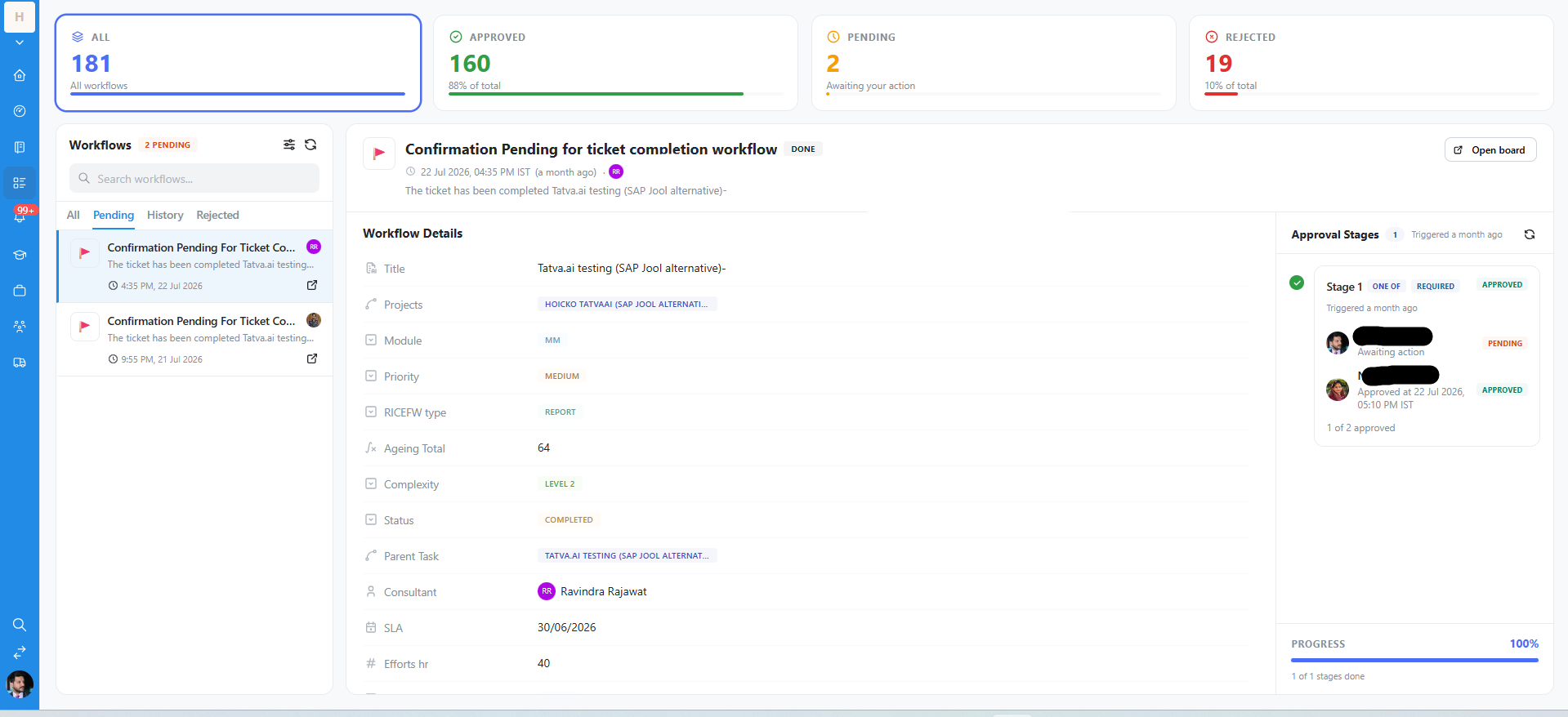
Step 1 — Confirm it's actually stuck, not just moving slowly. Open the workflow or ticket and check the Approval Stages panel to see precisely who the pending action currently sits with, and, using the "Awaiting action" note alongside Ageing Total, exactly how long it's genuinely been sitting there.
Step 2 — Add context before you escalate, not instead of escalating. Use the Conversation panel or Consultant Remark to log exactly why you believe escalation is warranted — for example, "Pending with [Approver] for 5 days past SLA." This single step means whoever you escalate to has full context the instant they open the ticket, rather than needing to ask you to explain from scratch.
Step 3 — Loop in the right escalation contact, in the right place. Add the relevant team lead or department HOD under "Assign person/team for mail information," or @mention them directly in the Conversation panel. Do not start a brand-new ticket for the same underlying issue — that fragments the audit trail across two records and typically slows resolution down rather than speeding it up.
Step 4 — Update Priority if the business impact has genuinely increased. If circumstances have changed since the ticket was first raised — a deadline moved up, a business process is now blocked — reflect that by updating the Priority field, so the ticket surfaces correctly in dashboards and filtered views used by managers making triage calls.
Step 5 — For rejected tickets, address the rejection reason directly before resubmitting. Check any rejection remark carefully first. Re-raising a workflow without addressing the stated reason for rejection almost always results in a second rejection, wasting an entire approval cycle for no gain.
Step 6 — Track the outcome, don't assume escalation alone guarantees action. Once escalated, keep an eye on the ticket's Status and Approval Stages until it's genuinely resolved. Escalation gets attention, but it doesn't remove the need for follow-up if there's still no movement within a reasonable window.
A note on tone and cadence
Escalation is most effective when it's used consistently and professionally — a team that escalates thoughtfully, with clear context, builds credibility that makes future escalations get faster attention. A team that escalates everything immediately, without first confirming a genuine stall, tends to see the opposite effect over time.
FAQs:
Q 1. Should I create a new ticket to escalate?
No — escalate within the existing ticket to keep the audit trail.
Q 2. How long should I wait before escalating?
Once it's clearly at risk of breaching SLA, per your team's policy.
Q 3. What if I disagree with a rejection reason?
Respond in the Conversation panel and loop in a higher approver.
Q 4. Does escalating auto-update Priority?
No, that's a manual update.
Q 5. Who do I escalate to if the Consultant is unresponsive?
Their team lead or the relevant SAP/IT HOD.
Q 6. Is there a record of past escalations?
Yes, if logged in Conversation or Consultant Remark.
Related content
Is this article helpful?
Help us improve our articles.