
Generate Attendance Reports
Updated 8/14/20262 min read
Open Attendance Report from Quick Access Applications to see a full employee list with daily present/absent markers, week-off indicators, and performance tags — filterable, sortable, and exportable.
The Attendance Report is the single view administrators use most often, and for good reason: it's a grid with every employee down the side and every day of the month across the top, which means patterns of absence, lateness, or unusual attendance become visible at a glance instead of being buried inside dozens of individual employee records that would take far too long to review one at a time.
Beyond being a review tool, this report is also the bridge to payroll — every element covered earlier in this guide (leave types, holidays, shift schedules) ultimately shows up correctly reflected here, which is exactly why it's the report exported at the end of a payroll cycle, as covered in the Leave & Payroll Processing category.
Step-by-step:
- From the HRMS dashboard, click Attendance Report.
- Review the employee grid — each row shows the employee's name, code, department tag, and a day-by-day attendance marker (Present, Absent, Week Off, and so on) across the selected month.
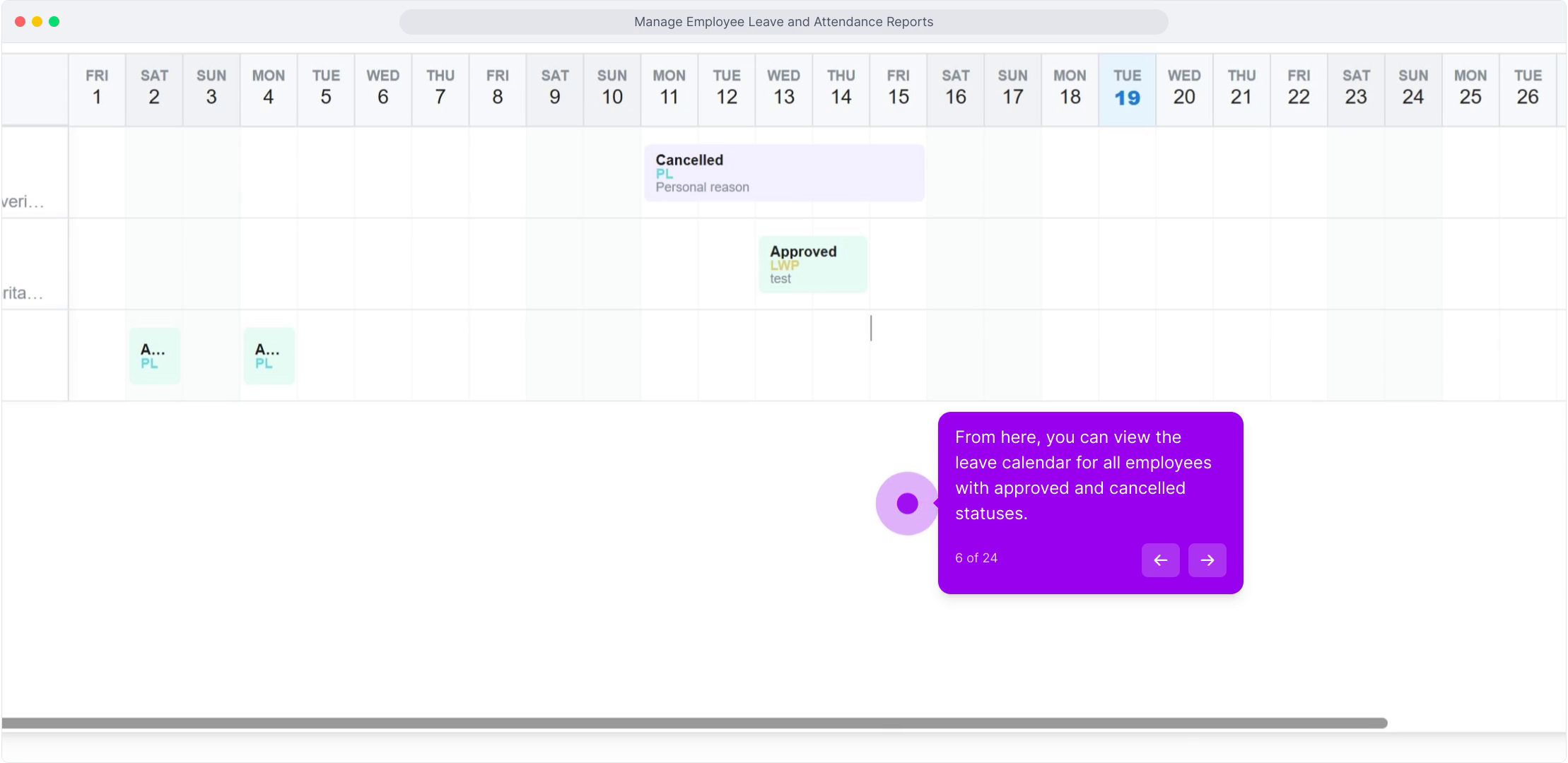
- Use Filter to narrow the list by department, team, or attendance status, so you're not scanning the full company when you only need one group.
- Use Import Excel if you need to bring in attendance data from an external source (for example, a legacy system during migration), or Export to download the current report.
- Click Attendance Legend to see what each color and symbol on the grid represents — useful for new administrators still learning the visual system.
- Click any employee row to drill into their individual attendance history, including exact check-in/check-out times for each day, not just the summary marker.
FAQ
Can I export the attendance report for payroll processing?
Yes—use the Export option to download attendance data in a format ready to feed directly into payroll calculations, as covered in more detail in the Leave & Payroll Processing category.
How does the report handle approved leave versus unapproved absence?
Approved leave and unapproved absence are shown with distinct markers, so payroll and HR can immediately tell the difference without needing to cross-check the Leave Requests module separately for every flagged day.
Can employees see their own attendance report?
Yes — employees have access to their own Attendance and My Team tiles from their personal dashboard, scoped to their own data (or their team's, if they're a manager with direct reports).
Can I compare attendance across two different months side by side?
The report is viewed one month at a time by default; for month-over-month comparison, export both periods separately and compare them outside HRMS, or review trends through the Employee Leave Status view for a longer-term picture.
Related content
Is this article helpful?
Help us improve our articles.