
What Is the Hoicko Dealer Portal?
Updated 10/13/20262 min read
The Hoicko Dealer Portal is a central workspace for organizing dealer-related information and day-to-day activities. Instead of relying only on scattered spreadsheets, email threads, and separate updates, teams can use the portal as a common place to review the information available to them, check current records, and understand what needs attention. The exact modules and actions visible to a user depend on the portal configuration and the permissions assigned by the administrator.
Why use a dealer portal?
A dealer network may include many partners, locations, contacts, requests, and ongoing activities. When information is stored in different places, employees can spend time checking which record is current or asking colleagues for the latest update. A shared dealer portal can make the process easier by giving authorized users a consistent place to view available records and work status. It also helps teams follow the same process rather than maintaining different versions of the same information.
What can users do in the portal?
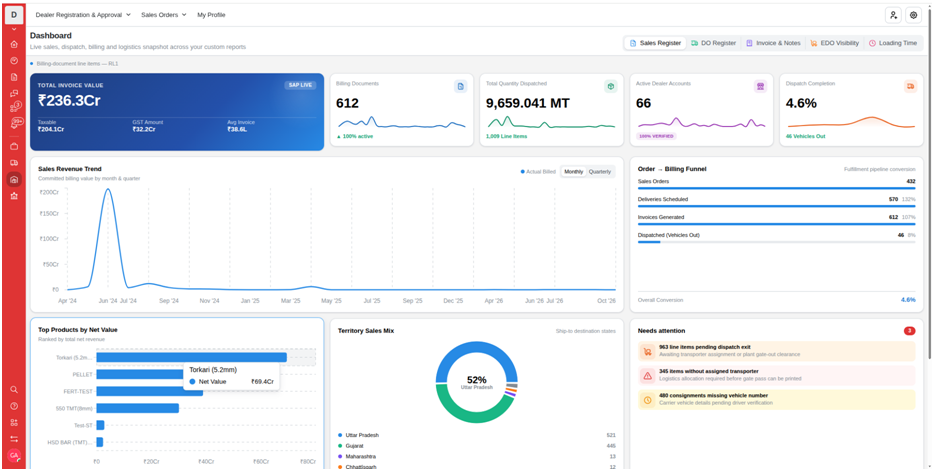
Depending on the enabled setup, users may be able to review dealer records, search or filter lists, open detailed forms, check statuses, work with assigned requests, and view dashboard summaries. Administrators may have additional access to configuration and user-management options. Always use the labels shown in your own workspace, because available functions can differ by role and company setup.
Who should use this guide?
This guide is useful for dealer operations teams, sales coordinators, administrators, and other authorized employees who need to find dealer information or understand the portal layout. New users should first learn the navigation and confirm which actions they are allowed to perform. If a menu or button described in your internal process is not visible, ask your portal administrator to check your access.
Step-by-step guide
1. Sign in using the account provided by your organization.
2. Review the navigation menu and identify the areas available to your role.
3. Open the dashboard or dealer list to understand how information is organized.
4. Select a record to review its available details and current status.
5. Use the approved process to update information or follow up on pending work.
Best practices
Check the relevant details before saving, follow your organization's process, and confirm that the expected result is visible after completing the task. If your screen differs from the guide, check with the portal administrator because available features can vary by setup and role.
Q: What is the Hoicko dealer portal about?
A: This guide explains the main purpose of what the Hoicko dealer portal is. and the practical steps users can follow in the Hoicko Dealer Portal.
Q: Why does my screen look different from the guide?
A: Menus, fields, and actions can vary by role and portal configuration. Check with your administrator if a required option is missing.
Q: Can every user make changes?
A: Not necessarily. Available actions depend on the permissions assigned to the user's account and the workflow settings.
Q: What should I do if the information looks incorrect?
A: Verify the record and any active filters first. If the issue remains, follow your internal correction process or contact the portal administrator.
Related content
Is this article helpful?
Help us improve our articles.