
How to Navigate the Dealer Portal
Updated 10/13/20262 min read
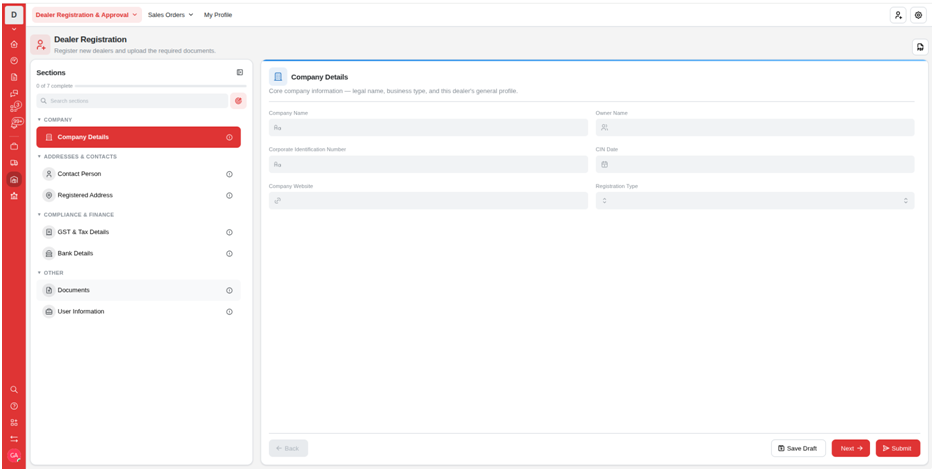
Good navigation helps users find the right information without repeatedly opening unrelated pages. The Hoicko Dealer Portal screenshots show a workspace with a navigation area, data lists, forms, and dashboard pages. The exact menu names can vary by configuration, but the same general approach applies: start from the main navigation, choose the relevant area, search or filter the list if needed, and open the record you want to review.
Start from the main navigation
Use the portal's navigation menu to identify the section that matches your task. For example, a user looking for a dealer record should begin in the dealer-related area rather than opening a dashboard chart and trying to locate the record there. If a menu is collapsed, expand it using the available control. Choose the section label carefully, especially when two areas have similar names.
Use lists to find records
Many portal pages show records in a table or list. Scan the column headings to understand which details are displayed. Use available search, filter, or sorting controls to narrow the list instead of reviewing every row manually. When the list is long, verify the dealer name or identifier before opening a record so that you do not make changes to the wrong entry.
Move between a list and its detail page
Select the appropriate row or action to open a record's details. Review the information before editing. If you need to return to the list, use the page navigation or back control provided by the application. After saving a change, confirm that the updated information is visible and that the record still has the expected status.
Step-by-step guide
1. Open the relevant section from the navigation menu.
2. Use the page title to confirm that you are in the correct area.
3. Search, filter, or sort the list if those controls are available.
4. Open the intended record and verify its identifying details.
5. Return to the list after reviewing or saving the record.
Best practices
Check the relevant details before saving, follow your organization's process, and confirm that the expected result is visible after completing the task. If your screen differs from the guide, check with the portal administrator because available features can vary by setup and role.
Q: What is how to navigate the dealer portal about?
A: This guide explains the main purpose of how to navigate the dealer portal and the practical steps users can follow in the Hoicko Dealer Portal.
Q: Why does my screen look different from the guide?
A: Menus, fields, and actions can vary by role and portal configuration. Check with your administrator if a required option is missing.
Q: Can every user make changes?
A: Not necessarily. Available actions depend on the permissions assigned to the user's account and the workflow settings.
Q: What should I do if the information looks incorrect?
A: Verify the record and any active filters first. If the issue remains, follow your internal correction process or contact the portal administrator.
Related content
Is this article helpful?
Help us improve our articles.