
Update Ticket Status & Add Consultant Remarks
Updated 9/1/20263 min read
Keeping status and remarks current is, in practical terms, the difference between a support desk that runs quietly and one where requesters constantly interrupt consultants with "any update?" messages. This article walks through the correct, repeatable workflow for logging progress on any ticket.
Step 1 — Open the ticket record From the Reports table, click on the ticket's row to open its full detail view, which shows every field alongside a Conversation panel.
Step 2 — Update the Status field
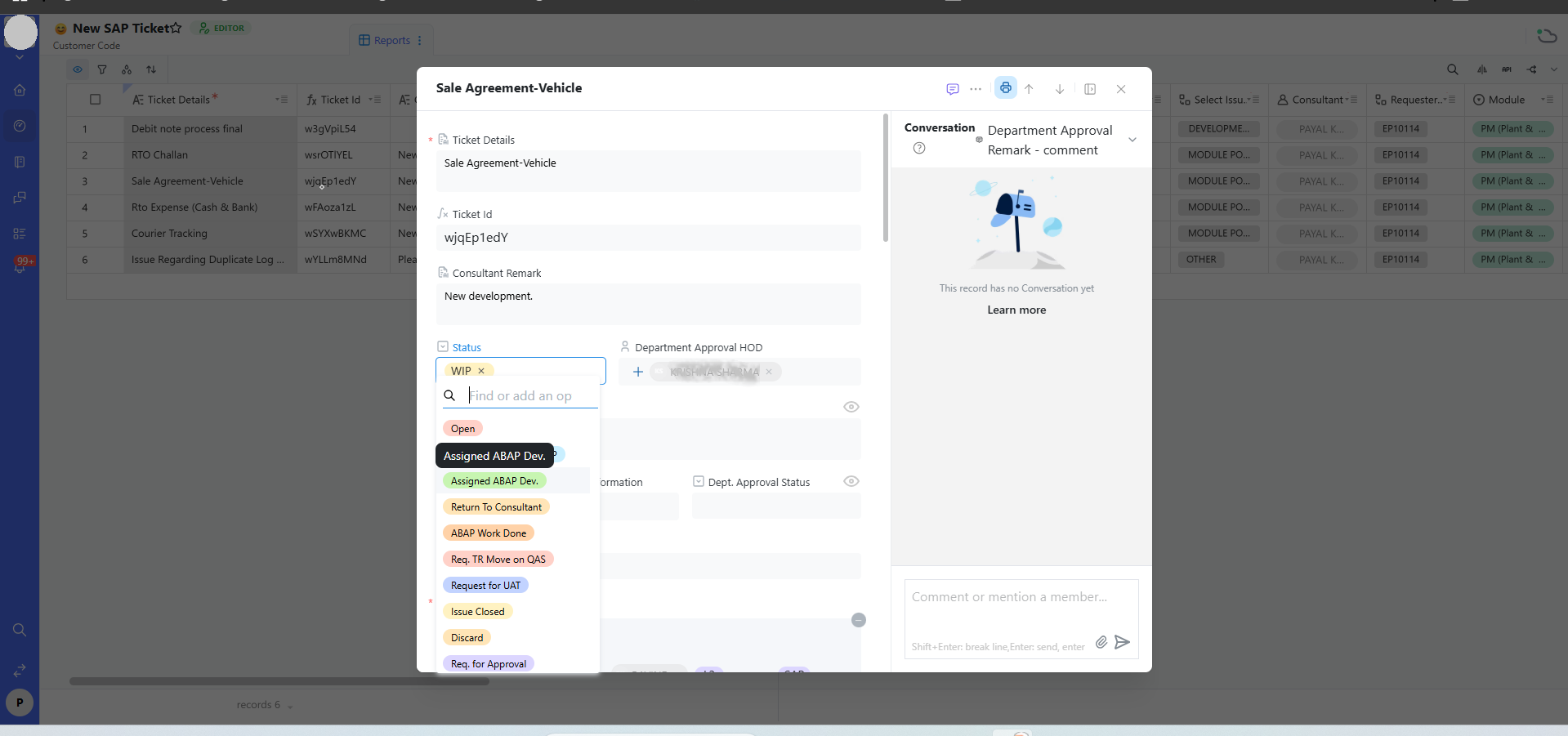
Click the Status field — shown as a colored tag such as "WIP" — which opens a searchable dropdown listing every available stage (Open, Assigned ABAP Dev., Return To Consultant, ABAP Work Done, Req. TR Move on QAS, Request for UAT, Issue Closed, Discard, Req. for Approval). Select whichever stage most accurately reflects where the ticket stands right now — not where you expect it to be by end of day, but its actual current state.
Step 3 — Add a specific Consultant Remark In the Consultant Remark field, write a short but genuinely informative note. Compare "working on it" against "Waiting on QAS transport, expected by Thursday" — the second version answers the requester's next question before they even ask it, and it does so without requiring a Conversation thread. As a rule of thumb, a good remark should let someone who has never seen this ticket before understand, in one sentence, exactly what's blocking or driving progress.
Step 4 — Use the Conversation panel for anything longer The Consultant Remark field is deliberately short-form. For genuinely detailed explanations, back-and-forth clarification, or when you need to @mention a specific person, use the Conversation panel on the right side of the ticket detail view instead. This keeps a timestamped, permanent, threaded history — far more useful for later audits than a remark field that gets overwritten each time.
Step 5 — Let automation handle notification Once Status or Consultant Remark is updated and saved, Hoicko's configured automations typically notify the relevant stakeholders automatically. In most healthy setups, you should never need to separately message someone to say "I updated the ticket" — the system does that for you, which is precisely the point of using structured fields instead of ad-hoc chat.
A simple discipline that pays off
Teams that consistently update status and remarks at least once a business day — even when there's no major change — build trust with requesters far faster than teams that only update when something significant happens. A quiet ticket with a stale status looks abandoned even if work is quietly progressing; a five-second remark update prevents that entirely.
FAQs:
Q 1. Consultant Remark or Conversation panel — which to use?
Remark for a quick status summary, Conversation for detailed back-and-forth.
Q 2. Does updating status auto-notify people?
Usually yes, depending on the board's automation setup.
Q 3. Can I bulk-update multiple tickets' status?
Yes, using multi-select and a bulk-edit action where available.
Q 4. What if Consultant Remark isn't on my form?
Ask your admin — it may be hidden or renamed for your board.
Q 5. Is there a character limit on Consultant Remark?
It's meant for short notes; use Conversation for longer text.
Q 6. Can the requester see my remark?
Yes, typically — keep the language clear and professional.
Related content
Is this article helpful?
Help us improve our articles.