
Track All SAP Tickets Using Reports View
Updated 9/2/20262 min read
While the Consultant's Dashboard answers "what's the overall picture," the Reports table answers the equally important follow-up question: "which exact tickets make up that picture?" It's the detailed, row-by-row source every dashboard metric ultimately rolls up from — and mastering its toolbar is what turns a long, intimidating list into a genuinely fast working tool.
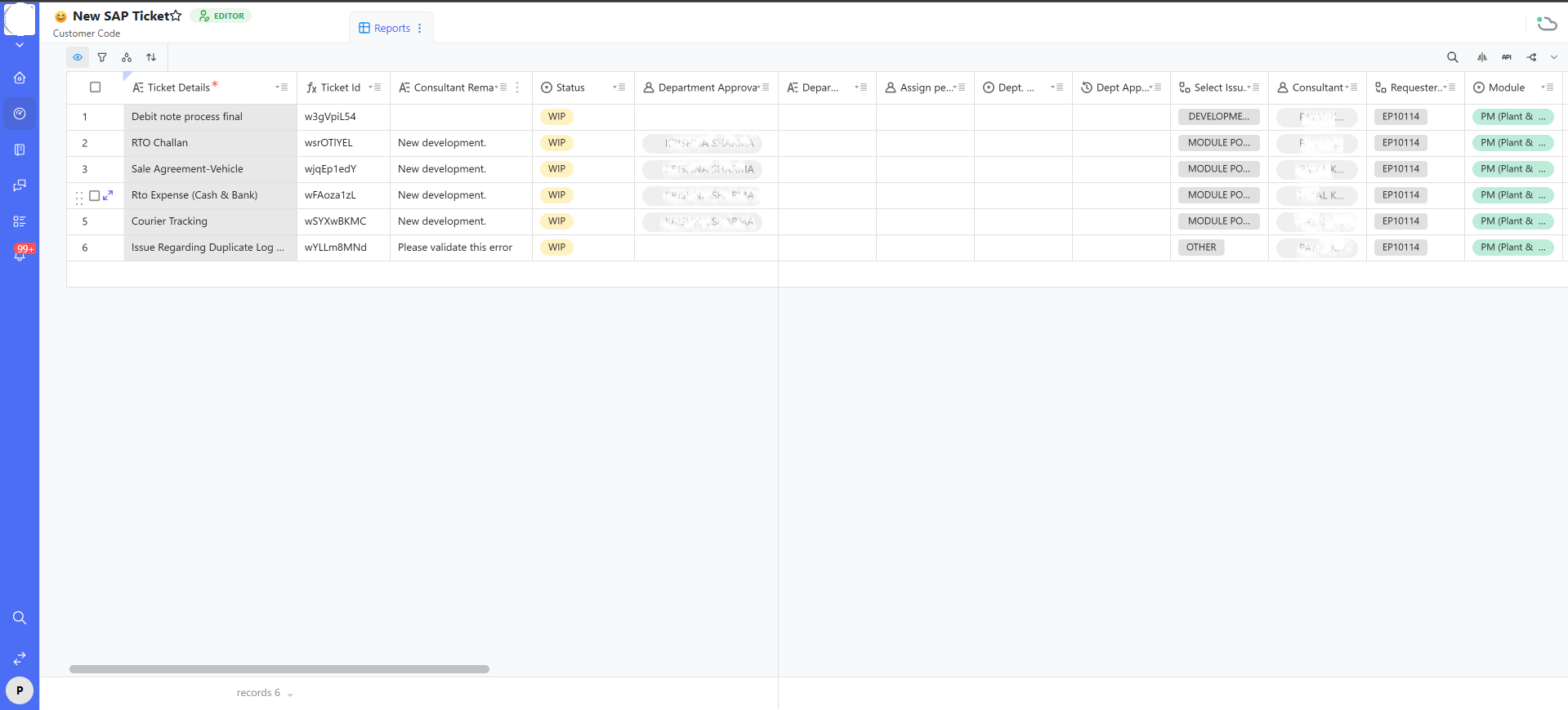
The toolbar, explained left to right
- Eye icon (View) — toggle which columns are visible, letting you build a lean, role-specific view without deleting any underlying data or affecting what other users see.
- Filter icon — narrow the table to exactly what matters right now (for example, Status = WIP, Consultant = you, Module = PM). This is the single most powerful tool on the toolbar for daily use.
- Group icon — cluster rows by a field like Status or Consultant, effectively turning a flat, undifferentiated list into a set of mini-dashboards within the same table.
- Sort icon — order rows by any column, such as newest-first or by Status stage, to control what you see first without needing to scroll.
- Search icon — instantly find a specific ticket by keyword, searching across Ticket Details, Requester, and Consultant Remark simultaneously.
- API icon — intended for admins integrating this data into external tools, dashboards, or automations outside Hoicko itself.
- Share/export icon — share a filtered view as a link, or export the underlying data for offline reporting.
Practical filter-and-sort combinations that save the most time
- Filter (Status ≠ Issue Closed/Discard) + Sort (Ageing Total, oldest first) → your ready-made daily priority list, with zero manual maintenance.
- Group by Consultant → an instant per-person workload view, without needing to switch to the dashboard at all.
- Group by Module → surfaces which SAP module is generating the most support volume, genuinely useful input for deciding where to invest in additional documentation or training.
Saving views so you never rebuild them
Once you've found a filter/sort/group combination that works for your role, save it as a named view. This is what turns a five-minute daily setup task into a permanent, one-click habit — and it's the single biggest time-saver available in this screen.
FAQs:
Q 1. Reports table vs. Dashboard — difference?
Reports shows every row; Dashboard shows pre-aggregated summaries.
Q 2. Can I save a custom filtered view?
Yes, most tools let you save and reuse named views.
Q 3. Does my filter affect other users' view?
No, unless you explicitly share it.
Q 4.How do I find a ticket by partial title?
Use the Search icon — it searches multiple text fields.
Q 5. Can I group by more than one field?
Yes, many tools support nested grouping.
Q 6. Is there a row limit on the table?
Practically no, but filtering improves performance and usability.
Related content
Is this article helpful?
Help us improve our articles.