
Ticket Form Fields: Issue Type, Employee Code & Consultant
Updated 9/1/20264 min read
Filling out a form is easy. Understanding what each field actually does once you hit Submit is what separates someone who occasionally gets a slow response from someone whose tickets consistently move quickly through the system. Several fields on the SAP Support Ticket Form aren't just storage — they're live inputs to Hoicko's automation, notification, and reporting engine. This article goes field by field so you know exactly what's happening behind the scenes.
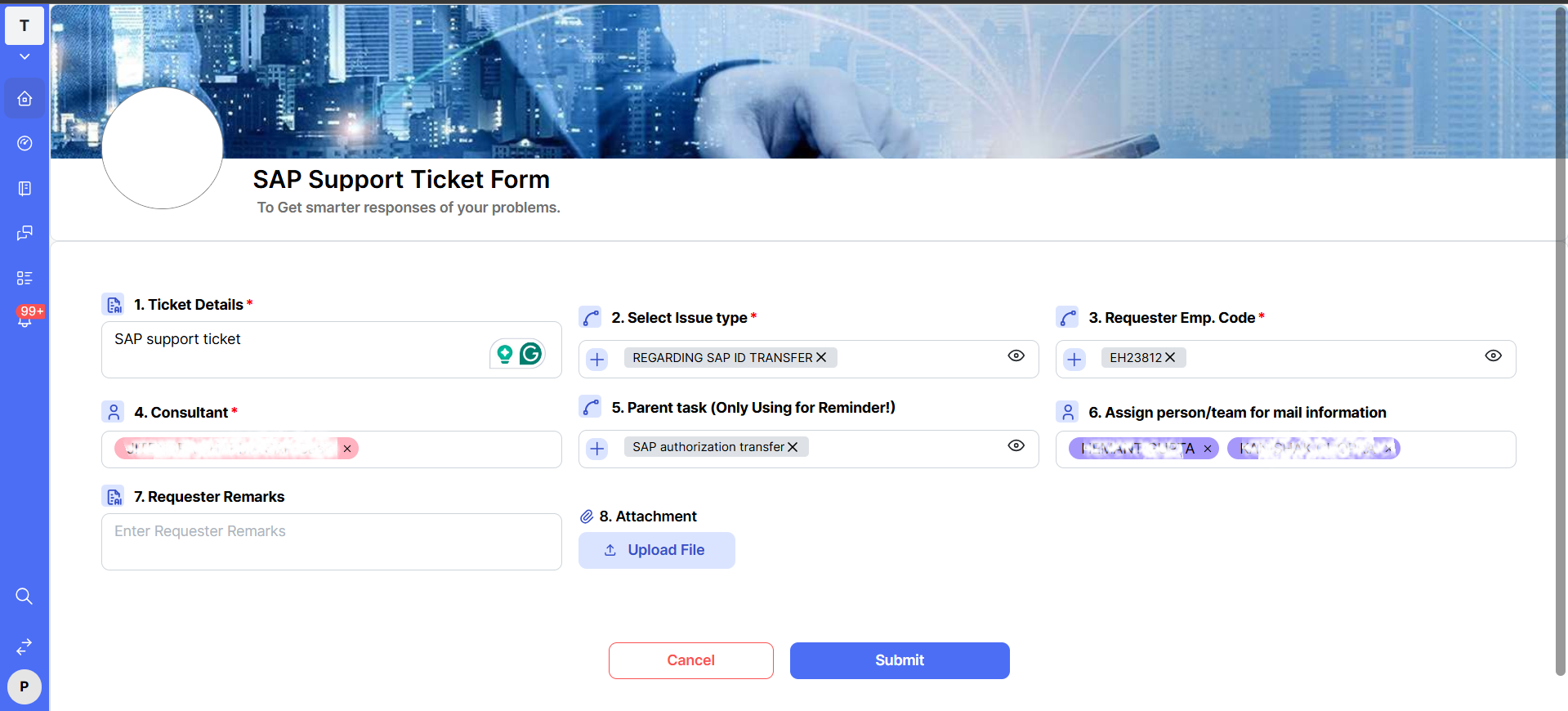
Ticket Details — your ticket's permanent identity
This free-text field becomes the ticket's display name everywhere in Hoicko: on the board, in the Reports table, on dashboards, and in every automated notification. Because it's reused so widely, a vague title doesn't just hurt readability once — it hurts it in every screen that references this ticket for the rest of its life. Treat it the way you'd treat an email subject line: specific enough that someone scanning fifty rows instantly knows what this one is about.
Select Issue Type — the routing engine's main input
This is a multi-select tag field, meaning you can apply more than one category if a ticket genuinely spans issue types (for example, both "Module Posting" and "Authorization Request" for a single complex change). Behind the scenes, this field is cross-referenced against a routing table maintained by your workspace admin, which determines the default consultant, department approver, or team a ticket is routed to. Because of this, the accuracy of your Issue Type selection has a direct, measurable effect on how fast your ticket reaches the right person.
Requester Emp. Code — the link between a ticket and a person
Every ticket needs to be attributable to a specific employee, not just a name typed in a text box (which can have typos, nicknames, or duplicates). The Emp. Code field is that unique, unambiguous identifier. It's what powers "@me"-style dashboard widgets, per-requester reporting, and audit trails — if a manager wants to know how many tickets a specific plant or department raised last month, this field is what makes that query possible.
Consultant — who owns resolution
Setting the Consultant field doesn't just label the ticket; it changes who is responsible for acting on it and who receives status-change notifications tied to ownership. If a ticket needs to be reassigned mid-way (say, the original consultant is on leave), updating this field is the correct way to hand it off — rather than starting a fresh ticket, which fragments the history.
Parent Task (Only Using for Reminder!) — a linking field, not a hierarchy
It's worth repeating because it's a common point of confusion: this field is explicitly for reminders. It does not create a parent-child dependency, it does not block the "child" ticket from closing before the "parent" does, and it does not roll up progress. If you need a genuine dependency structure, that's a conversation for your workspace admin about board configuration — this field is a lightweight visual link only.
Assign Person/Team for Mail Information — notification, not ownership
Anyone added here is copied on automated status-change notifications regardless of whether they're doing any of the actual work. This is the correct field to use for "please keep my manager informed" scenarios — don't put a stakeholder's name in the Consultant field just to make sure they get updates, since that will incorrectly make them the owner of record.
Requester Remarks and Attachment — searchable context
Both fields are indexed in the Reports view search, meaning a consultant (or you, months later) can find this ticket again by searching for a keyword that appears only in the remarks or an attachment's filename — not just the title.
FAQs:
Q 1. Does Issue Type support multiple selections?
Yes, it's a multi-select tag field.
Q 2. What's the difference between Consultant and mail-info field?
Consultant owns resolution; the mail field is purely for notifications.
Q 3. Is Parent Task the same as a subitem?
No — it's explicitly for reminders, not hierarchy or dependencies.
Q 4. Can I change the Emp. Code after submission?
Yes, but only to correct genuine data-entry errors.
Q 5. Why do dashboard counts differ from board totals?
Widgets often filter by specific fields; blank fields can be excluded from counts.
Q 6. What file types can I upload?
Common formats — images, PDFs, and Office documents.
Related content
Is this article helpful?
Help us improve our articles.