
Share Dashboard Access
Updated 8/14/20262 min read
Click the share icon on any application tile, search for and select team members, choose the relevant Team (HR Team, Management Team, Sales Team, etc.), and click Save to grant them access.
Rather than giving everyone blanket access to every HRMS tool through the broad role settings covered earlier, Hoicko also lets you share specific application tiles with specific people or pre-defined team groups. This is a more surgical way to extend access—useful when, say, your finance team needs visibility into the Attendance Report for payroll purposes but shouldn't automatically get access to every other HRMS module just because they're in the "Finance" role bucket.
Team groups make this scale better as your company grows. Instead of re-selecting the same six people every time you want to share a new tile, you group them once (HR Team, Management Team, Sales Team, or a custom group) and then share against the group going forward. Anyone added to that group later automatically inherits the tiles already shared with it.
Step-by-step:
- From any application tile in Quick Access Applications, click the share icon in its top corner.
- In the search field, look up and select the individual team members who should get access to this specific tile.
- Switch to the Team tab in the same dialog to instead select a predefined team group—for example, HR Team, Management Team, or Sales Team—to keep permissions grouped and easy to manage at scale.
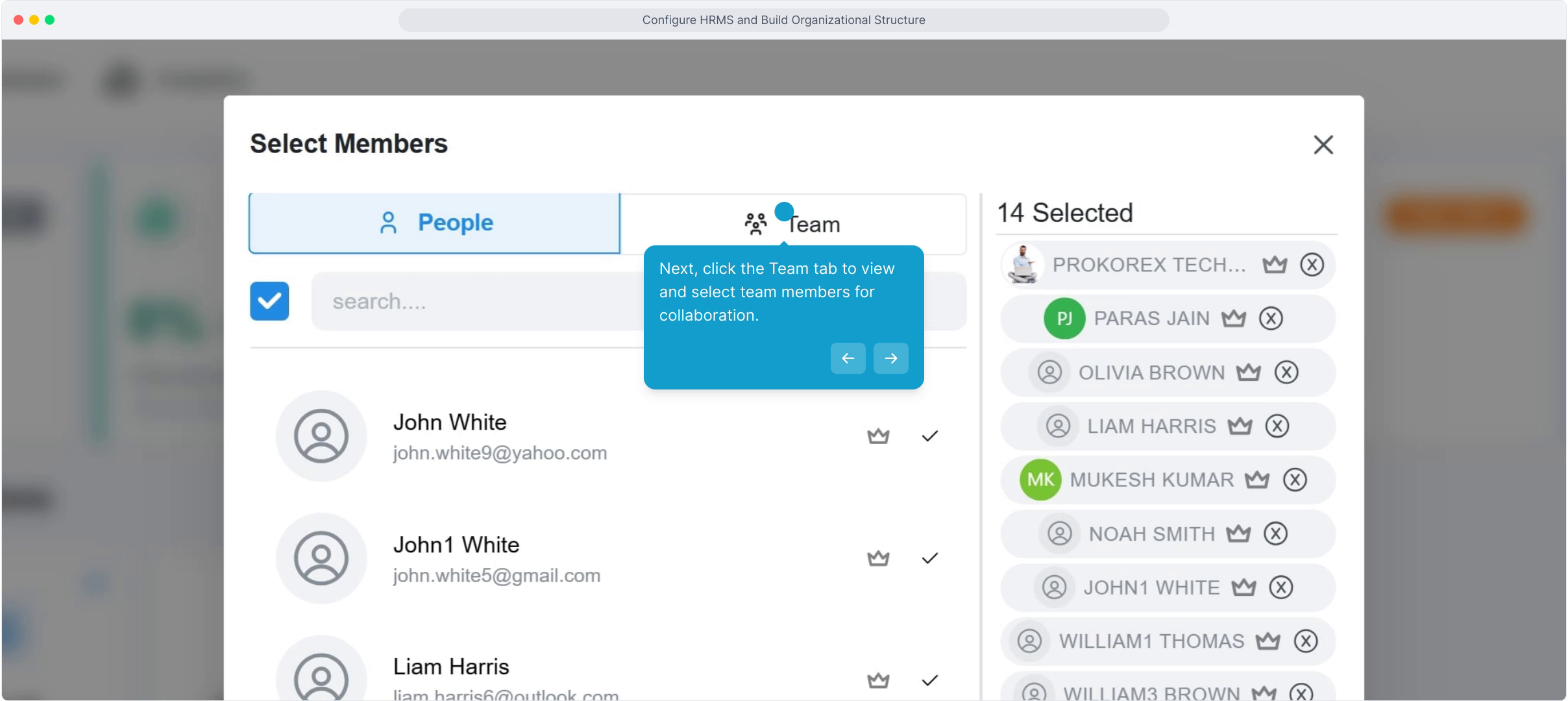
- Review the list of selected members shown on the right side of the dialog before confirming.
- Click Save. A "Members successfully action" confirmation appears, and the tile now shows up in each selected person's own dashboard the next time they log in.
FAQ
Can I remove someone's access later?
Yes—reopen the Share dialog for that tile, remove the member from the selected list, and click Save. The tile disappears from their dashboard immediately.
What's the difference between sharing a tile and assigning an HRMS role?
Sharing a tile grants access to one specific application only; HRMS roles (Owner, Manager, Editor, Updater, Reader) control broader, system-wide permissions across the whole module. Use tile sharing for narrow, targeted access and roles for broader responsibility.
Can I create my own custom team group instead of using the default ones?
Team groups are managed as part of your workspace's broader team settings—check with your workspace administrator if you need a new custom group beyond the default HR Team, Management Team, and Sales Team options.
Related content
Is this article helpful?
Help us improve our articles.