
How to Access Digital Signature
Updated 9/8/20262 min read
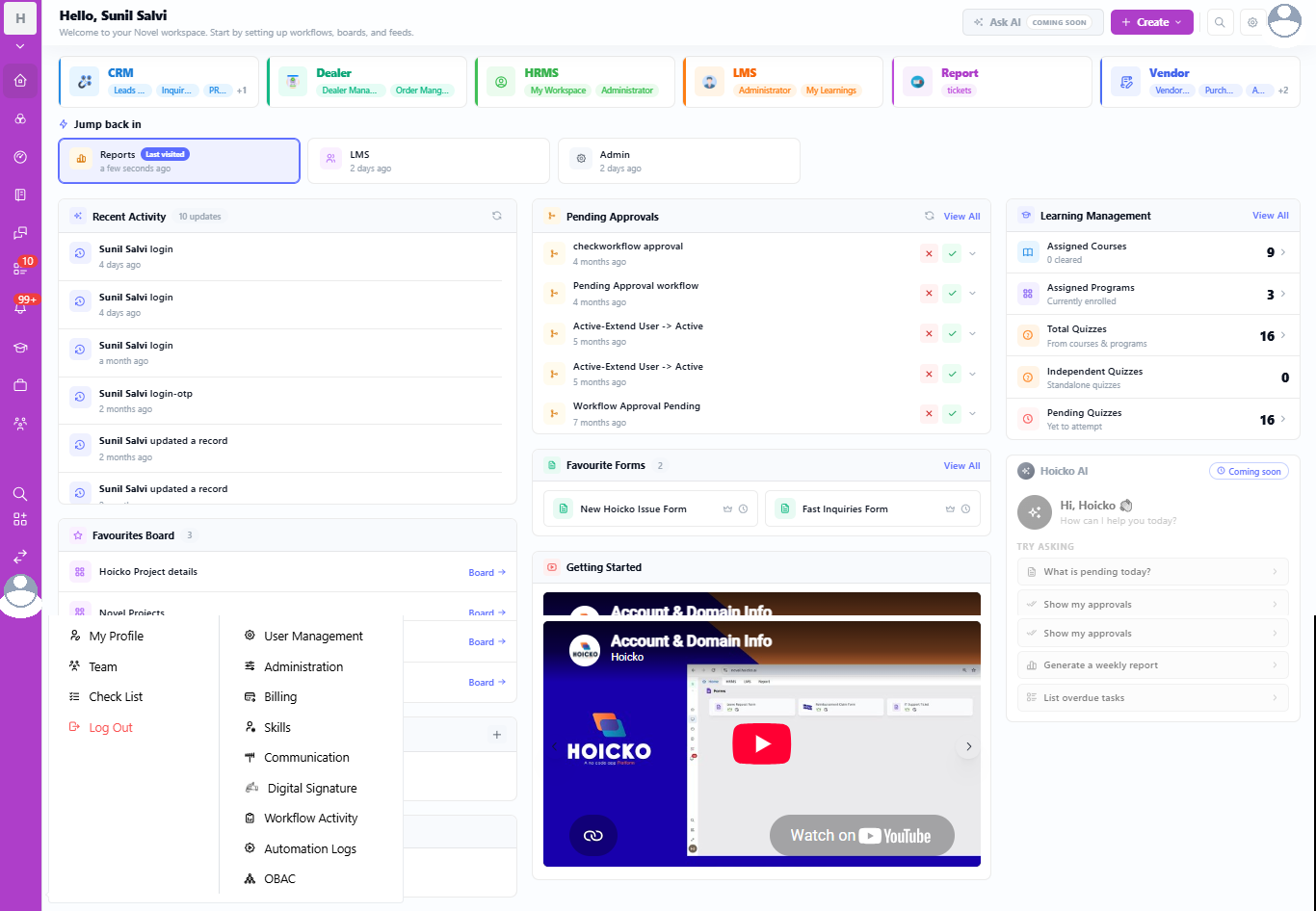
From your Hoicko workspace home screen, the Digital Signature module is accessed through the left-hand navigation sidebar's signature icon or by opening any workspace tile (CRM, HRMS, LMS, Vendor) and navigating to Administration → Digital Signature. Once opened, you land on the Signatures list view, where all your saved signature profiles are displayed.
Why This Matters
Hoicko is built as a unified workspace—CRM, Dealer, HRMS, LMS, Report, and Vendor modules all sit on a single home screen (as shown above, "Hello, Sunil Salvi"). Because Digital Signature is embedded rather than a separate app, many first-time users spend time looking for it in the wrong place. Knowing the exact path saves onboarding time and gets your team signing documents on day one.
Step-by-Step: Opening the Digital Signature Module
- Log in to your Hoicko workspace. You'll land on the home dashboard showing your workspace tiles (CRM, Dealer, HRMS, LMS, Report, Vendor) and the "Jump back in" panel.
- Open the User Menu. Click your profile avatar in the bottom-left sidebar to expand the account menu.
- Select Digital Signature. Under Administration, choose Digital Signature (grouped alongside User Management, Billing, Skills, Communication, Workflow Activity, Automation Logs, and OBAC).
- Land on the Signatures list. You'll see all existing signature profiles (e.g., Testing-main, Testing-api-ai, AUTO_TECH/ANKUR_KIRTI_P...) with Created By attribution and quick access Edit and delete icons.
- Use the search bar at the top ("Type to search...") to filter existing profiles by name once your list grows.
What You'll See on the Signatures List Page
- A search bar to locate a specific signature profile instantly
- A history/clock icon to view recently accessed profiles
- A purple "+" (Add) button to create a new signature profile
- Each profile card showing its name and Created By value (your name, or an integrated system like "HOICKO LMS")
Frequently Asked Questions
Do I need admin rights to access Digital Signature?
Typically yes—Digital Signature sits under the Administration menu, so your account needs administrator or delegated admin permissions to view and manage signature profiles.
Can I access Digital Signature from any Hoicko module (CRM, LMS, HRMS)?
Yes. Because it's a shared workspace-level service, digital signature is accessible regardless of which product tile (CRM, dealer, HRMS, LMS, or vendor) you're currently working in.
What if I don't see "Digital Signature" in my menu?
This feature may not be enabled for your workspace tier. Contact your Hoicko workspace administrator or Hoicko support to enable it.
Related content
Is this article helpful?
Help us improve our articles.