
Generating the LMS Report
Updated 8/18/20261 min read
When you need a consolidated view of your entire training ecosystem — not just one course or one learner — the LMS Report is the tool built for that purpose.
How to generate an LMS Report:
- Go to Management Layout > Lms Report
- Choose the report type — course-wise, program-wise, or a full organizational overview
- Set your desired date range and any additional filters (department, group, course category, etc.)
- Click Generate Report
- View the report on-screen or export it for offline sharing
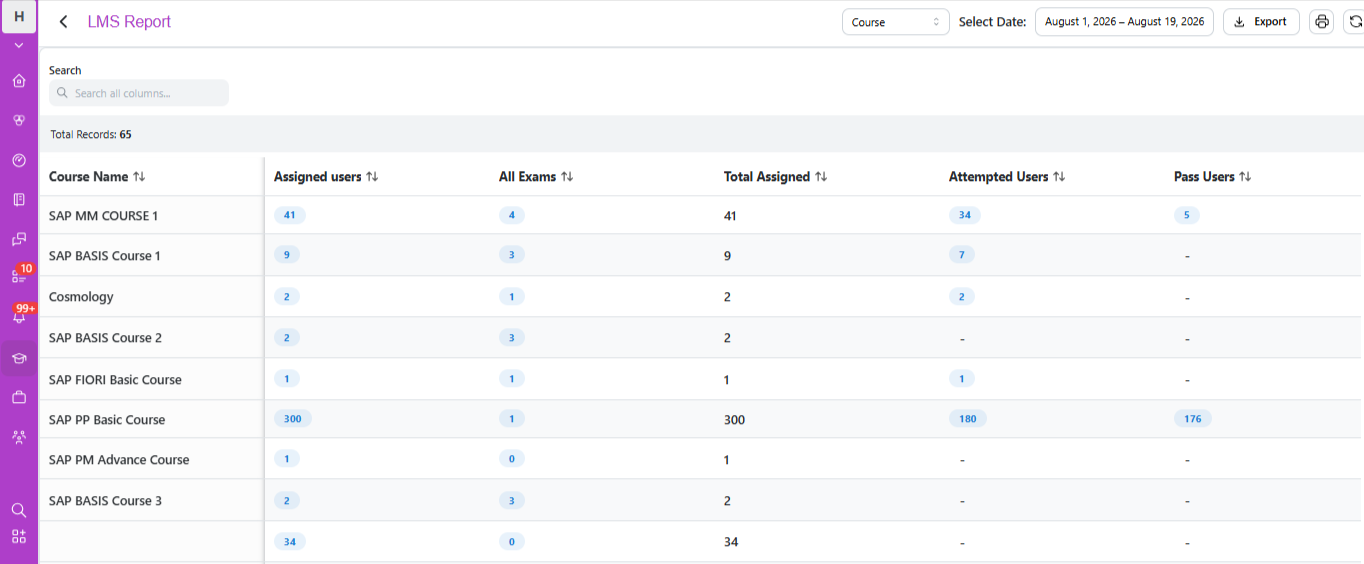
What an LMS Report typically includes:
- Enrollment numbers across courses and programs
- Completion and pass/fail rates over the selected period
- Delay and risk summaries, mirroring the Progression Risks widget but in report form
- Certification counts issued within the date range
When to use the LMS Report: This report is particularly useful for leadership reviews, board updates, or quarterly training summaries, where a broad, consolidated view matters more than individual learner detail. If you need learner-specific data instead, the User Report (covered next) is the better tool.
Best practices for using LMS Reports effectively:
- Run reports on a consistent cadence (monthly or quarterly) so you can compare trends over time, not just view a single snapshot
- Export reports before major organizational reviews so stakeholders have data in hand ahead of the discussion
- Cross-reference LMS Report trends with your dashboard's real-time Progression Risks to understand whether current numbers are improving or worsening compared to historical data
The LMS Report essentially takes the live data on your dashboard and packages it into a structured, shareable format — ideal for reporting outward to stakeholders who don't need day-to-day platform access.
FAQs:
What does an LMS report include?
Enrollment numbers, completion rates, delays, and certifications issued.
How often should I generate this report?
Monthly or quarterly, for consistent trend comparison.
Related content
Is this article helpful?
Help us improve our articles.