
Fill Candidate Personal Details
Updated 8/14/20263 min read
The Personal Details form captures identity information (name, gender, date of birth, blood group, and nationality), contact details (mobile, personal, and official email), and organizational fields (reporting manager, physical location, and department)—all mandatory fields must be completed before you can continue.
This is the most detailed form in the entire onboarding flow, and getting it right the first time avoids having to chase the candidate for missing information later — a genuinely common problem if fields are left half-completed and only discovered weeks after their start date. Because so many downstream features depend on this data (shift assignment relies on Physical Location, leave approvals rely on Reporting Manager, attendance tracking relies on Date of Joining), it's worth treating this form as the true foundation of a person's HRMS record rather than a formality to click through quickly.
A practical tip: have the candidate's basic details (government ID information, contact numbers, emergency contacts if your company tracks them) ready before starting this form, rather than starting the flow and pausing halfway through to go find missing information, since several fields depend on context from earlier in the same form.
Step-by-step—fields to complete:
- Identity: First name, last name, gender, marital status (and date of marriage, spouse name if applicable), date of birth, blood group, nationality.
- Contact: Mobile No., Reference Mobile No., Personal Email, Official Email (the system will flag an error if you enter the same address for both, so have both ready and distinct).
- Organizational: Reporting Manager, Mentor/Buddy, Physical Location (select the office or client site — for example Hoicko, Novel, or Pacific — from the dropdown), Outsource status, Date of Joining, Department, Core Module, Designation, Employee Status.
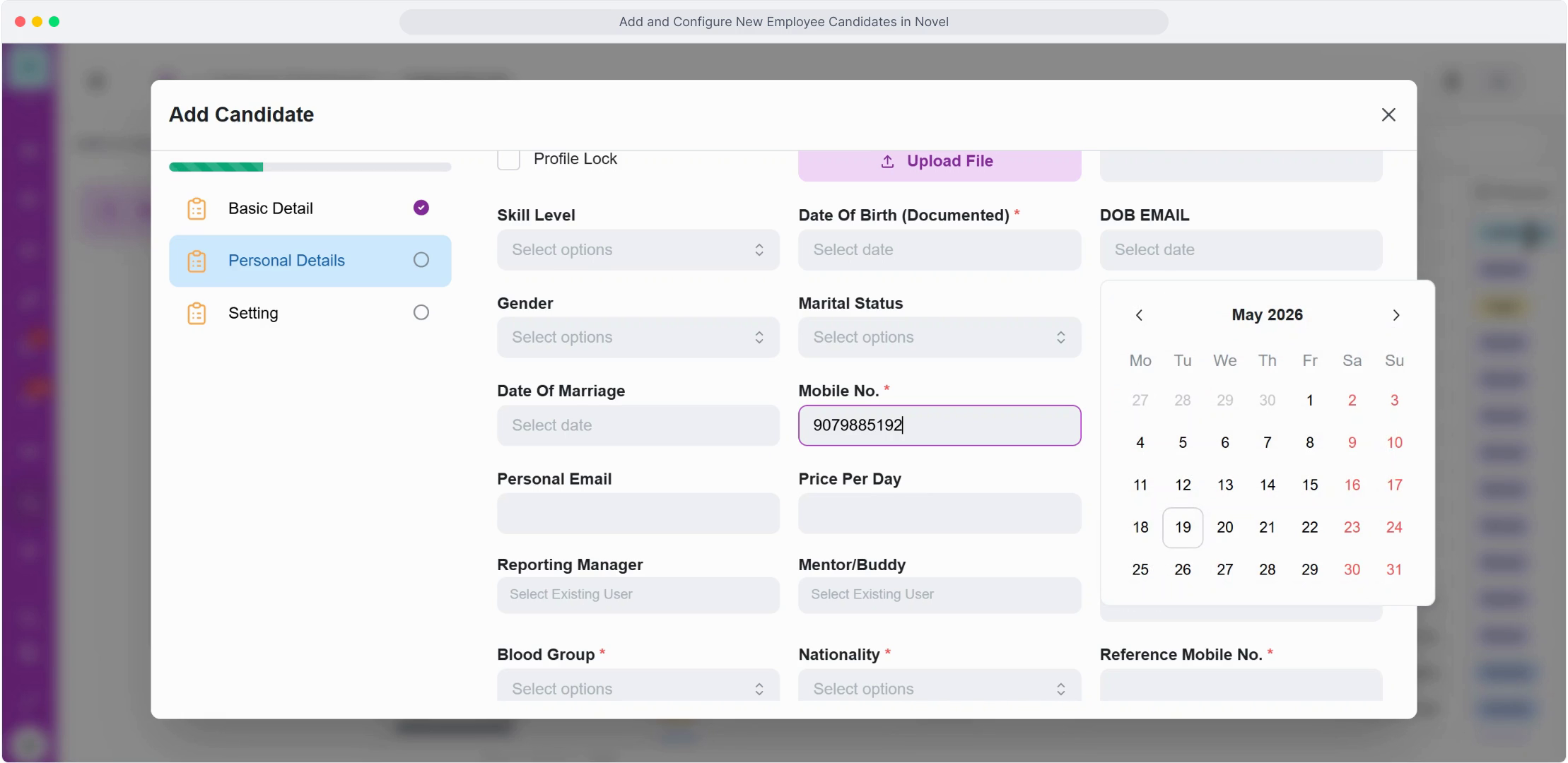
- Compensation & documents: Price per day, profile image (upload file), resume (upload file), skill level.
- Fill in every field marked with an asterisk (*) — these are mandatory and the form will not proceed without them, so it's worth scanning the whole visible screen for asterisks before clicking Next.
- Click Next once all Personal Details fields are complete.
FAQ
Why does the form reject my personal email entry?
Hoicko HRMS validates that your personal email and official email are different addresses—a company email should not be the same as a personal one, so double-check you haven't accidentally entered the same value in both fields.
Can I save the form and finish it later?
The form is designed to be completed in one flow since later fields depend on the physical location and department selected earlier; use Back to review or adjust earlier sections rather than closing the form entirely midway, which may lose unsaved progress.
What is "physical location" used for?
It links the candidate to a specific office, brand, or client entity—for example, Hoicko, Novel, Pacific, or Siyaram Silk Mills—which then drives which shift calendars and site-based attendance rules apply to them once onboarding is complete.
Does the Reporting Manager field affect anything beyond org chart display?
Yes — this field is what routes the employee's leave and miss punch requests to the correct approver, so it's worth double-checking this is set correctly rather than treating it as a purely informational field.
Related content
Is this article helpful?
Help us improve our articles.