
Add a New Candidate
Updated 8/14/20262 min read
Go to Employee Management > Employee List, click Add Candidate, and confirm whether the person already exists as a domain user, then fill in their personal details starting with name, contact information, and date of birth.
Adding someone new to Hoicko HRMS starts with one important fork in the road that's easy to rush past: does this person already have a login in your domain, or are they brand new to the system entirely? Answering this correctly up front avoids duplicate accounts later, which can otherwise cause confusing data—two profiles for the same person, split attendance history, or an inability to correctly assign a leave policy because the system can't tell which record is the "real" one.
This first screen is short, but it's worth pausing on rather than clicking through automatically. If you're not sure whether someone already exists in the domain, it's generally safer to check the Employee List search first before starting the Add Candidate flow, rather than guessing and having to untangle duplicate records afterward.
Step-by-step:
- From the HRMS dashboard, click Employee Management to access staff management and organizational tools.
- Open the Employee List.
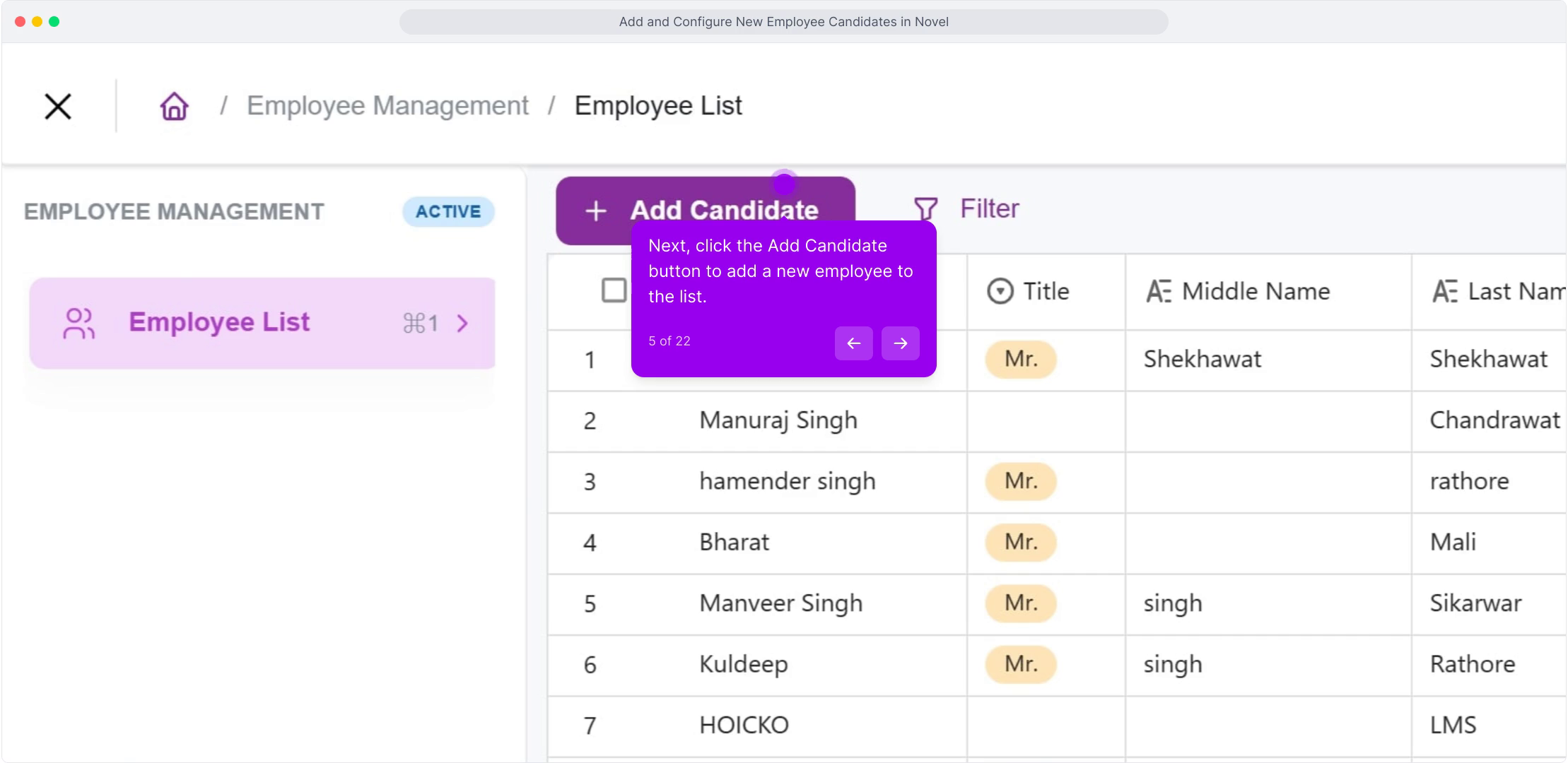
- Click Add Candidate to start a new profile.
- You'll be asked: "If the user already exists in the domain, select 'Yes.' If the user does not exist, select 'No,' then click 'Next.'" Choose the option that matches this person's actual status—check the Employee List search first if you're unsure.
- Click Next to move into the Personal Details form, where the bulk of the onboarding information is captured.
FAQ
What happens if I select "Yes" for an existing domain user by mistake?
The system will attempt to match the profile to an existing account—if no match is found, you can go back and restart the flow as a new candidate rather than getting stuck partway through.
Can I bulk-add multiple candidates at once?
The standard flow adds one candidate at a time to ensure each profile's mandatory fields and documents are captured correctly; for large hiring batches, repeat the process per candidate rather than attempting a bulk import.
Who can add new candidates?
This depends on the HRMS role permissions set during account setup—typically Owners, Managers, and Editors have candidate creation rights, while Readers and Updaters generally do not.
Related content
Is this article helpful?
Help us improve our articles.