
Assigning Courses to Learners
Updated 8/18/20261 min read
Once your course is built, the next step is getting it in front of the right learners. Taksha LMS's AssignCourse feature makes this process straightforward, whether you're enrolling one person or an entire department.
How to assign a course:
- Go to Management Layout > Assign Course
- Select the course or program you want to assign
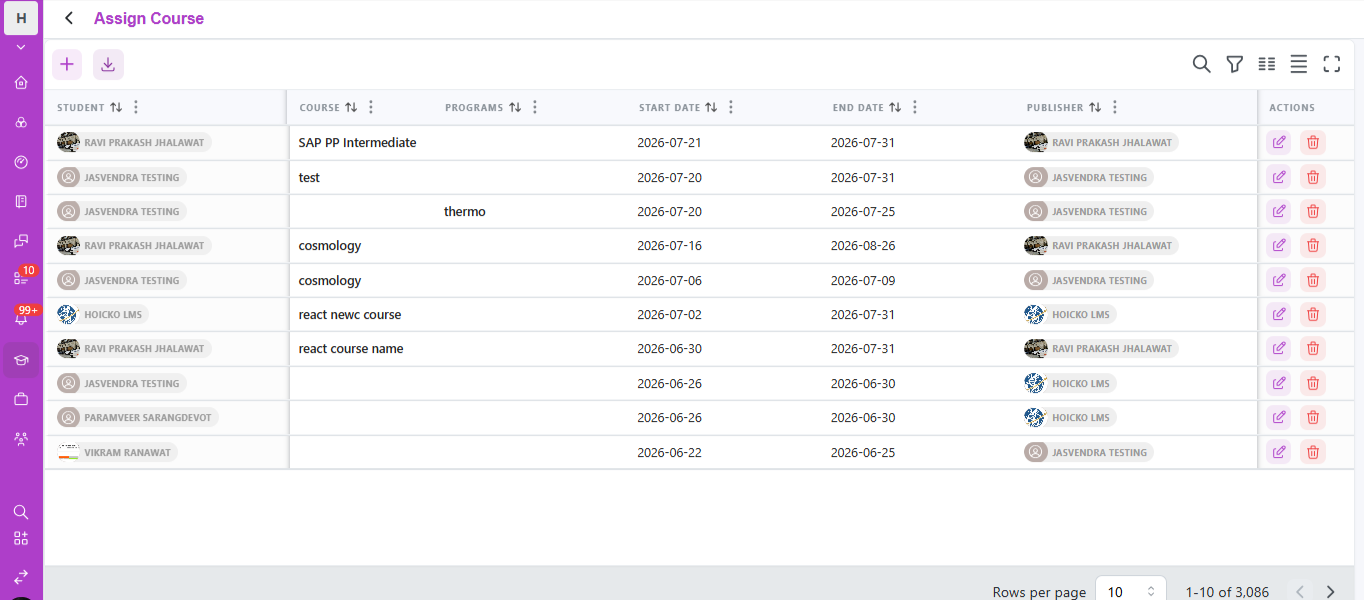
- Choose your learners—individually, by group, or by department
- Click Assign
Once assigned, the course or program will immediately appear under the learner's My Learnings tab, and they'll typically receive a notification confirming the new assignment.
Faster access via Quick Actions: For frequent assignments, the Quick Actions panel on the main dashboard includes a direct shortcut to Assign Courses, saving you a few navigation steps.
Choosing the right assignment method:
- Individual assignment — best for small, targeted training needs, like a single new hire's onboarding course
- Group or department assignment — best for company-wide policy updates, compliance training, or role-specific programs
Best practices for assigning courses:
- Double-check learner selection before confirming, especially for large group assignments
- Set clear expectations around deadlines when assigning, even if the platform doesn't enforce a hard cutoff, so learners understand the priority
- Review the AssignCourse history periodically to confirm assignments were completed successfully, particularly after bulk actions
Assigning courses is a simple action, but doing it thoughtfully—with the right audience and clear expectations—has a real impact on completion rates down the line.
FAQs:
Can I assign a course to a whole department at once?
Yes, choose group or department assignment instead of individual.
Where do learners see assigned courses?
Under their My Learnings tab.
Related content
Is this article helpful?
Help us improve our articles.