
Upload Candidate Documents
Updated 8/14/20262 min read
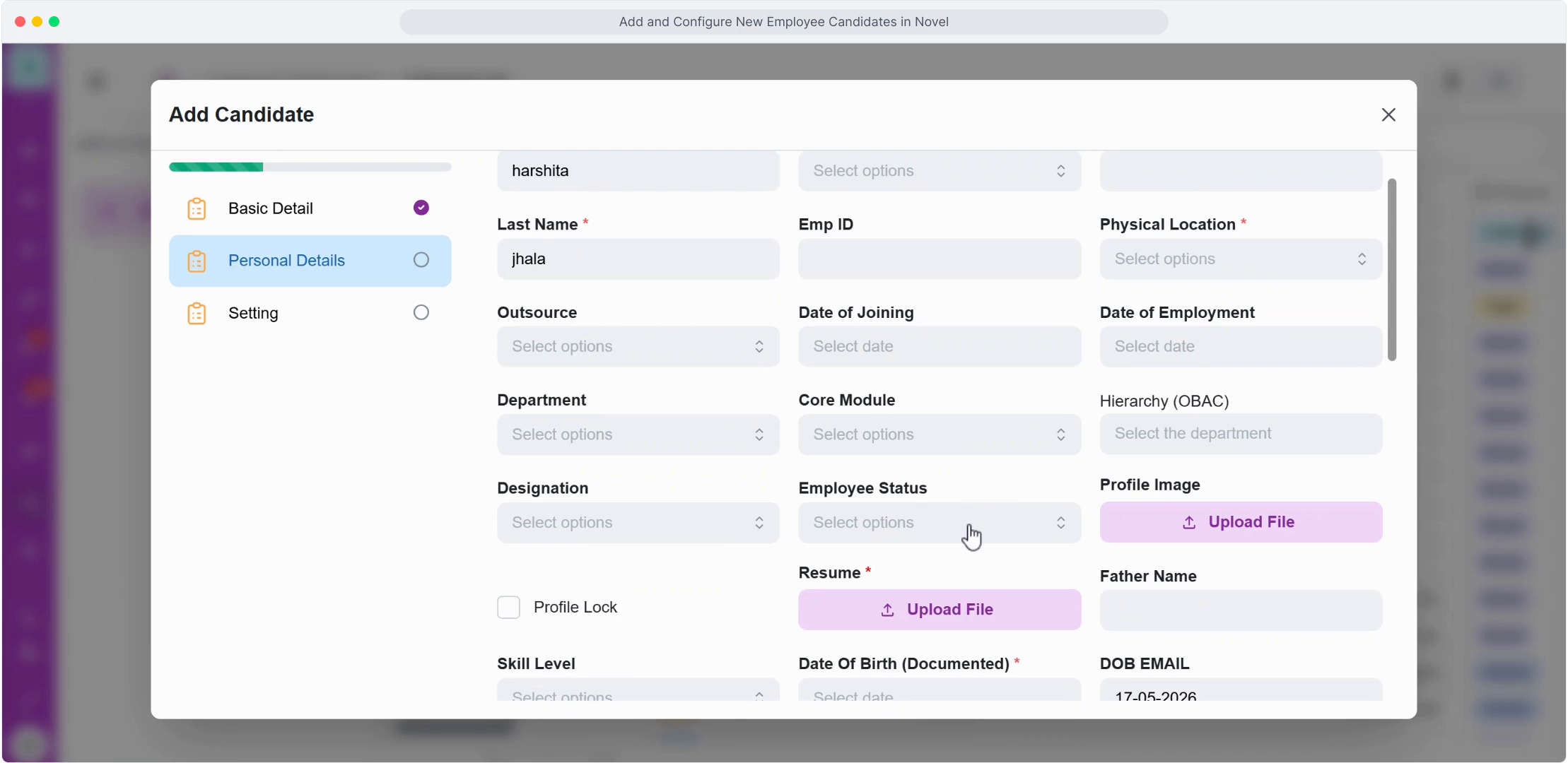
In the candidate's Setting tab, click the Upload File button next to Resume to attach their resume document; the same pattern is used for a Profile Image and Bond Document where required.
Keeping resumes and supporting documents attached directly to the candidate's profile—rather than scattered across a separate shared drive or email inbox—means anyone with the right access can find them in exactly one place, alongside the rest of that person's employment record. This is particularly useful months or years later, when someone needs to reference an original resume or signed document and doesn't have to dig through old email threads to find it.
The upload flow itself is deliberately simple—one button per document type, a visible file size and name once uploaded, and a clear limit on how many files can be attached, so there's no ambiguity about whether an upload succeeded or how much room is left for additional documents.
Step-by-step:
- From the candidate's profile, open the Setting tab.
- Locate the Resume field and click Upload File.
- Select the document from your device. The system shows the file name and size once uploaded (you can upload only a limited number of files, so check the on-screen limit before attaching more than what's essential).
- Repeat the same pattern for Profile Image and, if applicable, the bond document.
- Continue completing the remaining Setting tab fields — Date of Joining, Date of Employment, Core Module, Hierarchy (OBAC), Designation, Employee Status — and click Next.
FAQ
What file types are supported for resume uploads?
Hoicko HRMS accepts standard document formats; check the upload dialog for the current accepted file types and size limit shown on screen at the time of upload.
Is there a limit on how many documents I can attach?
Yes—the upload dialog displays a maximum file count (for example, "you can upload only 3 files"), so plan which documents are essential to attach at this stage rather than trying to upload everything at once.
Can I replace a resume after it's uploaded?
Yes—return to the Setting tab and use Upload File again to replace the existing document, which overwrites the previous file with the new one.
Should documents be uploaded before or after the candidate's first working day?
Ideally before—having documents attached as part of the onboarding flow, rather than as a follow-up task after their start date, keeps the record complete from day one and avoids a backlog of "finish onboarding" tasks piling up for HR.
Related content
Is this article helpful?
Help us improve our articles.