
Understanding Dashboard Cards and Charts
Updated 10/13/20262 min read
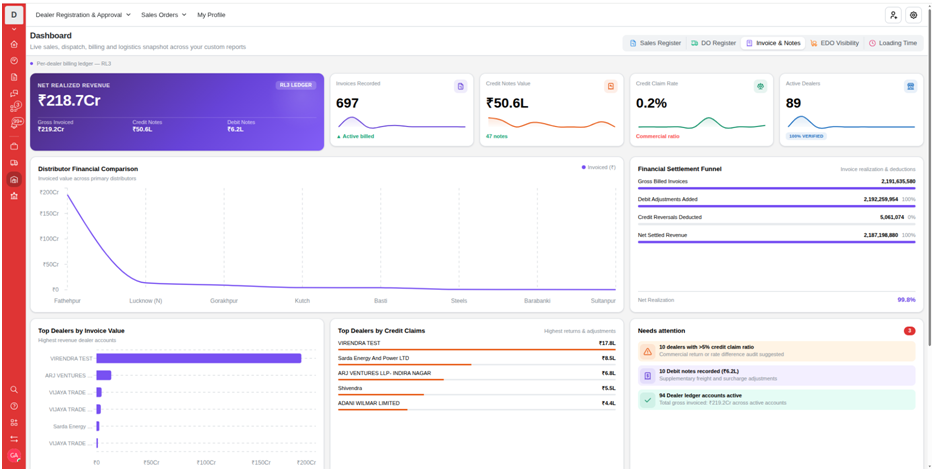
Understanding Dashboard Cards and Charts helps users understand the information presented in the dealer workspace and decide what needs closer review. The supplied screenshots include dashboard panels, summary cards, charts, and lists. Use the visible labels and the selected reporting period as your guide; exact metrics depend on the configuration and data in your live portal.
Before you begin
Dashboard information is most useful when it is reviewed consistently. Compare like-for-like periods, check the source records, and avoid assuming that a change in a chart always means a change in performance. Data may be affected by filters, recently updated records, or the reporting period.
Recommended working approach
When working on understanding dashboard cards and charts, confirm that you are in the correct area and understand the current state of the record before taking action. Use the visible field labels and status descriptions as the source of truth for your workspace. If the page includes filters or a reporting period, check those settings before interpreting the information.
Good practices and common checks
Review important details before saving, avoid duplicate records, and use the process approved by your organization. If information is missing, unclear, or inconsistent, do not guess. Check the related record or ask the relevant administrator or process owner. After completing the task, confirm that the expected change is visible and that no additional action remains pending.
Step-by-step guide
1. Open the dashboard or reporting area available to your role.
2. Check the panel title, date range, filters, and units.
3. Review the relevant cards or charts before drawing conclusions.
4. Open the underlying list or record when a figure needs confirmation.
5. Share findings using the reporting process approved by your team.
Best practices
Dashboard information is most useful when it is reviewed consistently. Compare like-for-like periods, check the source records, and avoid assuming that a change in a chart always means a change in performance. Data may be affected by filters, recently updated records, or the reporting period.
FAQs
Q: What is understanding dashboard cards and charts about?
A: This guide explains the main purpose of understanding dashboard cards and charts and the practical steps users can follow in the Hoicko Dealer Portal.
Q: Why does my screen look different from the guide?
A: Menus, fields, and actions can vary by role and portal configuration. Check with your administrator if a required option is missing.
Q: Can every user make changes?
A: Not necessarily. Available actions depend on the permissions assigned to the user's account and the workflow settings.
Q: What should I do if the information looks incorrect?
A: Verify the record and any active filters first. If the issue remains, follow your internal correction process or contact the portal administrator
Related content
Is this article helpful?
Help us improve our articles.