
Navigating Tabs, System Settings & Tile Sharing
Navigating Tabs, System Settings & Tile Sharing
Updated 8/12/20261 min read
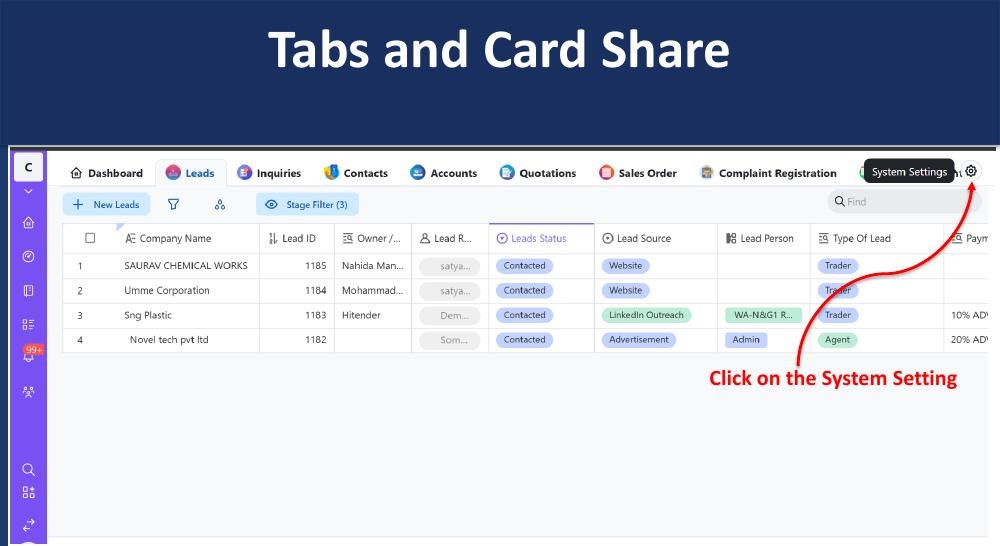
Hoicko CRM lets Owners control which tabs appear on the CRM Home screen and share individual dashboard tiles with specific people or teams, using System Settings → Tiles & Groups.
Steps to manage tabs(ownerr only):
- Click the gear/System Settings icon on the top-right of the CRM screen.
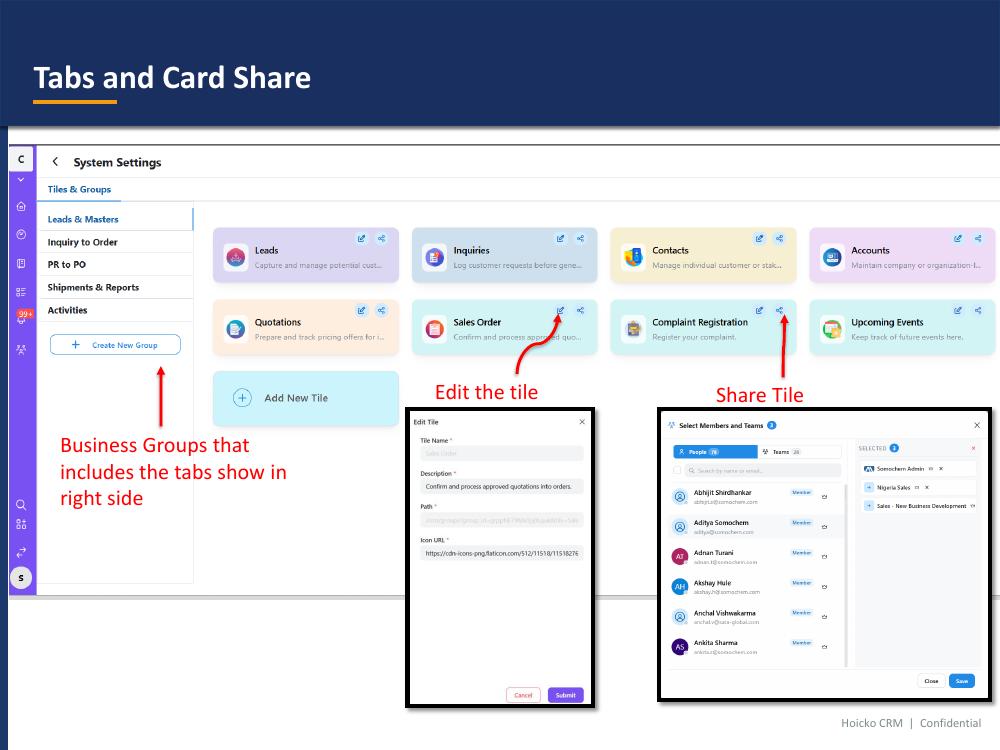
- Open the Tiles & Groups tab.
- Select a Business Group (e.g., Leads & Masters, Inquiry to Order, PR to PO, Shipments & Reports, Activities) — the tiles included in that group appear on the right.
- Click the edit (pencil) icon on any tile to rename it, change its description, path, or icon.
- Click the share icon on any tile to select specific People or Teams who should see it, then click Save.
- Use + Add New Tile to create a custom tile pointing to any module.
Key highlights:
- System Settings access is restricted to the account Owner
- Tabs are controlled at the business-group level
- Tiles can be edited (name, description, icon, path) or shared with named people/teams
Is this article helpful?
Help us improve our articles.