
Logging Into the Admin Panel
Updated 8/18/20262 min read
Before you can build a single course or add a learner, you need access to your Taksha LMS admin panel. This article walks you through the login process from start to finish, along with what to expect once you're in.
Step-by-step login process:
- Open the login URL shared by your Hoicko account manager or included in your welcome email. This link is unique to your organization's Taksha LMS instance.
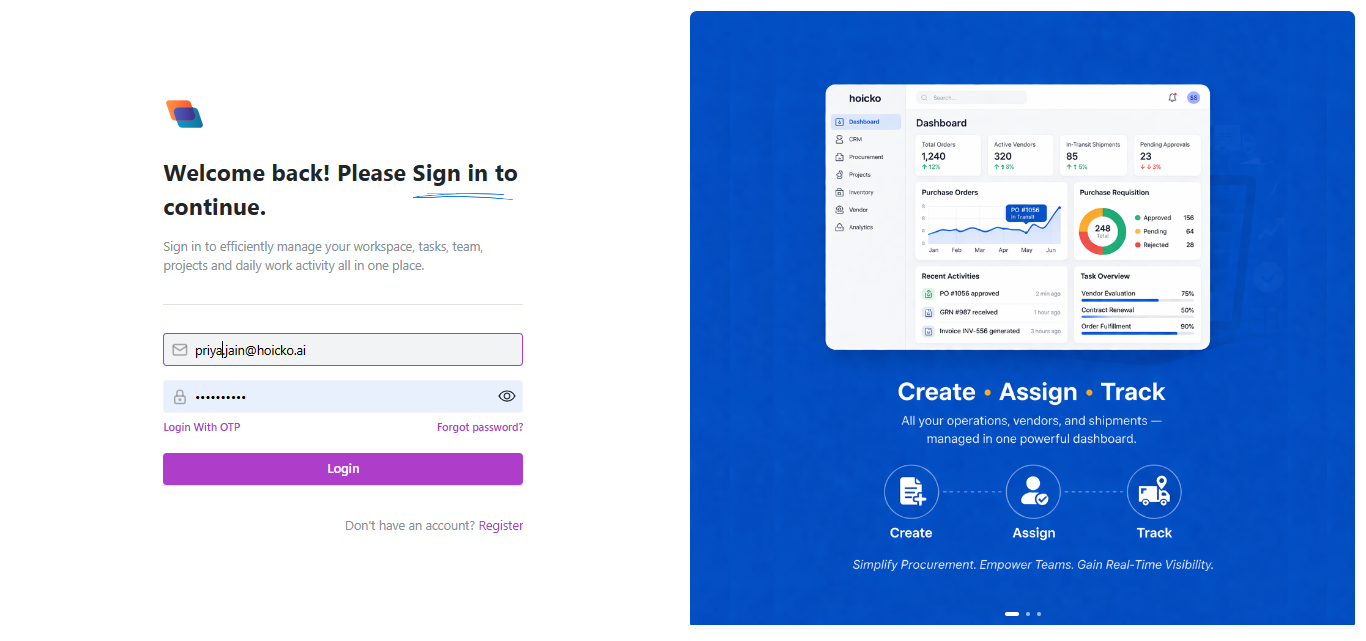
- Enter your registered email address—this should be the email your organization used to set up the account.
- Enter your password. If this is your first login, you may be prompted to set a new password using a temporary one sent to your inbox.
- Click Login. You'll be redirected to the administrator dashboard automatically.
What you'll see after logging in: Once inside, you'll notice two primary tabs at the top of the screen: Administrator and My Learnings. The Administrator tab is your control center — this is where you'll manage courses, learners, roles, and reports. The My Learnings tab, on the other hand, shows any courses assigned to you personally, useful if you're both an admin and a learner within the same organization.
First-time login checklist:
- Confirm your email and temporary password from the welcome email
- Set a strong, unique password when prompted
- Bookmark your organization's login URL for quick future access
- Explore the Administrator dashboard before adding any learners, so you understand what data you'll be tracking
Troubleshooting common login issues:
- Forgot password? Use the "Forgot Password" link on the login screen to reset it via your registered email.
- Login URL not working? Double-check with your Hoicko account manager — some organizations have a custom subdomain.
- Account locked? This usually happens after multiple failed attempts; wait a few minutes or contact support to unlock it.
Once you're logged in and comfortable navigating between the Administrator and My Learnings tabs, you're ready to start setting up your learning ecosystem.
FAQs:
What if I forget my password?
Use the "Forgot Password" link on the login screen to reset it via your registered email.
What's the difference between Administrator and My Learnings tabs?
The administrator manages the platform; My Learnings shows courses assigned to you personally.
Related content
Is this article helpful?
Help us improve our articles.