
Linking Accounts and Contacts While Creating a Lead
Updated 8/13/20262 min read
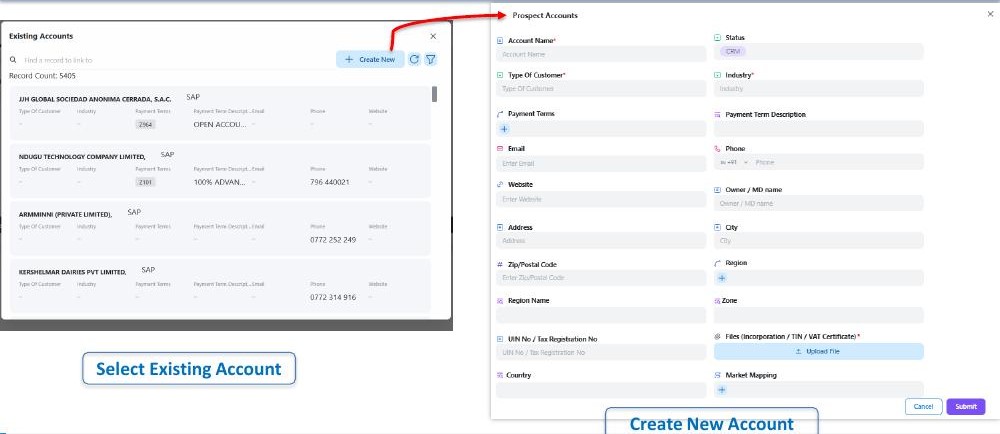
While creating a lead, you can either link it to an existing account from Hoicko's SAP-synced account list or create a brand-new prospect account directly from the lead form; contacts linked to that account auto-populate automatically or can be created fresh in the same flow.
Why this matters: a lead that isn't properly linked to an account and contact becomes an orphaned record—nobody downstream can tell which organization it belongs to or who to follow up with. Hoicko CRM solves this by making account and contact selection a required, guided part of lead creation rather than an optional afterthought.
Selecting or creating an account:
- In the lead form, click the Accounts field.
- To use an existing account, search and select it from the Existing Accounts panel — this list is drawn from Hoicko's full SAP-synced account base (often thousands of records, e.g. 5,405+ accounts in a live instance).
- To create a new one, click + Create New to open the Prospect Accounts form.
- Fill in Account Name, Type of Customer, Industry, Payment Terms, Payment Term Description, Email, Phone, Website, Owner/MD Name, Address, City, Zip/Postal Code, Region, Region Name, Zone, UIN No./Tax Registration No., and Country.
- Upload the required files (incorporation / TIN / VAT certificate)—this is mandatory and feeds directly into the account's later KYC verification.
- Optionally add market mapping to record what products this prospect deals in.
- Click Submit.
Creating or selecting a contact:
- On the lead form, open the Contacts section.
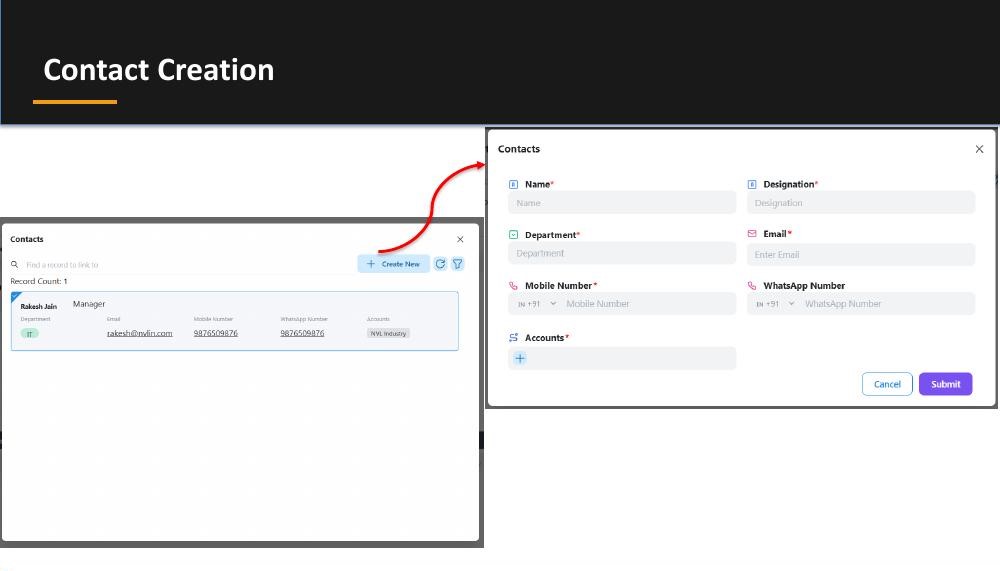
- If an account is already selected, its associated contacts appear automatically—no re-entry needed.
- If the right contact isn't listed, click + Create New.
- Fill in Name, Designation, Department, Email, Mobile Number, and WhatsApp Number, and confirm the linked Accounts field.
- Click Submit. Fields marked with a red asterisk are mandatory.
Key highlights: select existing accounts by organization group instead of retyping company details; create new accounts directly from the lead form, without switching screens; customer and market mapping captured at the point of creation; certificate/document upload is built into account creation, not a separate later step; contact lists auto-populate the moment an account is selected, keeping data entry to a minimum.
FAQ
- Do I need to fill every field to create a contact?
Fields marked with a red asterisk (Name, Designation, Department, Email, Mobile Number, Accounts) are mandatory; the rest are optional.
- What happens to the certificate I upload during account creation?
It's stored against the account and referenced later during the account's formal KYC verification workflow, so you don't have to upload it twice.
Is this article helpful?
Help us improve our articles.