
Lead Management in Hoicko CRM: Dashboard, Creation & Filtering
Updated 8/13/20263 min read
The Lead Management Dashboard is the centralized listing screen where every lead is tracked by Lead ID, Company Name, Lead Status, and Lead Source, with built-in filtering and grouping. New leads are captured through a structured creation form that links to an Account, a Contact, an SAP-sourced Region, and one or more products of interest.
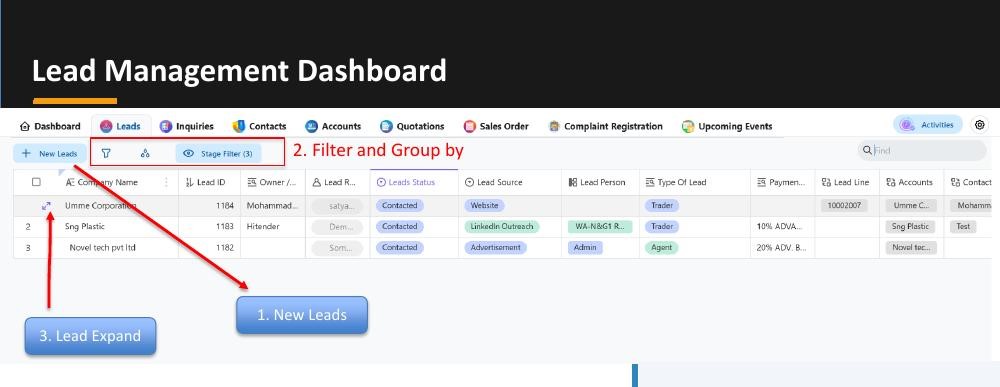
Why lead management matters in Hoicko CRM: a lead is the very first data point in the entire sales cycle — every inquiry, quotation, and sales order that follows traces its origin back to the lead record it was converted from. Getting the lead captured correctly, with the right account, the right contact, and the right product interest, is what keeps the rest of the pipeline clean and auditable.
What you can do from the Lead Management Dashboard:
- New Leads — open the lead creation form to log a fresh opportunity
- Filter and Group By — narrow or organize the list by any column
- Lead Expand — open a lead's full detail view to work it further
Key highlights of the dashboard: centralized lead listing interface; tracks Lead ID, Company Name, Lead Status & Lead Source at a glance; stage-based filtering and quick search; improves sales pipeline visibility across the whole team.
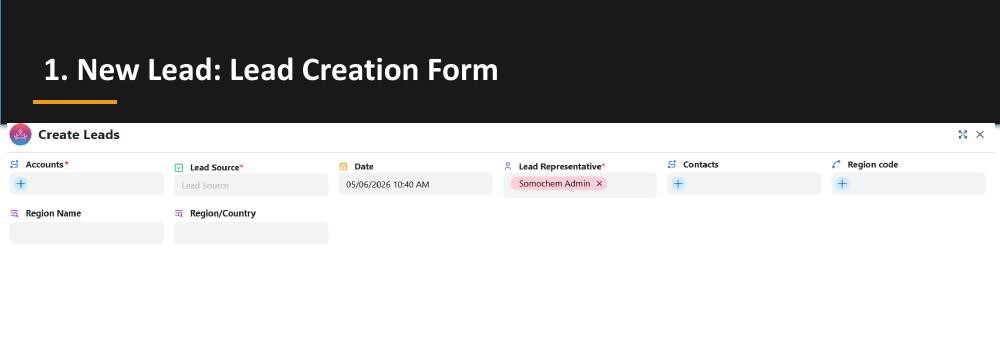
How to create a new lead—full walkthrough:
- Click New Leads on the Lead Management Dashboard.
- Account — select an existing account or create a brand-new one without leaving the form.
- Lead Source — choose from options like Advertisement, Customer Event, Employee Referral, Google AdWords, LinkedIn Outreach, or Website.
- Date — auto-populated with the system-generated lead creation date; not editable.
- Lead Representative — auto-populated with the currently logged-in user, so ownership is never ambiguous.
- Contacts — auto-populates from the linked account's existing contacts, or lets you create a brand-new contact on the spot if the account is new.
- Region Code — selected from SAP master data; this single selection determines two more fields automatically.
- Region Name and Region/Country — these auto-populate based on the Region Code and are locked (non-editable), which prevents mismatches with SAP's own region records.
- Product Inquiry table — add one or more materials with Quantity; the Unit of Measure (UOM) auto-fills the moment a material is selected, so reps never have to remember or manually enter UOM codes.
- Click Submit.
How to filter and group leads: Click the Filter icon above the lead list, choose a column (Company Name, Lead ID, Owner/MD Name, Lead Representative, Lead Status, Lead Source, Lead Person), a condition (is / is not / contains / does not contain / is empty / is not empty), and a value — multiple filters can be stacked together with + Add filter. To group, click the Group icon, choose a field (e.g., Leads Status), and toggle Ascending or Descending; grouping supports dynamic, flexible field selection so managers can slice the pipeline by whatever dimension matters that day — source, owner, or stage.
Image
FAQ
- Can one lead include multiple products?
Yes—the Product Inquiry section on the lead form supports multiple material/quantity/UOM entries per single lead.
- Do I have to manually enter the region name?
No—Region Name and Region/Country auto-populate and lock once you select a Region Code sourced from SAP master data.
- Who becomes the "owner" of a new lead?
The Lead Representative field auto-fills with whoever is logged in when the lead is created, so accountability is built in from the start.
Is this article helpful?
Help us improve our articles.