
Import & Export from Excel
Updated 8/7/20264 min read
Import & Export in Hoicko lets you bring existing spreadsheet data into a board (import) and pull board data back out as a file (export). You can import .xlsx and .csv files up to 10MB, and export any board as .xlsx or .csv. Before exporting, you can hide any columns you don't want included, so the exported file only contains the data you actually need.
What Is Import & Export in Hoicko?
Import & Export is the feature that connects your Hoicko boards with the outside world. Import brings data from an Excel or CSV file into a board, so you don't have to manually re-type existing records. Export does the opposite — it takes the data already on your board and saves it as a file you can share, back up, or use in another tool.
Why Use Import & Export?
Most teams don't start with an empty board — they're usually moving data from spreadsheets they already maintain. Import saves hours of manual data entry. Export is just as useful the other way: whenever you need a report, a backup, or a file to send to someone who isn't on Hoicko, you can generate it in seconds instead of copying data by hand.
How Do You Import Data Into Hoicko?
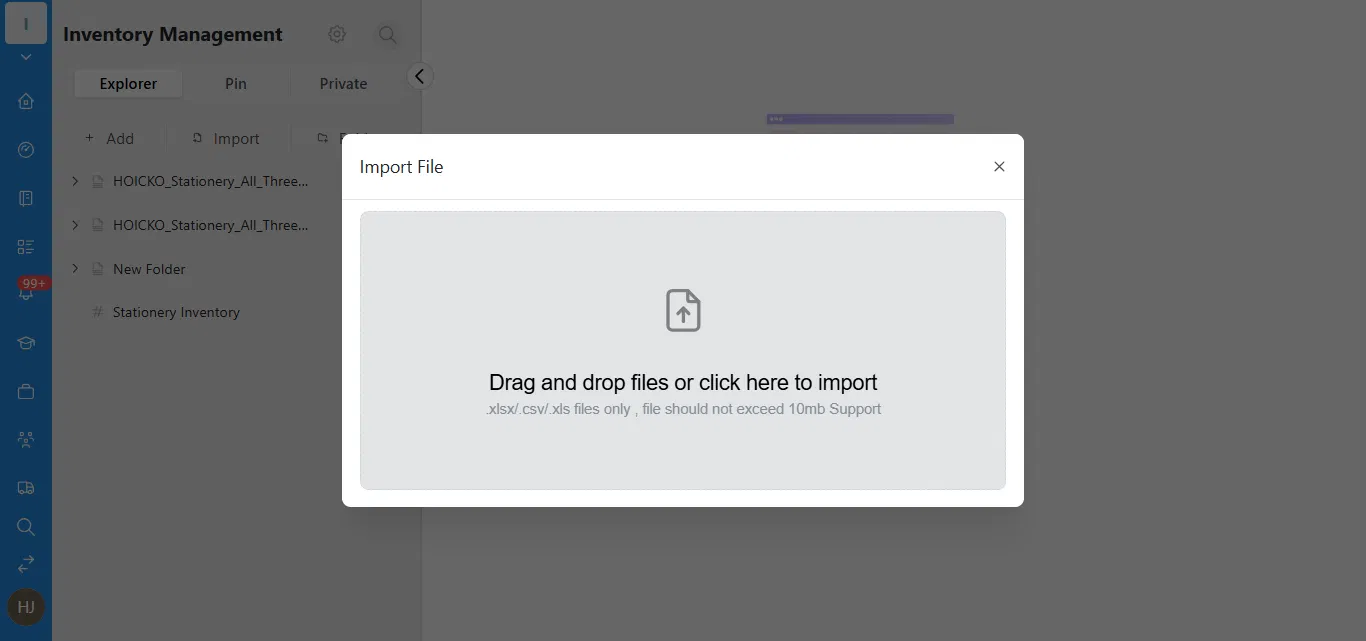
To import data, click Import on your workspace, then drag and drop your file or click to browse. Hoicko accepts .xlsx, .csv, and .xls files up to 10MB.
- Open your workspace or datasheet and click Import in the top toolbar.
- In the Import File window, drag and drop your file, or click inside the box to browse and select it from your computer.
- Hoicko accepts .xlsx, .csv, and .xls files — the file must not exceed 10MB.
- Once uploaded, match each spreadsheet column to the correct Hoicko column type, then confirm to bring the data into your board.
Tip: If your file has extra columns you don't need in Hoicko, you can skip mapping them during import — they simply won't be added to your board.
How Do You Export Data From Hoicko?
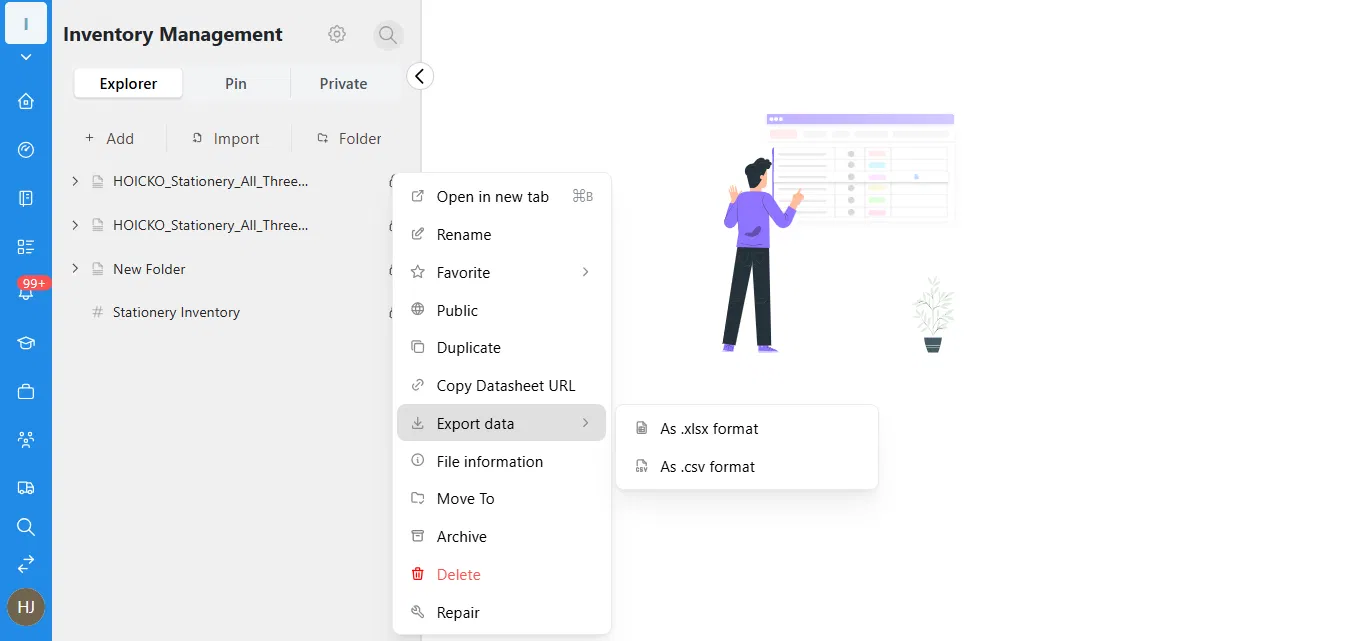
To export data, open the datasheet's options menu and select Export data, then choose either .xlsx format or .csv format.
- Open the three-dot options menu next to your datasheet or board name.
- Select Export data from the menu.
- Choose your format: As .xlsx format or As .csv format.
- The file downloads automatically with your board's current data.
You Choose Which Columns Get Exported?
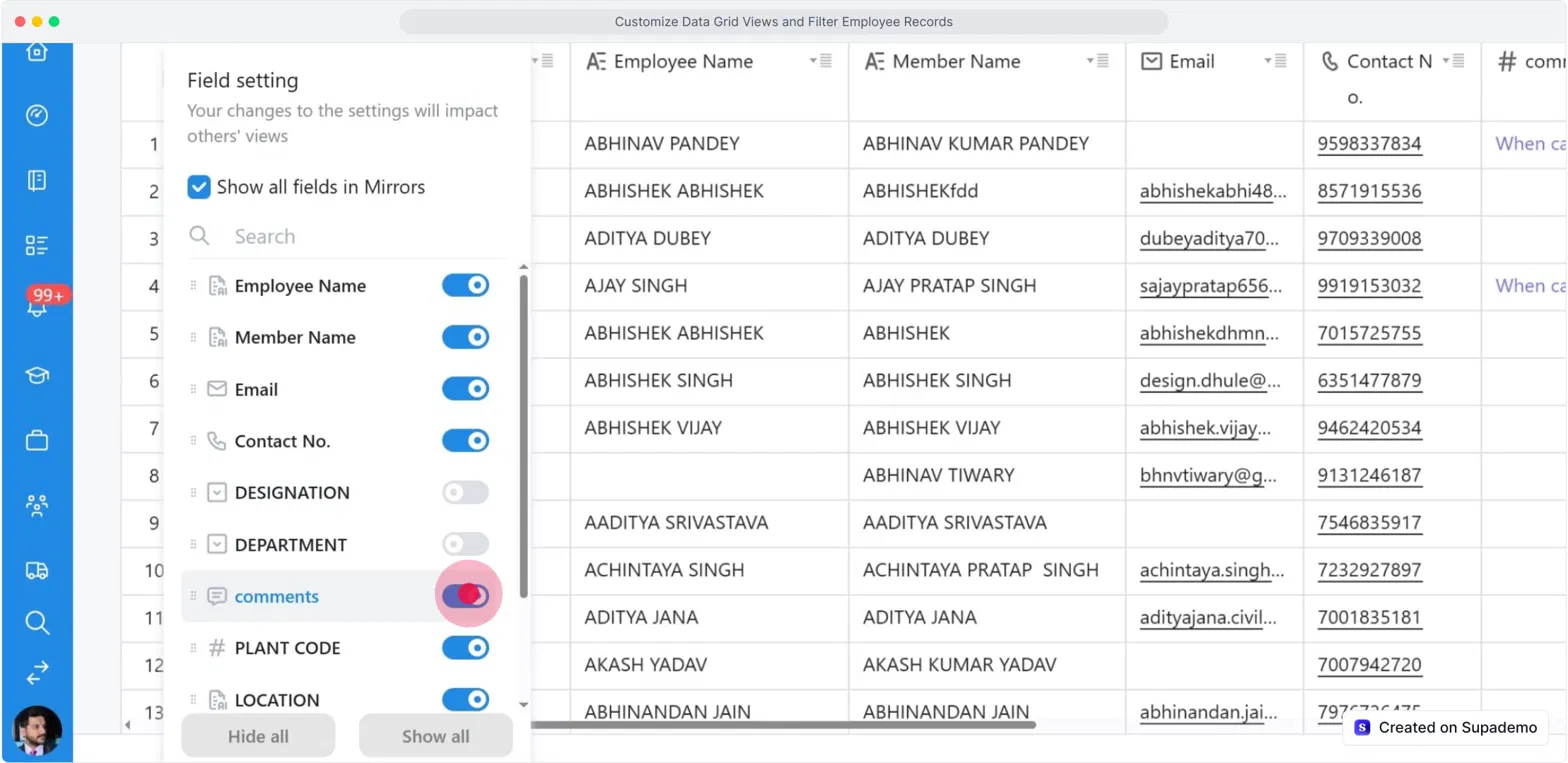
Yes. Hoicko exports exactly what's visible in your current view. Before exporting, open Field settings and turn off any columns you don't want included — the exported file will only contain the visible columns.
This is useful when a board has columns meant only for internal use — like internal comments, plant codes, or department notes — that shouldn't go into a report you're sharing outside the team. Instead of exporting everything and deleting columns afterward, you can simply hide them first.
- Click the field settings icon (the circle icon) on your board's toolbar to open Field setting.
- You'll see every column listed with a toggle switch next to it.
- Turn off the toggle for any column you want to hide — for example, comments, Plant Code, or Department.
- Use Hide all or Show all at the bottom to quickly reset all columns at once.
- Once your view shows only the columns you want, export the data — the hidden columns will be excluded automatically.
Tip: Hiding a column only changes what's visible in that view — it doesn't delete any data. You can turn the toggle back on anytime to bring the column back.
What file types can I import into Hoicko?
You can import .xlsx, .csv, and .xls files, as long as the file size doesn't exceed 10MB.
What file types can I export from Hoicko?
You can export any board or datasheet as either an .xlsx file or a .csv file.
Can I exclude certain columns from an export?
Yes. Open Field settings and turn off the toggle for any column you don't want included, then export — Hoicko will only include the columns that are currently visible.
Does hiding a column delete its data?
No. Hiding a column only affects what's visible in that view. The data stays intact and you can show the column again anytime.
Is there a file size limit for imports?
Yes, imported files must not exceed 10MB.