
How to Send a Document for Signature
Updated 9/8/20262 min read
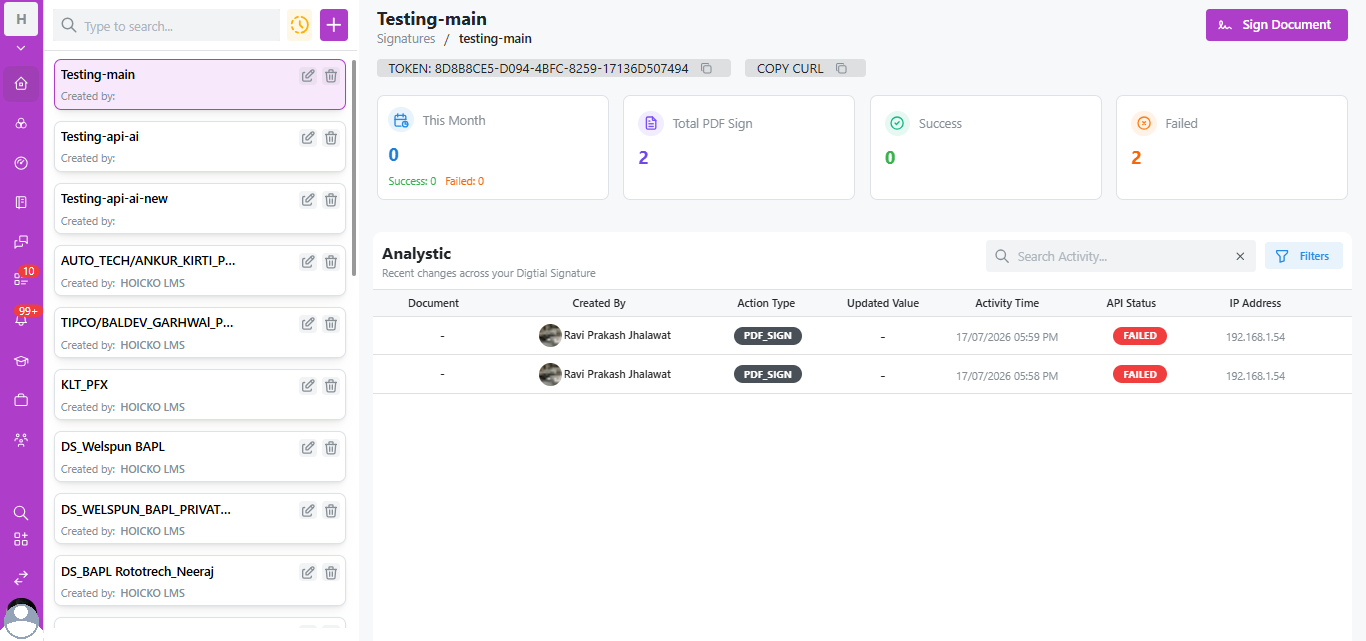
Open any saved signature profile from your Signatures list, then click the purple "Sign Document" button in the top-right corner of the profile's dashboard. This triggers the signing action using that profile's configured PFX certificate and text/area placement rules.
Understanding the Signature Profile Dashboard
Once you open a profile (e.g., "Testing-main"), you land on its dedicated dashboard showing:
- TOKEN — a unique identifier (e.g.,
8D8B8CE5-D094-4BFC-8259-17136D507494) used for API-based signing integrations, with a one-click Copy button. - COPY CURL — instantly copies a ready-to-use cURL command so developers can trigger signing programmatically from any system.
- This Month — signature volume processed in the current calendar month, broken into Success and Failed counts.
- Total PDF Sign — lifetime count of documents processed through this profile.
- Success and Failed — cumulative totals shown as standalone stat cards for at-a-glance health monitoring.
Step-by-Step: Sending a Document
- From the Signatures list, click into the profile you want to use (e.g., "Testing-main").
- Review the TOKEN — this is what any integrated system (CRM workflow, LMS, external app) uses to authenticate the signing request.
- Click Sign Document to manually initiate a signing action, or use COPY CURL to integrate the action into your own application/API workflow.
- Once triggered, the system attempts to apply your PFX-based signature to the target PDF using the profile's configured text/area rules.
- Monitor the result immediately in the Success/Failed stat cards and the Analytic table below.
Using the Token for API-Based Sending
Developers integrating Hoicko into an external system (a website form, another CRM, a document generator) use the TOKEN value as an authentication key inside the cURL command copied from COPY CURL. This allows fully automated, code-triggered signing without manual clicks.
Frequently Asked Questions
What's the difference between manually clicking "Sign Document" and using the API token?
Manual clicking is for one-off or ad hoc signing directly in the Hoicko UI. The API token/cURL method is for automated, high-volume, or integrated workflows triggered from external systems.
Can multiple team members use the same signature profile and token?
Yes, but for auditability it's best practice to track who triggers each request — Hoicko logs the "Created By" user for every signing action.
Is the token specific to one signature profile?
Yes — each profile (e.g., "Testing-main," "KLT_PFX") has its own unique token tied to its specific PFX certificate and configuration.
Related content
Is this article helpful?
Help us improve our articles.