
Formula Column
Updated 8/10/20263 min read
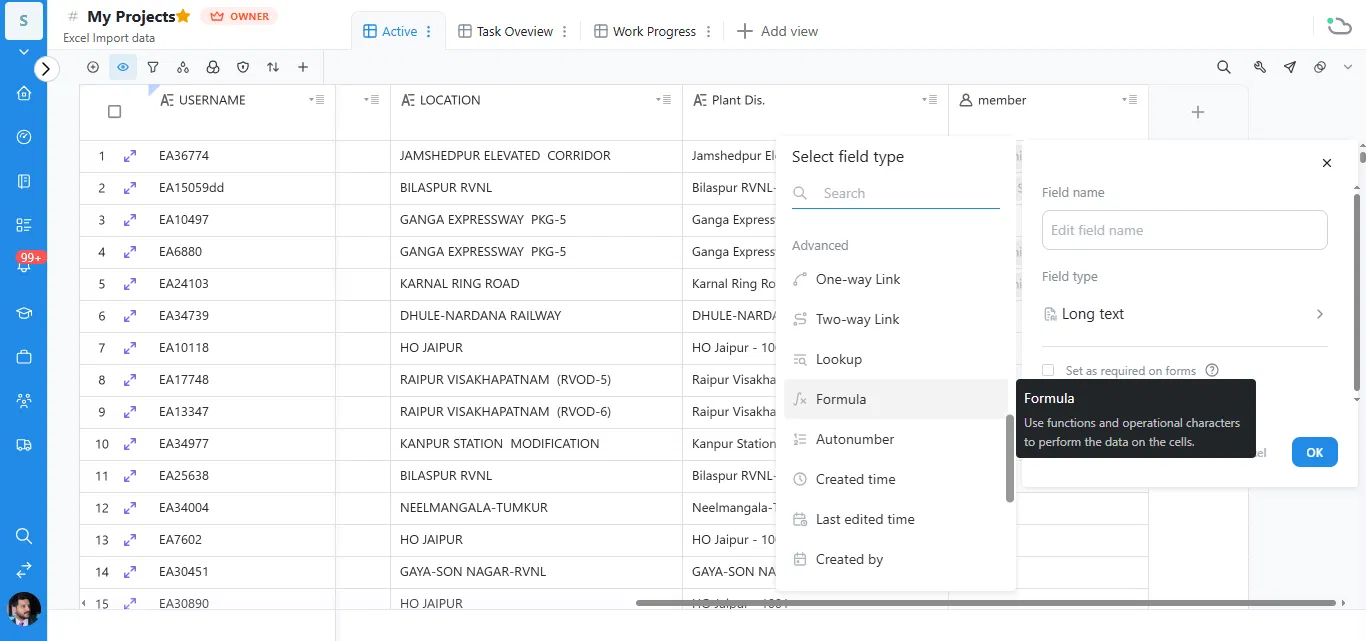
The Formula column in Hoicko lets you calculate values automatically using data already on your board. You add it from Add Column → Select field type → Advanced → Formula, then write a formula using field names, operators, and functions in the Enter a formula editor. The result updates on its own whenever the underlying data changes.
What Is the Formula Column in Hoicko?
The Formula column is a field type that performs calculations using the data already sitting in other columns on your board. As Hoicko itself describes it, Formula lets you use functions and operational characters to perform the data on the cells. Instead of manually calculating totals, differences, or conditional results, you write the logic once and every item's value updates automatically.
Why Use a Formula Column?
Boards often need calculated values — a total cost, a completion percentage, a day count, or a status derived from other fields. Doing this by hand is slow and error-prone, especially as data changes. A Formula column keeps these values accurate automatically, so your team always sees current numbers without extra manual work.
How Do You Add a Formula Column in Hoicko?
Click the + (Add Column) icon, open the Advanced section of the Select field type panel, and choose Formula.
- Open your board and click the + icon at the end of your columns to add a new column.
- In the Select field type panel, scroll to the Advanced section.
- Select Formula — a tooltip confirms it lets you use functions and operational characters to calculate values.
- Enter a name for the field, then continue to build your formula.
How Do You Write a Formula in Hoicko?
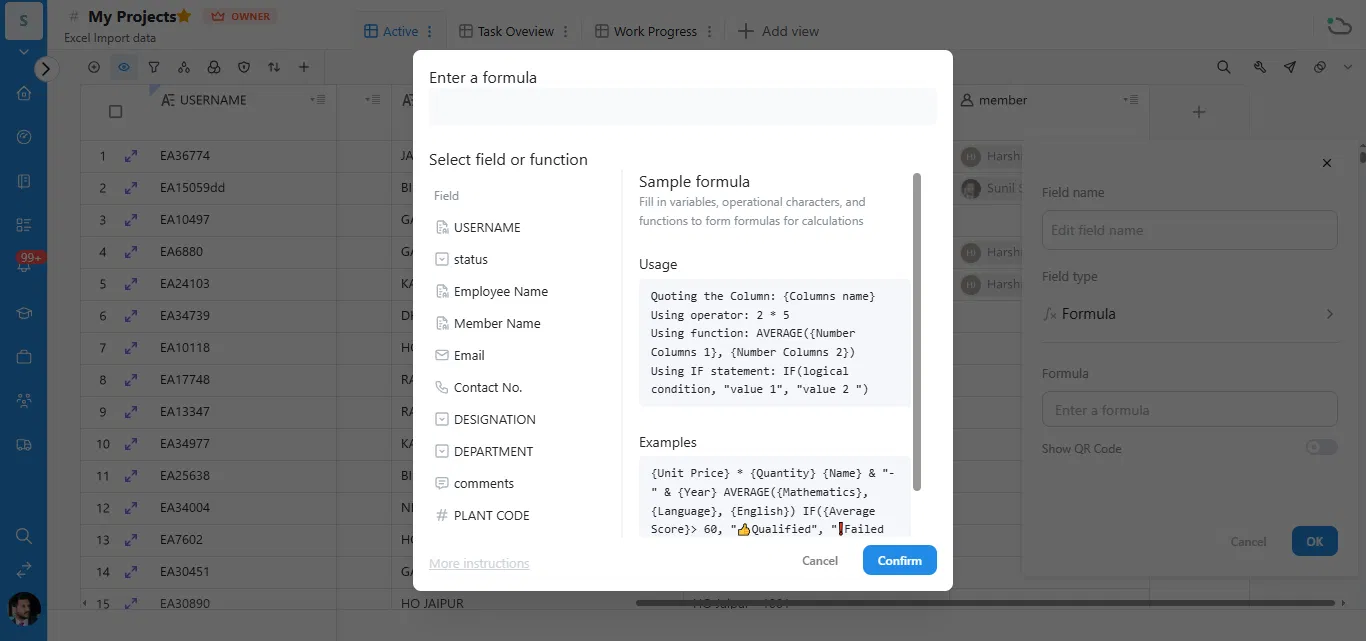
Once you select Formula and click into the Formula field, the Enter a formula editor opens. This is where you build your calculation using field names, operators, and functions.
- On the left, browse Select field or function to see every column you can reference (like USERNAME, status, Employee Name, DESIGNATION, etc.).
- On the right, review the Sample formula panel — it explains how to quote a column name, use operators, use functions, and use IF statements.
- Type your formula into the box at the top, referencing columns in curly braces, e.g. {Contact No.}.
- Check the Examples section for ready patterns you can adapt.
- Click Confirm to save the formula, then OK to finish adding the column.
What Formula Syntax Does Hoicko Support?
Based on the formula editor's built-in guide, you can combine these elements:
- Quoting a column: wrap the column name in curly braces, like {Columns name}.
- Operators: standard math operators such as 2 * 5 for multiplication.
- Functions: for example, AVERAGE({Number Columns 1}, {Number Columns 2}) to average two columns.
- Conditional logic: IF(logical condition, "value 1", "value 2") to return different results based on a condition.
The editor's Examples section shows real patterns, such as:
- {Unit Price} * {Quantity} — multiplies two columns together.
- {Name} & "-" & {Year} — joins text and a column value together.
- AVERAGE({Mathematics}, {Language}, {English}) — averages several score columns.
- IF({Average Score} > 60, "Qualified", "Failed") — returns a result based on a condition.
You can also enable Show QR Code in the field setup if you'd like the formula field's output represented as a scannable QR code — useful for asset tags or quick-reference labels.
Frequently Asked Questions
Where do I find the Formula column in Hoicko?
Click Add Column, then look under the Advanced section of the Select field type panel — Formula is listed there alongside One-way Link, Two-way Link, and Lookup.
How do I reference a column in a formula?
Wrap the column name in curly braces, like {Contact No.} or {Quantity}, and use it directly in your formula.
Can I use conditional logic in a formula?
Yes. Use an IF statement, such as IF(logical condition, "value 1", "value 2"), to return different results depending on whether a condition is true or false.
Does the formula update automatically?
Yes. Once saved, the formula recalculates automatically whenever the data in the referenced columns changes.
Can I edit a formula after creating the column?
Yes. Open the column's field settings again, and you can update the formula in the same Enter a formula editor.