
Dependencies
Updated 8/10/20263 min read
Dependencies in Hoicko let you make one column's value depend on another column being filled in correctly. Instead of just allowing any status change on an item, you can set a rule — called a constraint — that blocks the change until a required field is completed. This keeps your data clean and stops incomplete items from moving forward by mistake.
Why use dependencies (constraints)?
On a busy board, it's easy for someone to change a status without filling in every required field first — like marking a task as "Open" without assigning a Department. Dependencies catch this automatically. If a required field is missing, Hoicko blocks the update and shows a clear error, so incomplete records never slip through.
How to set up a dependency
- Open the column menu — Click the dropdown arrow (▾) on the column you want to add a rule to — for example, the status column.
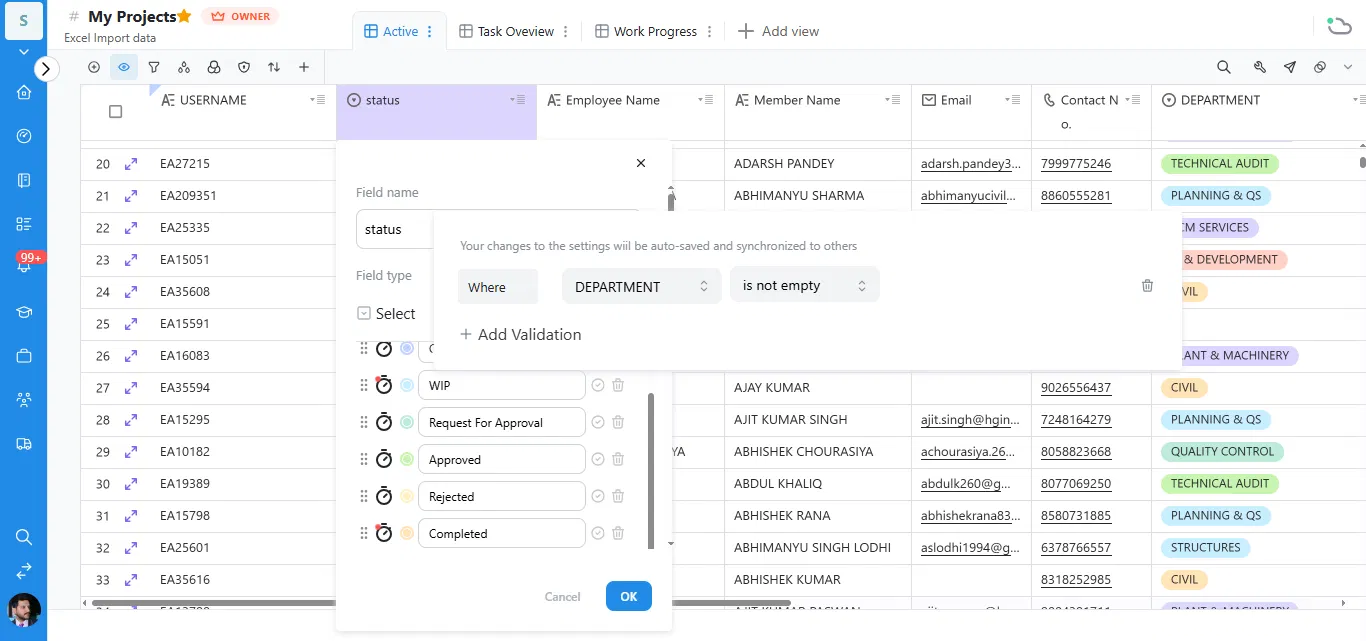
- Open field settings — This opens the field settings panel, showing the Field name, Field type, and the list of status options (WIP, Request For Approval, Approved, Rejected, Completed, etc.).
- Add a validation rule — Click + Add Validation. Set the condition using the Where dropdown — choose the column the rule depends on (e.g. DEPARTMENT) and the condition (e.g. is not empty).
- Save your changes — Click OK. Hoicko auto-saves the rule and syncs it to everyone on the board immediately.
What happens when someone tries to change the status
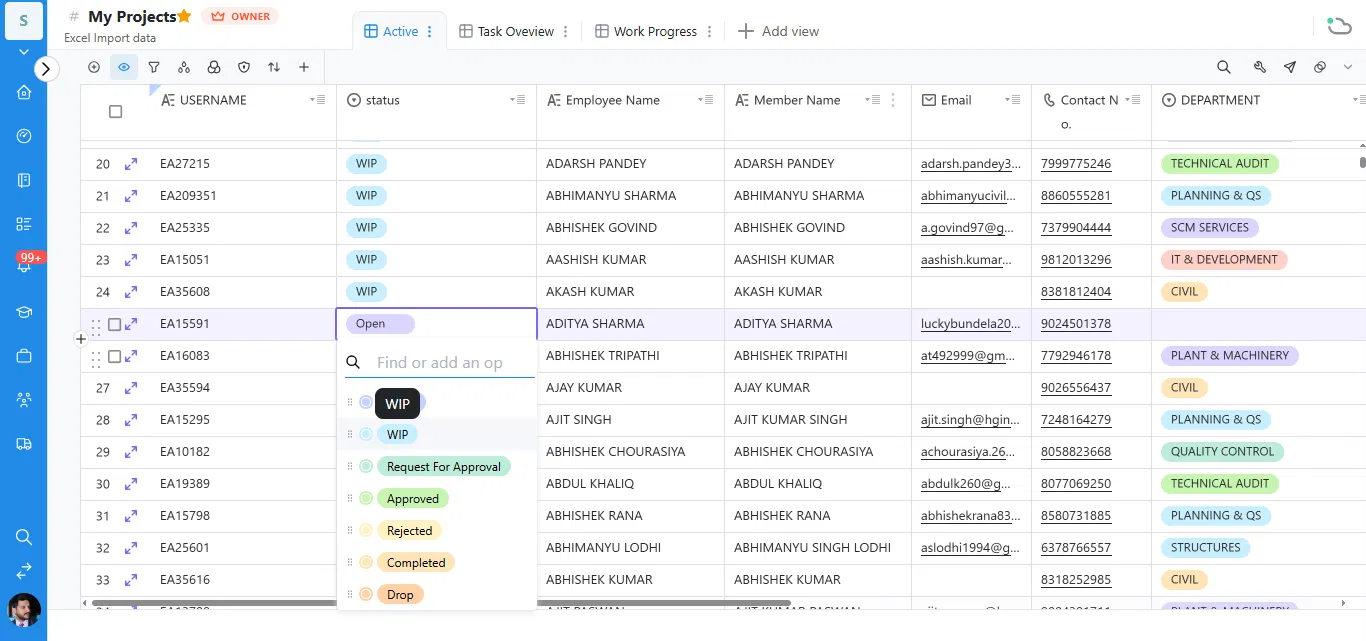
Once the rule is active, anyone changing the status column will see the normal dropdown of options — WIP, Request For Approval, Approved, Rejected, Completed, and so on. Nothing changes about how they select a value.
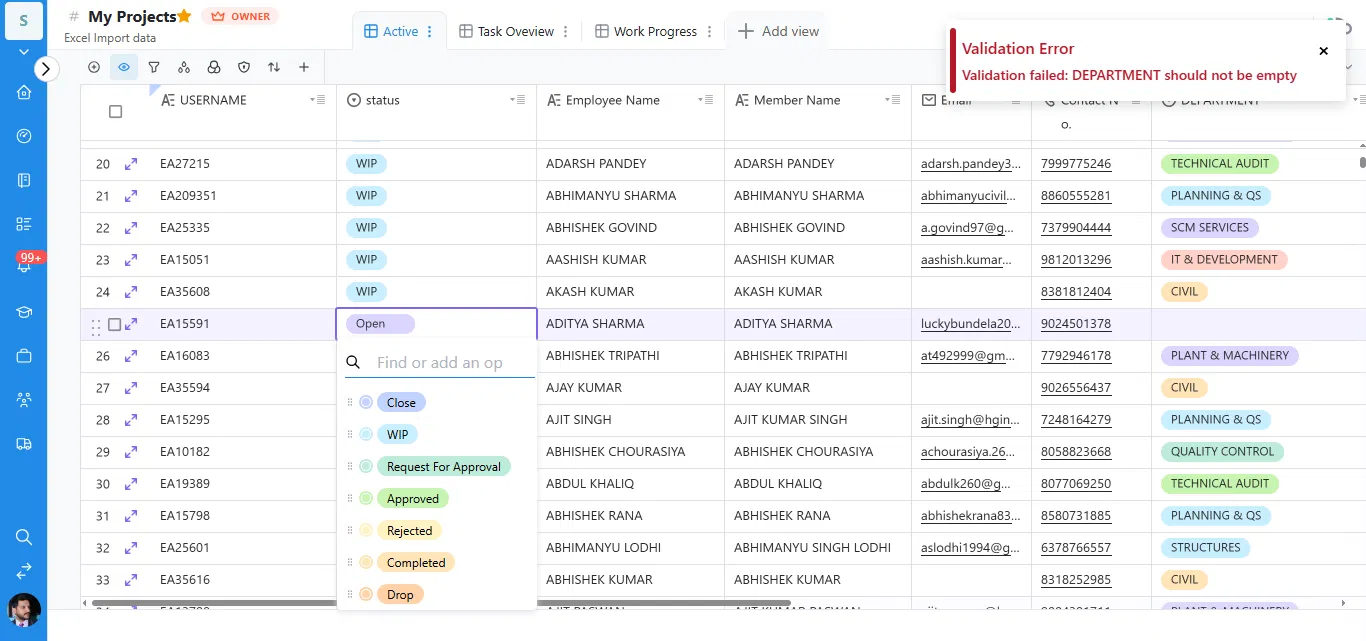
If the required field (DEPARTMENT, in this example) is empty, Hoicko blocks the change and shows a validation error explaining exactly what's missing.
Where this is useful
- Preventing a task from moving to "Approved" without an assigned reviewer.
- Making sure a lead can't be marked "Won" without a linked quotation number.
- Requiring a Department or Owner field to be filled in before a status can change at all.
- Keeping imported Excel data clean by catching missing fields as soon as someone interacts with the row.
Tip: Add validations to fields that feed your reports and dashboards first — a missing Department or Owner value is far more disruptive there than on a field nobody reports on.
Frequently asked questions
Can I add more than one validation rule to a column?
Yes. Click + Add Validation again to stack multiple conditions on the same column.
Do all team members see the same constraint rules?
Yes. Changes to constraints are auto-saved and synced to everyone with access to the board, so the rule applies the same way for the whole team.
What happens if I try to save an invalid change?
Hoicko blocks the change and shows a Validation Error message naming the exact field and condition that failed, so you know exactly what to fix.
Can a constraint check a condition other than "is not empty"?
Yes. The Where condition can be configured for different checks depending on the column type, not just whether a field is empty.