
Connected Board Column
Updated 8/10/20264 min read
The Connect Boards column in Hoicko lets you link items from one datasheet to items in another (or the same) datasheet, so related data stays connected instead of being duplicated. You add it through Add Column → Select field type → Advanced, where you'll find two link types: One-way Link, which points to related records in a single direction, and Two-way Link, which creates a bidirectional connection visible from both sides.
What Is the Connect Boards Column in Hoicko?
The Connect Boards column (built using Hoicko's Link field type) lets you connect a record on one board to a record on another board — or even another item on the same board. Instead of retyping the same information in multiple places, you link the records once, and the connection stays live. If the source item changes, the link keeps pointing to the correct, up-to-date record.
Why Use Connect Boards?
Different teams often manage related work on separate boards — for example, a Locations board and a Members board. Without a link, you'd have to manually copy details between them and update both any time something changes. Connect Boards removes that duplication: you link the related item once, and anyone can jump between connected records without losing context.
How Do You Add a Connect Boards Column?
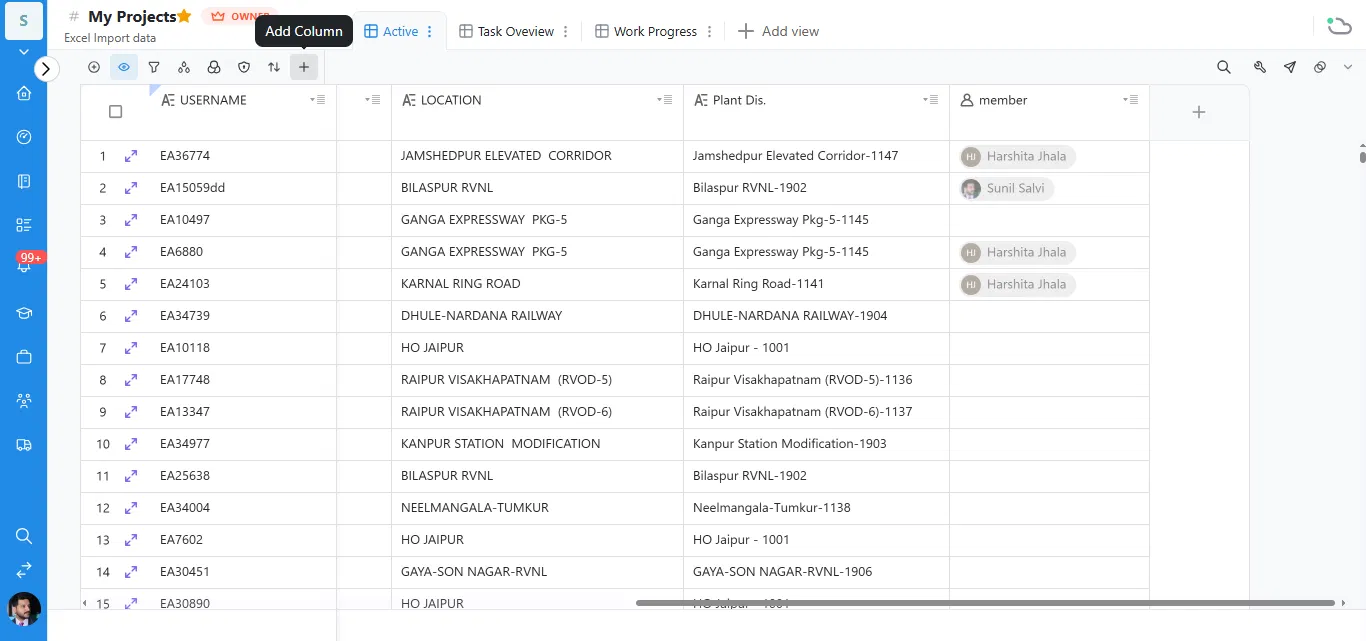
Click the + (Add Column) icon at the end of your board's columns, then choose either One-way Link or Two-way Link under the Advanced section of the field type list.
- Open your board and click the + icon at the end of your columns — this is the Add Column button.
- In the Select field type panel, scroll to the Advanced section.
- Choose One-way Link or Two-way Link, depending on the kind of connection you need.
- Give the field a name, set any additional options, and click OK to add the column.
What Is a Two-Way Link?
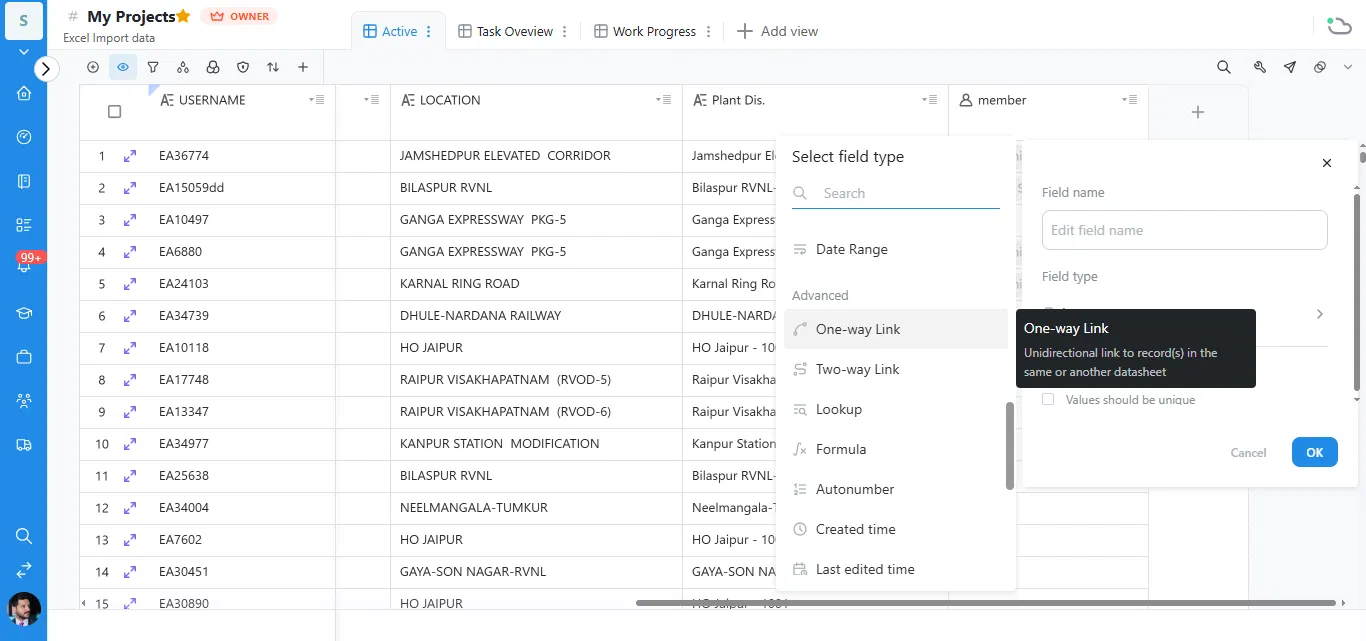
A Two-way Link creates a bidirectional connection to record(s) in the same or another datasheet — meaning the link is visible and updates from both sides of the connection.
Use a Two-way Link when both boards need to reflect the relationship. For example, if you link a Location to a Member, the Member record will also show which Location it's linked to, automatically, without adding a separate column on that side.
What Is a One-Way Link?
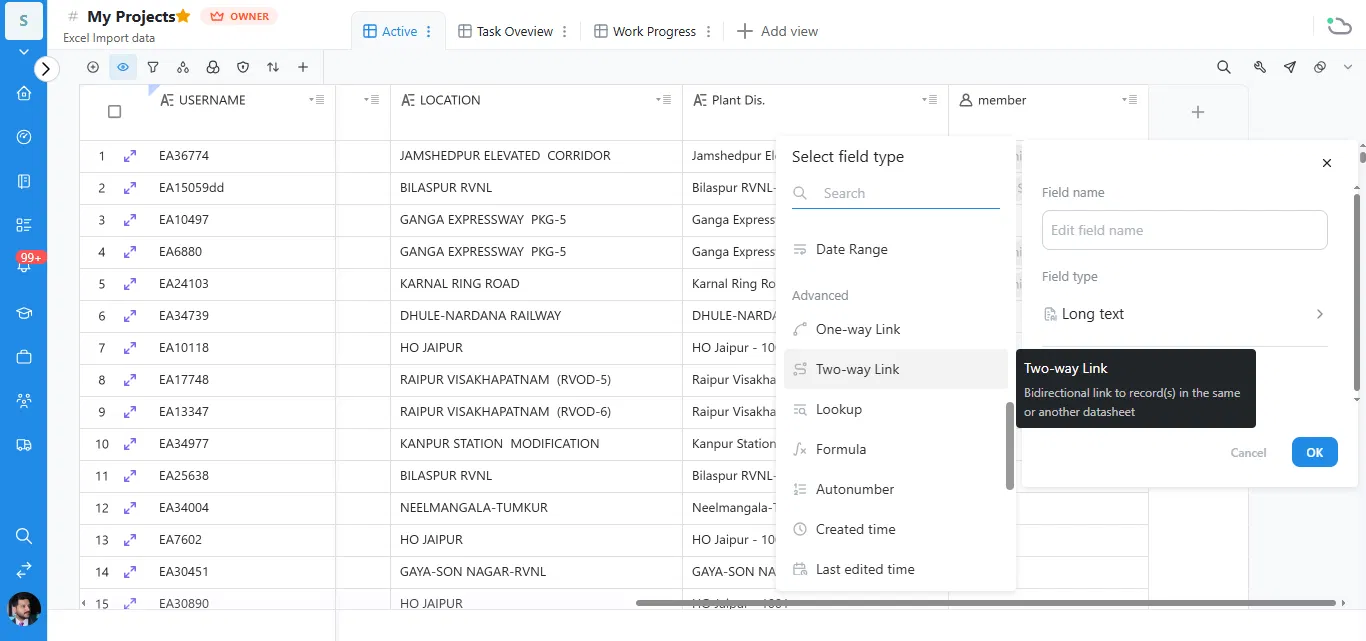
A One-way Link creates a unidirectional link to record(s) in the same or another datasheet — the connection only shows on the board where you created it, not on the other side.
Use a One-way Link when only one board needs to reference the other — for example, pulling in a related record for context without needing that link to also appear on the source board. A One-way Link also gives you the option to mark Values should be unique, which prevents the same record from being linked more than once.
How Do You Finish Setting Up the Field?
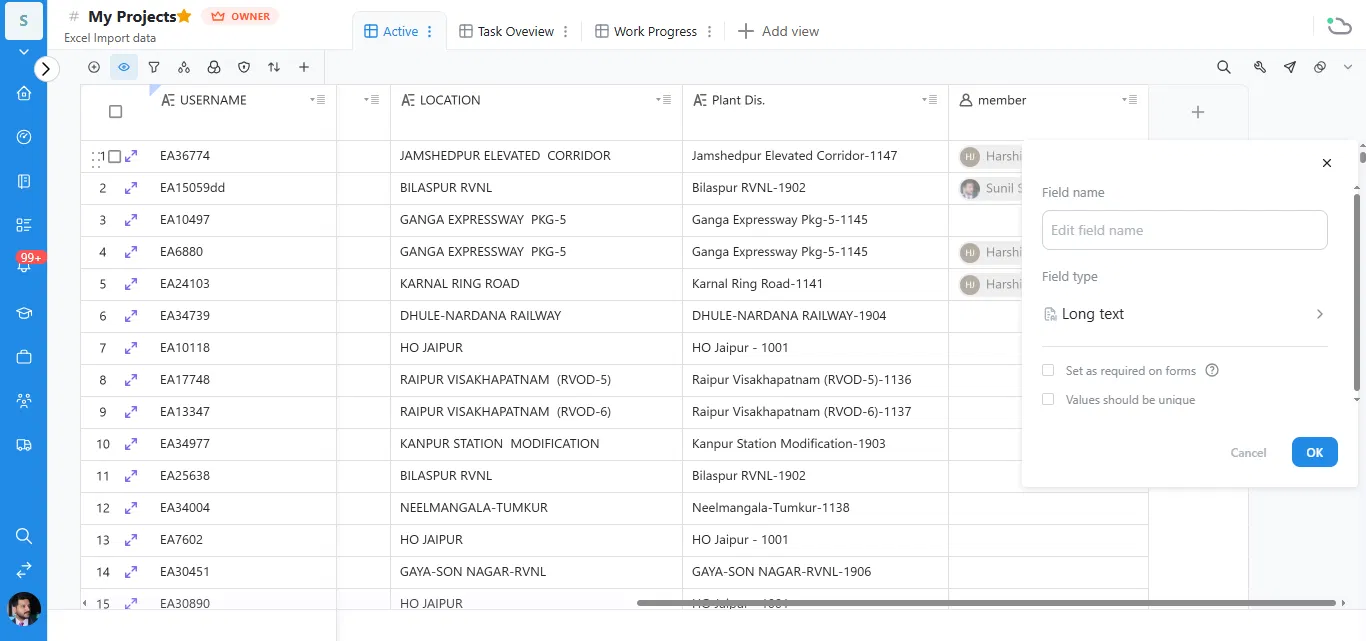
After choosing your link type, Hoicko shows a setup panel where you name the field and confirm its type before adding it to the board.
- Click Edit field name and type a clear name for the column (e.g., "Linked Location").
- Confirm the field type shown — this reflects the link type you selected.
- Optionally check Set as required on forms or Values should be unique if relevant.
- Click OK to add the column to your board.
Tip: Not sure which to use? If you're only linking related information for context, go with a one-way link. If both teams need to see and manage the relationship, use Two-way Link.
Frequently Asked Questions
Where do I find the Connect Boards option in Hoicko?
Click the + (Add Column) icon on your board, then look under the Advanced section of the Select field type panel for One-way Link and Two-way Link.
What's the difference between a one-way and a two-way link?
A One-Way Link only shows the connection on the board where it was created. A two-way link is bidirectional—it shows and updates the connection on both linked boards.
Can I link items within the same board?
Yes. Both one-way links and two-way links can connect records in the same datasheet or a different one.
Can I make sure the same record isn't linked twice?
Yes, when adding a one-way link, check the "Values should be unique" option to prevent duplicate links.
Does linking boards duplicate the data?
No. Linking connects to the original record rather than copying it, so the data always stays current on both sides.
Is this article helpful?
Help us improve our articles.