
Configure Punch Methods & Geofencing
Updated 8/14/20262 min read
While creating or editing a shift, click the Punch Method dropdown to choose Mobile, Machine, or Both; then click the Location field, search for and select the office address, and set a Location Radius (in meters)—employees can only punch in from within that radius.
Geofencing exists for one specific reason: to make sure "checked in" actually means "physically at the workplace" for roles where that distinction matters, without requiring a dedicated biometric device installed at every single site your company operates from. It's especially useful for companies with client-onsite staff, multiple small offices, or field teams where installing hardware at every location isn't practical, but attendance still needs to be location-verified rather than taken on trust.
The three punch method options exist because not every role needs the same level of rigor. A head office with an existing biometric machine might stick with Machine for consistency with legacy records; a distributed team might use Mobile with geofencing as the equivalent control; and many companies use Both, giving employees flexibility while still capturing accurate attendance data either way.
Step-by-step:
- Open Shift Management and edit or create the relevant shift.
- Click the Punch Method dropdown and choose Mobile, Machine, or Both, based on how this shift's attendance should be captured.
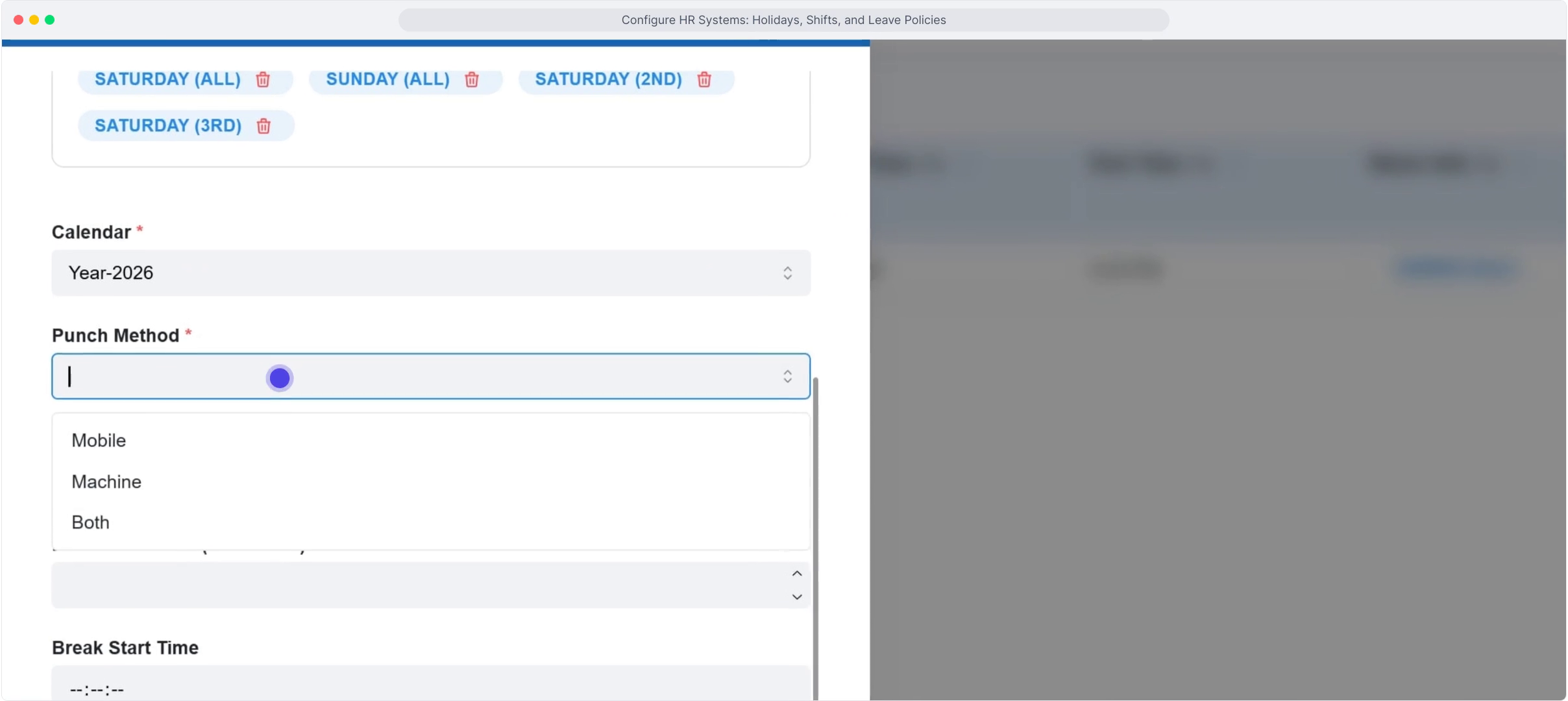
- Click the Location search field and look up your office or site address.
- Select the correct address from the suggestions provided (powered by Google), rather than typing a full address manually—this ensures the coordinates behind the geofence are accurate.
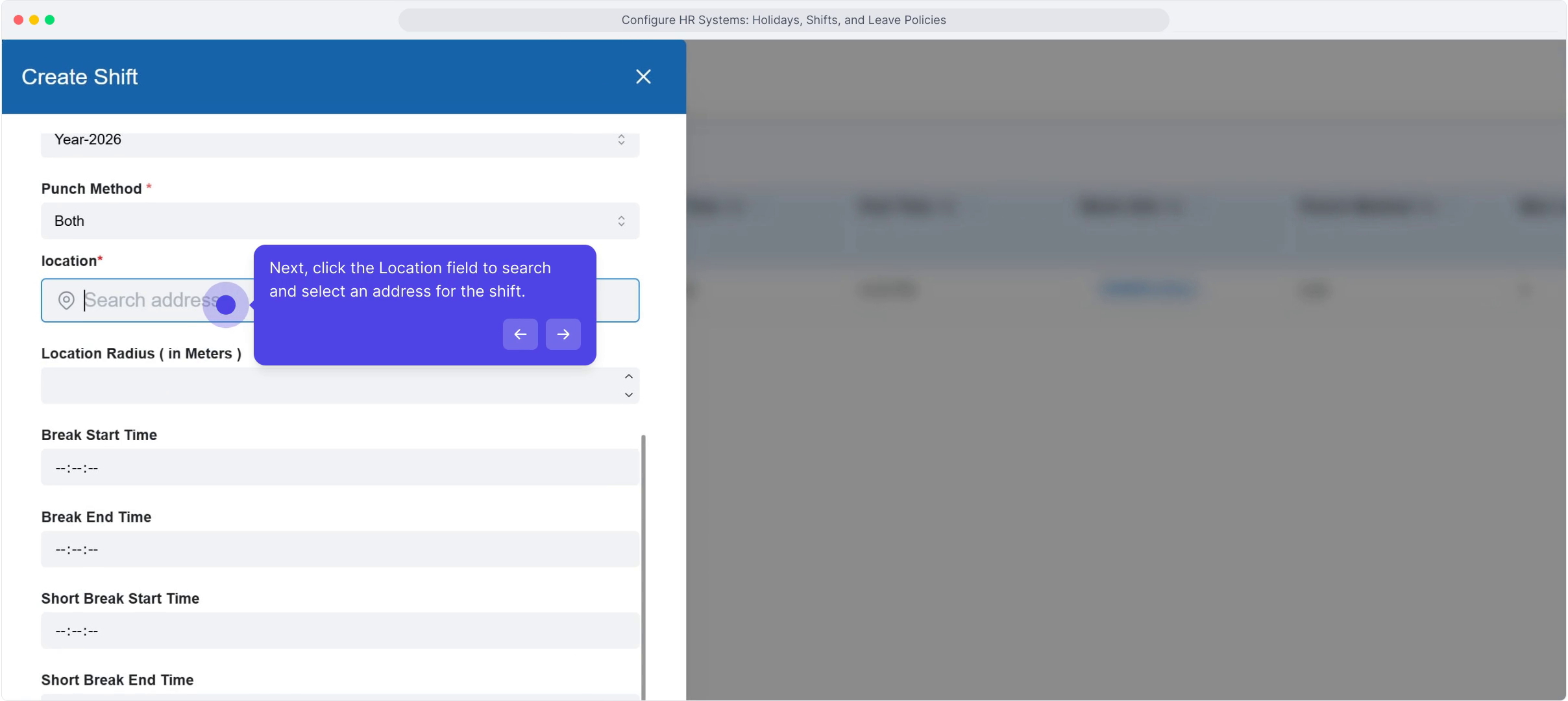
- Enter the Location Radius (in meters) to define how far from that point an employee can still successfully punch in—a tighter radius suits a small single-building office, while a larger radius may be needed for a campus-style site.
- Save the shift. Employees assigned to this shift will now only be able to check in via mobile when inside the defined radius or via a registered biometric device if Machine is selected.
FAQ
What happens if an employee tries to punch in outside the radius?
The mobile punch is blocked or flagged, prompting the employee to submit a Miss Punch request instead, which routes to an administrator for manual review and approval.
Can I set a different radius for different offices?
Yes—each shift can have its own location and radius, so different teams or sites can have appropriately sized geofences rather than a single company-wide setting that doesn't fit every location.
Does geofencing drain an employee's phone battery or require the app to run constantly?
Location is only checked at the moment of a punch event (check-in or check-out), not tracked continuously through the day, which keeps the feature lightweight from a device-usage perspective.
Is the machine punch method compatible with any biometric device, or does it need a specific model?
Hardware compatibility for the machine punch method depends on your specific attendance device setup—check with your IT team or Hoicko support for confirmation on which devices are supported for your account.
Related content
Is this article helpful?
Help us improve our articles.