
Complete Onboarding Setup
Updated 8/14/20262 min read
After personal details and documents are complete, select the employee's department, physical location, and shift from their respective dropdowns, then click Submit to finalize onboarding.
This final stage is what actually turns a candidate profile into a fully active employee record — connected to the right team, the right office, and the right work schedule from day one. Everything configured earlier in this guide (shifts, leave policies, org structure) comes together at this exact step, since assigning a shift here is what activates attendance tracking, and the department assignment is what places the employee correctly within reports and the org chart.
It's worth treating this as a genuine final review rather than a quick formality — this is the last checkpoint before the employee becomes visible in live attendance and leave data, so any mistake here (wrong shift, wrong department) will show up immediately in reports once they start working, rather than being caught quietly beforehand.
Step-by-step:
- In the candidate's remaining setup fields, select the Physical Location (office or client site) from the dropdown list — for example Novel, Hoicko, Pacific, or another configured site.
- Select the department and core module the employee belongs to, matching the organizational structure you built during setup.
- Under Shift, choose the correct shift pattern — for example "General Shift" — from the list of configured shifts (Novel Leads, General Shift, Novel Office, Work From Home, and any others your company has created).
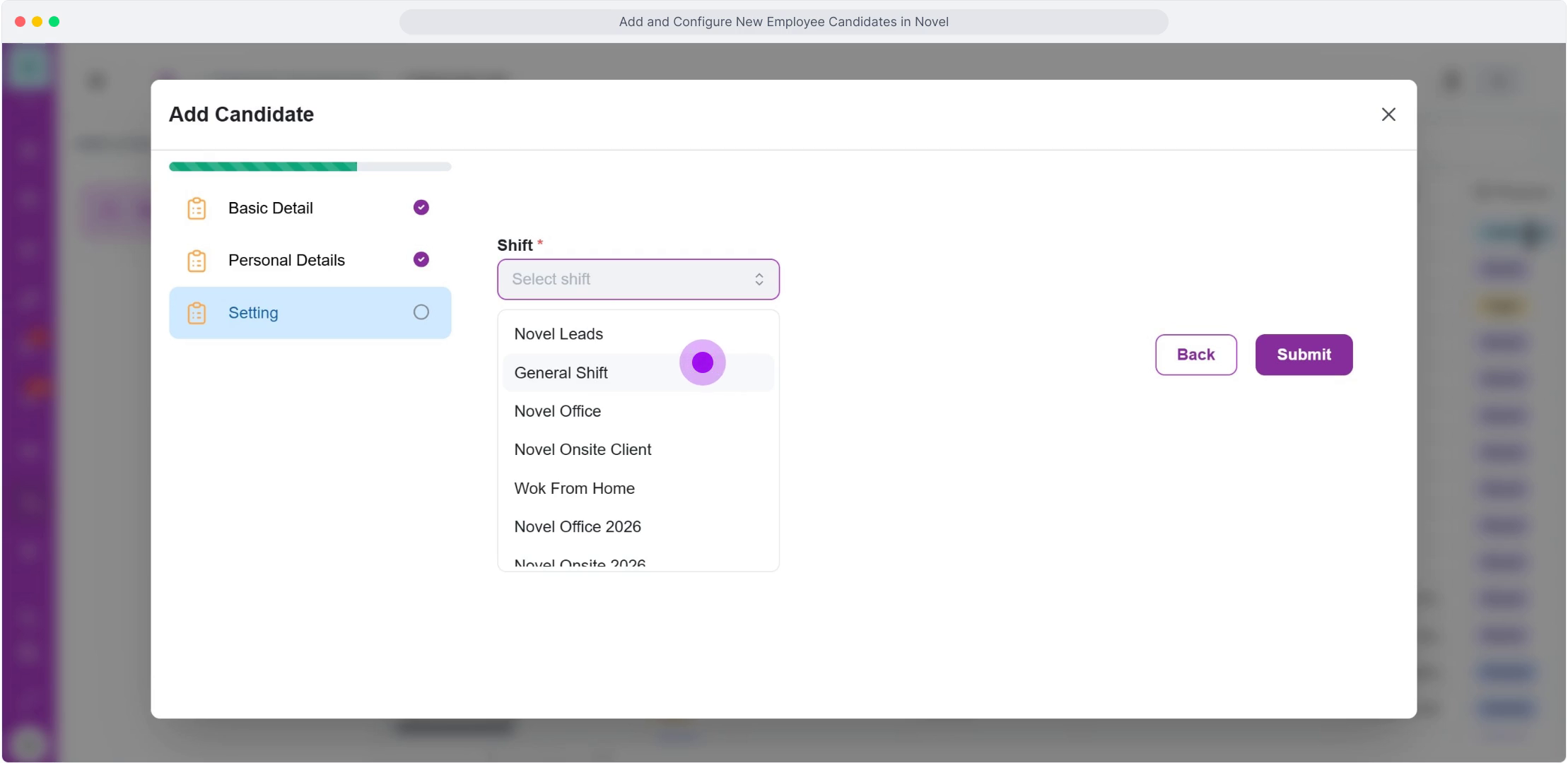
- Review all fields across both the Personal Details and Setting tabs one more time, since this is your last chance to catch a mistake before submission.
- Click Submit to save the candidate's information and complete the form. A confirmation screen appears once the profile is saved successfully.
FAQ
Can I change an employee's shift or department after onboarding?
Yes—return to their profile in Employee Management at any time to update Department, Physical Location, or Shift as their role changes, without needing to redo the entire onboarding flow.
Does submitting the form automatically enable their attendance tracking?
Yes—once submitted with a shift assigned, the employee is included in attendance, leave, and location reporting from their configured Date of Joining, with no separate activation step needed.
What's the very last step in onboarding?
After clicking Submit, the employee is fully active in Hoicko HRMS—they'll be able to log in and see their own dashboard with My Profile, Attendance, Leave Status, and Miss Punch tiles, exactly as covered in the completion checklist that follows.
Related content
Is this article helpful?
Help us improve our articles.