
Board view
Updated 8/10/20263 min read
Board views let you look at the exact same board data in different formats — a grid, a gallery, a kanban board, a timeline, a calendar, or a map — depending on what's most useful at the time. Since every view pulls from the same underlying data, editing an item in one view updates it everywhere else automatically.
How to add a view
- Click + Add view — This sits next to your existing view tabs (Active, Task Oveview, Work Progress, Gantt, etc.) at the top of the board.
- Choose a view type — Pick from Grid, Gallery, Kanban, Gantt, Calendar, or Map View.
- Click the + icon — This adds the view as a new tab, ready to configure.
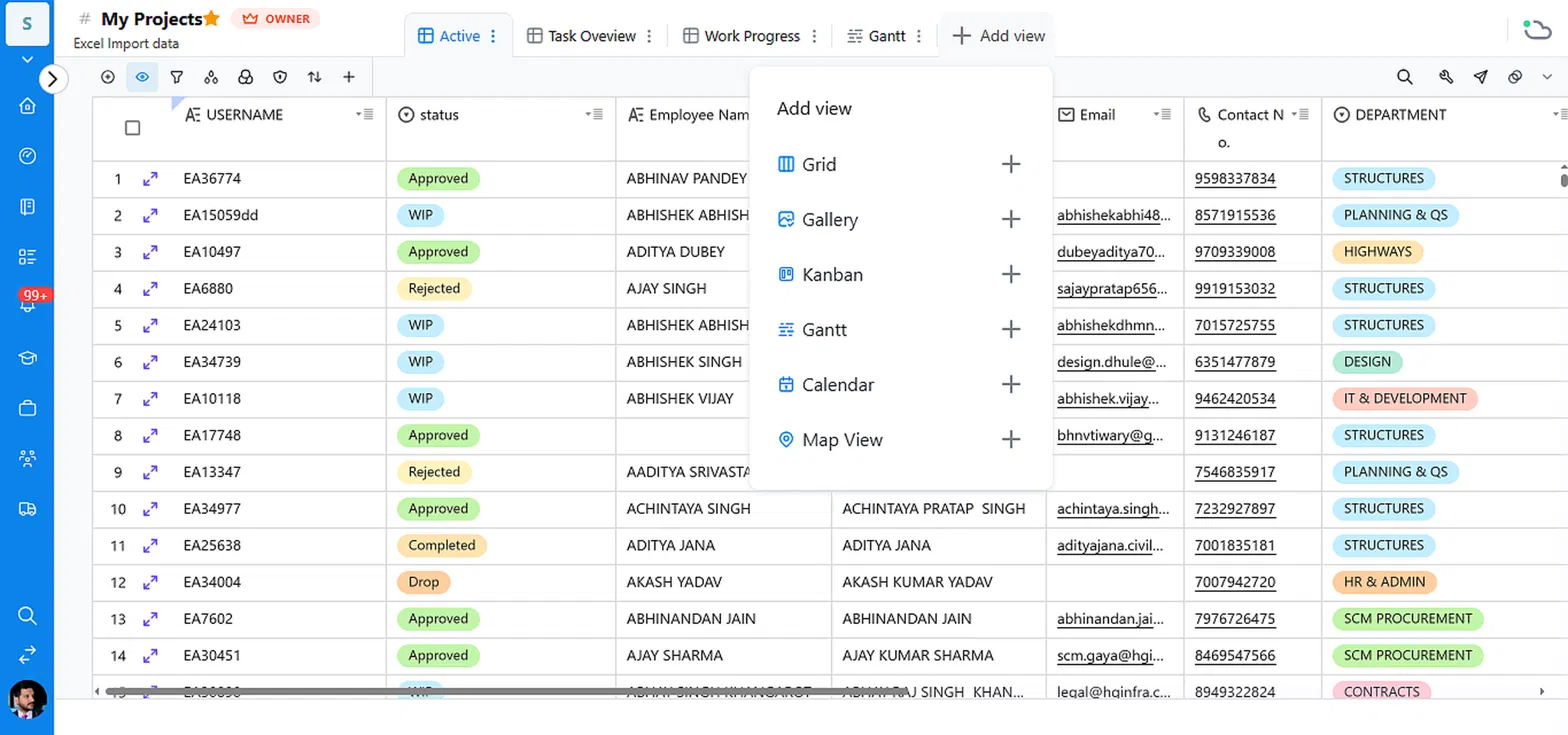
The six view types in Hoicko
Grid
The default, spreadsheet-style view. Every column and row is visible, making it the best view for detailed data entry, bulk editing, and scanning large amounts of information at once — like the USERNAME, status, Employee Name, and Department columns on a project board.
Gallery
Displays each item as a visual card instead of a row, showing key fields and any attached images. Gallery view works well when items benefit from a visual preview — product catalogs, portfolios, or people directories — rather than a dense table.
Kanban
Groups items into columns based on a status-type field (e.g. WIP, Request For Approval, Approved, Rejected, Completed), so you can drag items across stages as work progresses. This is the clearest way to see workflow at a glance and spot where items are piling up.
Gantt
Turns your items into a visual timeline based on Start date and End date columns, showing how long each task runs and how tasks overlap. It's the right view for planning schedules and tracking project timelines.
Calendar
Plots items on a calendar based on a date column, so you can see what's due on any given day, week, or month. Useful for deadline-heavy boards where timing matters more than task order.
Map View
Plots items with a location or address field as pins on a map. This is useful for boards tracking field visits, deliveries, site locations, or any work tied to a physical place.
Why use multiple views instead of one
Different people need to see the same work differently. A project manager might want the Gantt timeline, a field team might prefer the Map View, and someone doing bulk data entry needs the Grid. Because all views read from the same board, no one has to keep a separate copy of the data updated — everyone just picks the view that fits what they're doing.
Tip: Rename each view tab to match its purpose (e.g. "Approval Kanban" or "Delivery Map") so teammates know which view to open without guessing from the icon alone.
Frequently asked questions
Does changing data in one view affect other views?
Yes. All views show the same underlying board data, so editing an item in Grid, Kanban, or any other view updates it everywhere immediately.
Can I have more than one of the same view type?
Yes. You can add multiple Grid or Kanban views, for example, each with different filters — one might show only your team's items, another the full board.
Which view should I use for tracking deadlines?
Calendar view is best for day-by-day or week-by-week deadlines. Use Gantt instead if you need to see task duration and overlaps across a longer timeline.
Do I need location data for Map View to work?
Yes. Map View needs at least one column with a location or address value to plot items as pins.
Can I delete a view without affecting the board data?
Yes. Views are just different ways of displaying board data — removing a view does not delete any items or columns from the board.