
Board Permissions
Updated 8/7/20263 min read
Board permissions in Hoicko control what each person can do on a board once you invite them. When you click Share and add someone, you assign them a role — Owner, Manager, Editor, Update-only, or Read-only — and that role decides whether they can manage the board, edit data, update items, or only view them.
What Are Board Permissions in Hoicko?
Board permissions are access levels you assign to the people you invite to a board. Instead of every collaborator having full access by default, Hoicko lets you decide exactly what each person can do — from full ownership control down to view-only access. This keeps your data organized and prevents accidental edits by people who only need to see the information.
Why Do Board Permissions Matter?
Not everyone who needs to see a board should be able to change it. A client or stakeholder may only need to view progress, a teammate may need to update their own tasks, and a project lead may need full control. Board permissions let you match access to responsibility, so sensitive data and workflows stay protected while collaboration still runs smoothly.
How Do You Invite Someone and Set Their Permission?
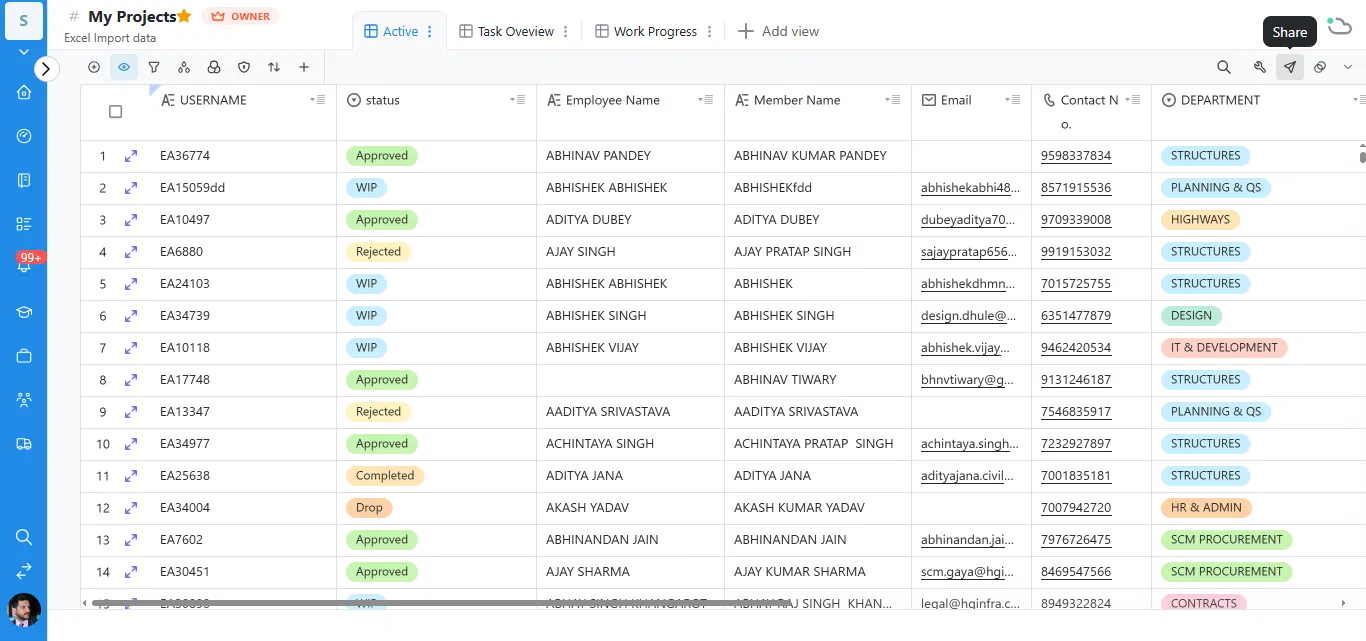
Click the Share icon in the top-right corner of your board, search for the person or team you want to add, then choose their role from the dropdown before clicking Add.
- Open your board and click the Share icon in the top-right toolbar.
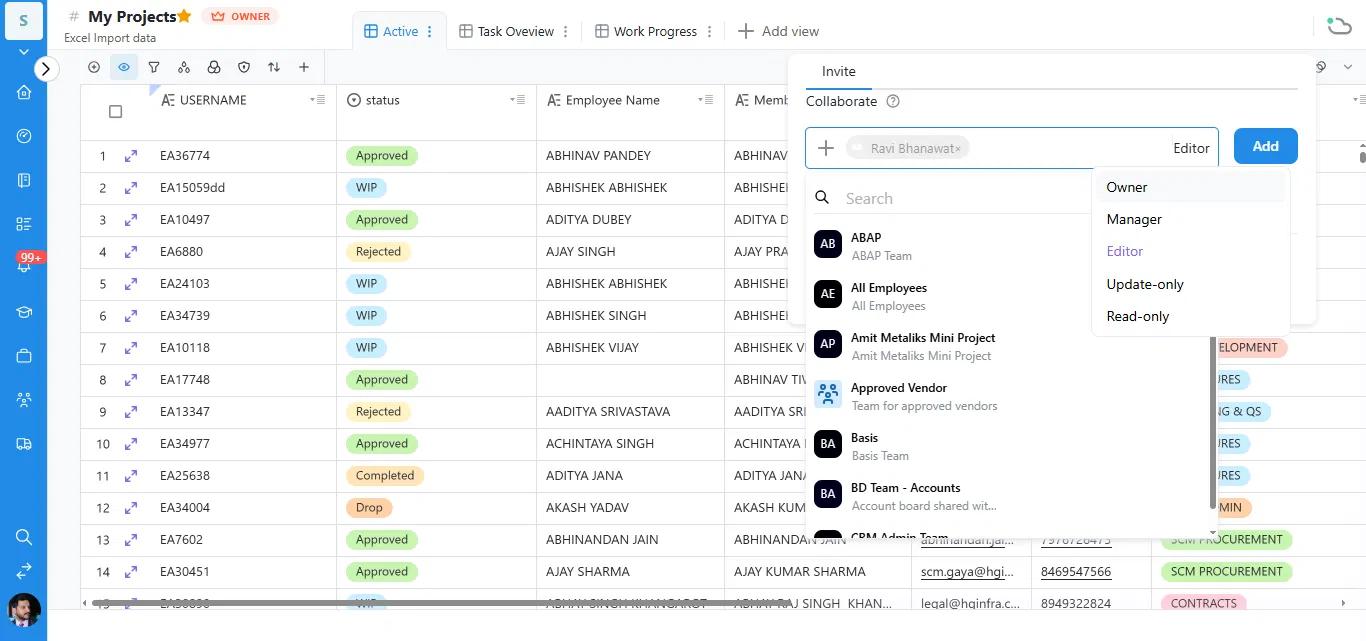
- In the Invite / Collaborate panel, search for the person or team you want to give access to.
- Click the role dropdown next to their name — this shows all available permission levels.
- Select the role that matches what they should be able to do.
- Click Add to confirm and grant access.
Once you search for a name or team, the role dropdown appears — this is where you choose exactly how much access they get.
What Do the Different Permission Roles Mean?
Hoicko offers five permission roles, ranked from full control to view-only:
Owner
Full control of the board — can manage permissions, structure, automations, and all data. Typically reserved for the person responsible for the board.
Manager
Broad control over the board's day-to-day setup and data, one level below Owner — suited to team leads who need to manage the board without full ownership rights.
Editor
Can add, edit, and update items and columns on the board, but doesn't have the higher-level management access that Owner or Manager roles have.
Update-only
Can update specific items — such as changing a status or filling in progress — without being able to edit the board's structure or other people's data freely.
Read-only
Can view the board and its data but cannot make any changes. Best for stakeholders, clients, or anyone who only needs visibility.
Tip: When in doubt, start people with a lower access level like Read-only or Update-only. You can always upgrade their role later from the same Share panel if they need more access.
Frequently Asked Questions
How many permission roles does Hoicko offer?
Five: Owner, Manager, Editor, Update-only, and Read-only—ranging from full control to view-only access.
Can I change someone's role after adding them?
Yes. Open the Share panel again, find their name, and select a different role from the dropdown.
What's the difference between Editor and Update-only?
Editor can add and edit items and columns broadly across the board. Update-only is more limited — it lets someone update specific items, like changing a status, without giving them full editing access.
Who should get Read-only access?
Anyone who only needs to view progress or data without making changes — such as clients, stakeholders, or leadership viewing a report.
Can I invite an entire team instead of one person at a time?
Yes. The search field in the Invite panel lets you search for and add teams as well as individual people, and the same role options apply.
Is this article helpful?
Help us improve our articles.