
Assign Leave Policies
Updated 8/14/20262 min read
Go to Leave Management > Assign Leave Policy, select the Policy Name, choose the Effective From date, select the Employee Code, and click Submit.
Creating a leave policy doesn't apply it to anyone automatically — assignment is a deliberate, separate step, and that's by design. It keeps you in full control of exactly who is covered by which policy and from what date, which matters more than it might seem for two reasons: accurate leave balance calculations, and clean handling of mid-year policy changes (a promotion that comes with a better leave policy, for instance, shouldn't retroactively change balances for days already taken under the old policy).
The Effective From date is the field that handles this correctly. Rather than a policy simply applying "from now," you set the exact date it starts counting for that employee, so historical leave taken under a previous policy stays calculated correctly, and only future leave is measured against the new policy's quota.
Step-by-step:
- From Leave Management, click Assign Leave Policy.
- Click the Policy Name dropdown and select the policy you want to apply to this employee.
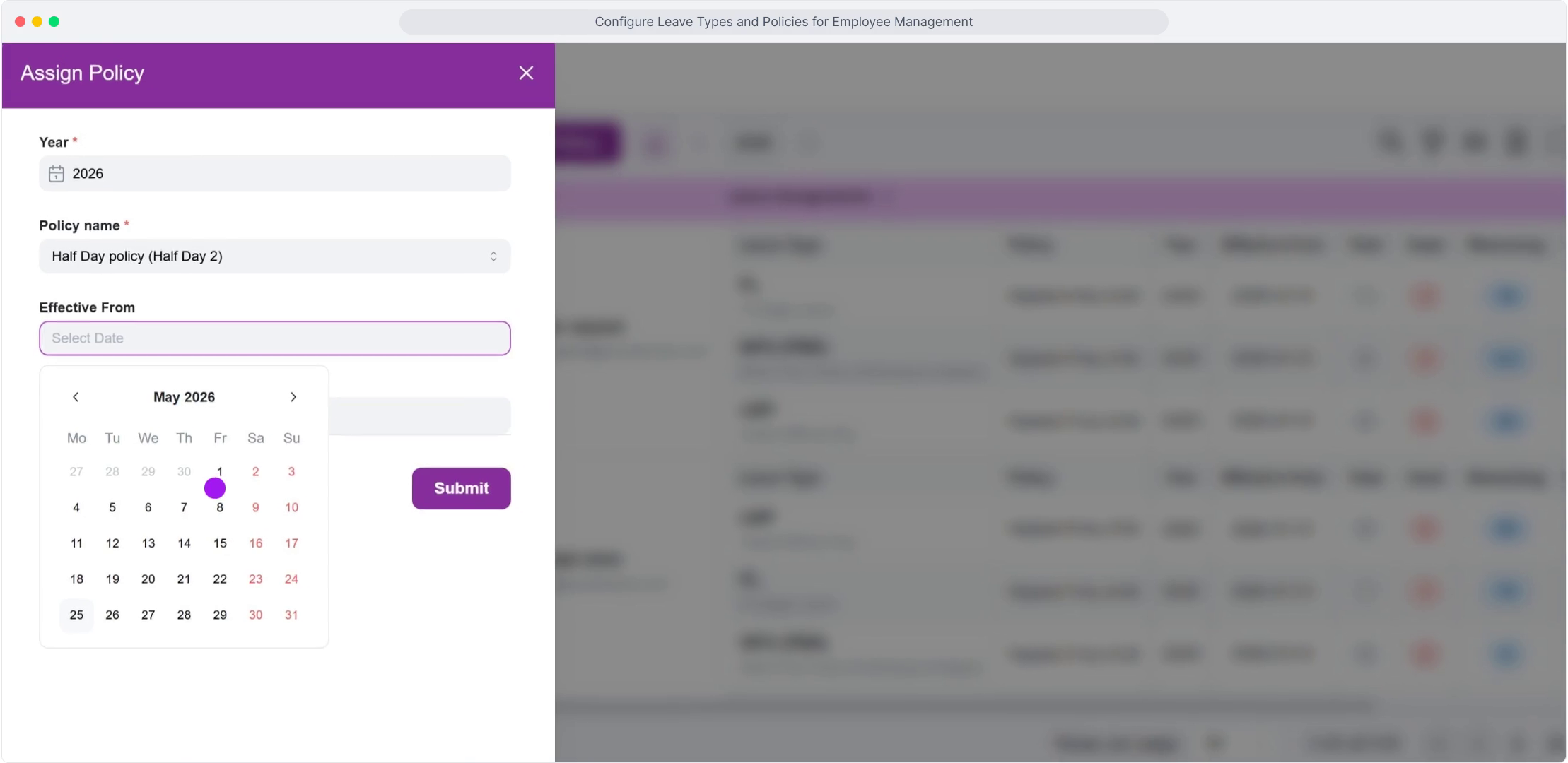
- Set the Effective From date—the day the policy starts applying to this employee's leave balance calculations.
- In the Employee Code field, search for and select the employee by name or code.
- Click Submit. You'll see a Leave Policy Added Successfully confirmation, and the assignment appears in the Assign Leave Policy table with columns for Policy Name, Leave Type, Allowed Absence, Carry Forward, Paid, and WFH status — giving you a full audit trail of what's assigned to whom.
FAQ
Can I assign the same policy to multiple employees at once?
Assignments are made per employee to keep effective dates and leave balances accurate for each individual, but you can move through your employee list quickly, repeating the same policy selection each time for a batch of similar employees.
What if I assign a new policy to someone mid-year?
Set the Effective From date to when the new policy should start applying; balances are calculated from that date forward, while anything taken before that date stays correctly attributed to whichever policy was active at the time.
Where can I see all current assignments?
The Assign Leave Policy table lists every active assignment with its policy, leave type, and quota details in one place, filterable and searchable by employee or policy name.
What happens if an employee has no policy assigned?
Without an assigned policy, an employee typically won't be able to submit leave requests correctly for that leave type, since the system has no quota to check the request against—this is the most common reason a new employee can't apply for leave right after onboarding.
Is this article helpful?
Help us improve our articles.